SINUMERIK 840D sl. Training. Operate - Turning (2016-2020) - page 10
SinuTrain for SINUMERIK Operate
Hinweis
Sie haben die Möglichkeit, den Hinweis auf Datenverlust für zukünftige
Löschvorgänge auszuschalten. Aktivieren Sie hierfür das Kontrollkästchen "Diesen
Hinweis nicht wieder anzeigen".
Wählen Sie im Anwendungsmenü den Befehl SinuTrain Einstellungen... und
aktivieren Sie das Kontrollkästchen "Vor dem Löschen auf möglichen Datenverlust
hinweisen", um den Hinweis für zukünftige Löschvorgänge wieder einzuschalten.
4.3.7
Anwendervorlagen verwalten
Sie haben die Möglichkeit, die von Ihnen konfigurierten Maschinen als
Anwendervorlage zu speichern. Diese Maschinenkonfigurationen stehen Ihnen so als
Ausgangspunkt für spätere Neuanlagen von Maschinen zur Verfügung.
Voraussetzung
Sie verfügen über eine Lizenz.
Anwendervorlage erstellen
1. Selektieren Sie in der Maschinenübersicht die Maschinenkonfiguration, die Sie
als Anwendervorlage speichern wollen.
2. Wählen Sie den Befehl Maschine > Als Anwendervorlage erstellen in der Gruppe
"Aktionen".
- ODER -
Wählen Sie aus dem Kontextmenü der rechten Maustaste "Als Anwendervorlage
erstellen".
Nach erfolgreichem Abschluss erhalten Sie eine Meldung.
3. Klicken Sie auf die Schaltfläche "OK".
Hinweis
Sie haben die Möglichkeit, den Hinweis zum erfolgreichen Abschluss für zukünftige
Erstellungen von Anwendervorlagen auszuschalten. Aktivieren Sie hierfür das
Kontrollkästchen "Diesen Hinweis nicht wieder anzeigen".
Wählen Sie im Anwendungsmenü den Befehl SinuTrain Einstellungen... und
aktivieren Sie das Kontrollkästchen "Abschluss der Erstellung von Anwendervorlagen
melden", um den Hinweis wieder einzuschalten.
Training und Programmierung
36
A5E43899500, 01/2018
SinuTrain for SINUMERIK Operate
Eigenschaften einer Anwendervorlage ändern
1. Wählen Sie den Befehl Extras > Anwendervorlagen... in der Gruppe "Verwalten".
Der Dialog "Anwendervorlagen verwalten" öffnet sich.
2. Öffnen Sie die Auswahlliste "Vorlage" und wählen Sie die Vorlage, die Sie ändern
wollen.
Nach der Auswahl werden im Anzeigefeld "Erstellt mit CNC-SW" der
Steuerungstyp und die Software-Version der gewählten Maschine angezeigt.
3. Geben Sie im Feld "Name" gegebenenfalls einen neuen Namen ein.
4. Geben Sie im Eingabefeld "Beschreibung" eventuell eine Kurzbeschreibung ein.
5. Wenn Sie für die Darstellung der Maschine in der Maschinenübersicht ein
eigenes Bild verwenden wollen, klicken Sie auf die Schaltfläche "..." neben dem
Feld "Maschinenbild", navigieren Sie zum Ablageort der Grafik (*.png,*.jpg,*.bmp)
und klicken Sie auf "Öffnen".
Sie kehren in den Dialog "Anwendervorlagen verwalten" zurück. Der Ablagepfad
und das Vorschaubild werden angezeigt.
6. Wählen Sie die Auflösung der Maschinensimulation.
7. Wenn Sie für die Kennzeichnung der Vorlage in der Auswahlliste ein eigenes Bild
verwenden wollen, klicken Sie auf die Schaltfläche "..." neben dem Feld
"Vorlagenbild", navigieren Sie zum Ablageort der Grafik (*.png,*.jpg,*.bmp) und
klicken Sie auf "Öffnen".
8. Klicken Sie auf die Schaltfläche "Speichern", um die Änderungen zu bestätigen.
Anwendervorlage löschen
1. Wählen Sie den Befehl Extras > Anwendervorlagen... in der Gruppe "Verwalten".
Der Dialog "Anwendervorlagen verwalten" öffnet sich.
2. Öffnen Sie die Auswahlliste "Vorlage" und wählen Sie die Vorlage, die Sie
löschen wollen.
3. Klicken Sie auf die Schaltfläche "Löschen" und bestätigen Sie die
Sicherheitsabfrage mit "OK".
4.3.8
Programm ausdrucken
Sie haben die Möglichkeit, den Inhalt von Textdateien (z. B. NC-Programme) mit
einem am PC konfigurierten Drucker (lokale Drucker, Netzwerkdrucker) direkt über
SinuTrain aus der SINUMERIK Operate Bedienoberfläche zu drucken.
Sie können G-Code-Programm sowie ShopMill- bzw. ShopTurn-
Arbeitsschrittprogramme mit G-Code drucken.
Training und Programmierung
A5E43899500, 01/2018
37
SinuTrain for SINUMERIK Operate
Layout festlegen
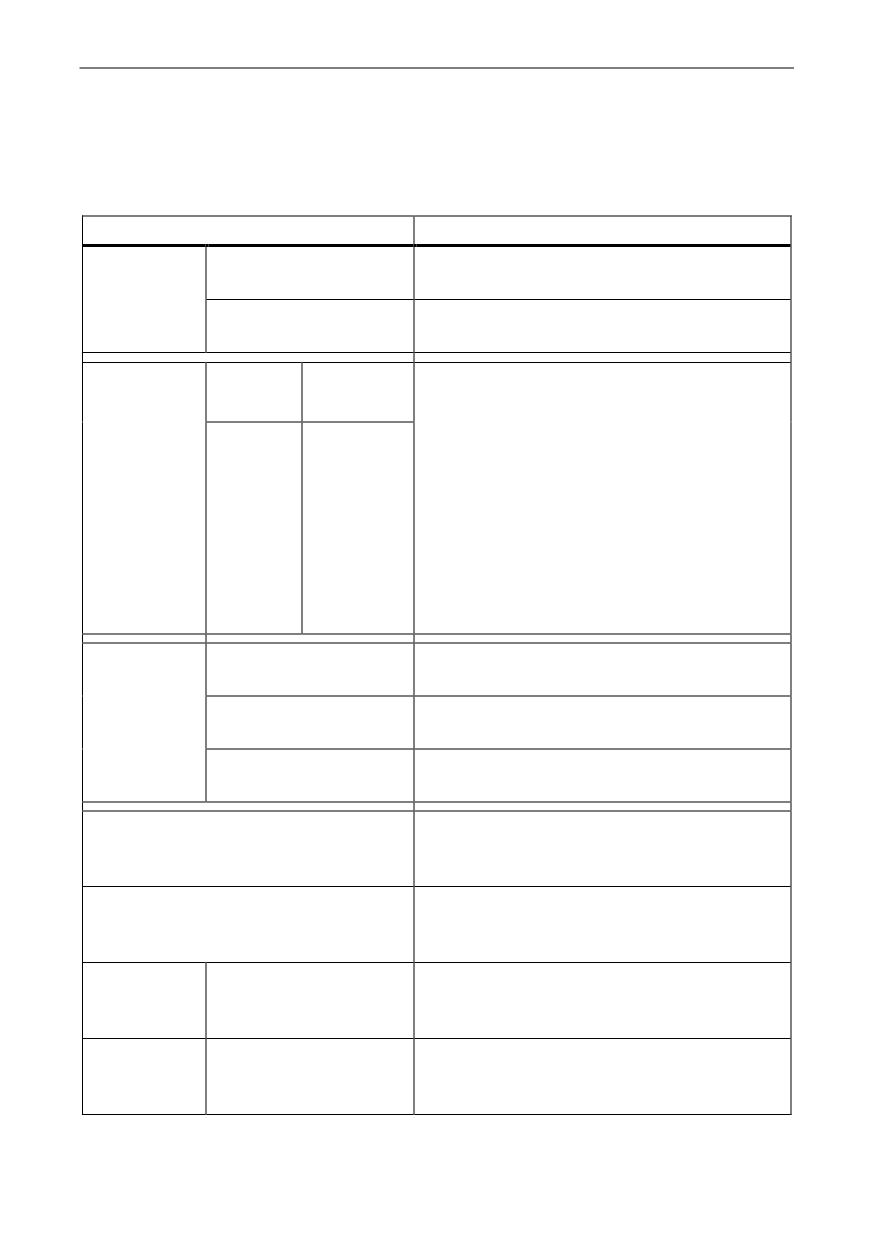
Im Dialog "NC-Programm drucken" wählen Sie den Drucker und legen das Layout für
den Druck fest. Dazu bestimmen Sie den Umfang des NC-Programms, der gedruckt
werden soll, und konfigurieren die Darstellung des Programms.
Einstellungen
Auswirkung
Drucker
Hier wählen Sie einen Drucker aus der
Liste der am PC konfigurierten Drucker.
Druckereigenschaften
Öffnet das Fenster "Eigenschaften" des
gewählten Druckers.
Ränder
Hier definieren Sie die Seitenränder des
(mm)
Ausdrucks.
Links:
Rechts:
Legt den Abstand zwischen oberem,
Oben:
Unten:
unterem, rechtem und linkem Seitenrand
und dem jeweiligen Rand der Zeilen in mm
fest.
Hinweis: Für einige Drucker können im
Druckertreiber zusätzliche Druckränder
eingestellt werden. Diese Druckränder
werden dann zu den hier angegebenen
Rändern addiert.
Druck-
Hier legen Sie den Umfang des
bereich
Programmausdrucks fest.
Alles
Legt fest, dass das ganze NC-Programm
ausgedruckt wird.
Ausgewählter Bereich
Legt fest, dass nur der im Editor markierte
Teil des NC-Programms ausgedruckt wird.
Programme als Text drucken
Legt fest, dass Arbeitsschrittprogramme
(ShopMill/ShopTurn) als G-Code
ausgedruckt werden.
Programme mit grafischen
Legt fest, dass Arbeitsschrittprogramme
Abbildungen drucken
(ShopMill/ShopTurn) so gedruckt werden,
wie sie im Editor erscheinen.
Programme mit
Legt fest, dass zusätzlich die
Eingabemasken
Parametermasken für die Arbeitsschritte
drucken
ausgedruckt werden.
Zugeklappte Blöcke
Legt fest, dass bei Verwendung von
drucken
Programmblöcken die Programmsätze in
den Blöcken mit ausgedruckt werden.
Training und Programmierung
38
A5E43899500, 01/2018
SinuTrain for SINUMERIK Operate
Voraussetzung
Um aus der SINUMERIK Operate Bedienoberfläche zu drucken, benötigen Sie außer
in DEMO Maschinen eine Lizenz.
Vorgehensweise
1.
Wählen Sie im Ablageverzeichnis des Programm-Managers das
Programm, das Sie ausdrucken wollen.
2.
Positionieren Sie den Cursor auf das Programm und drücken Sie
den Softkey "Öffnen".
Das Programm öffnet sich im Editor.
3.
Wählen Sie den Befehl Maschine > NC-Programm drucken... in
der Gruppe "Drucken".
Der Dialog "NC-Programm drucken" öffnet sich mit dem
aktivierten Standarddrucker.
4.
Wählen Sie den Drucker und ändern Sie gegebenenfalls die
Druckereigenschaften.
5.
Geben Sie die Abstände für die Seitenränder ein und legen Sie
den Druckbereich und die Darstellungsform des Programms fest.
6.
Klicken Sie auf die Schaltfläche "Drucken".
Je nach Festlegung des Druckbereichs wird das gesamte
Programm oder ein markierter Bereich des Programms
ausgedruckt.
Training und Programmierung
A5E43899500, 01/2018
39
SinuTrain for SINUMERIK Operate
4.4
Problembehandlung
4.4.1
Unerwartetes Beenden von SinuTrain
In bestimmten Situationen erzwingt das Betriebssystem das Beenden aller laufenden
Programme, z. B.:
● Beim Abmelden des aktuellen Benutzers.
● Beim Neustart des Computers nach Updates.
Falls in diesem Moment SinuTrain läuft und eine Maschine gestartet wurde, werden
die Daten der gestarteten Maschine nur teilweise gesichert und SinuTrain beendet.
Gesicherte Daten
ACHTUNG
Datenverlust
Da SinuTrain schnellstmöglich vom Betriebssystem beendet werden muss, werden
nur die NCK-Daten der gestarteten Maschine gesichert. Änderungen an den HMI-
Daten werden nicht gespeichert.
Um alle Daten zu sichern, fahren Sie regelmäßig die Maschine herunter.
Sicherungsdaten:
Keine Sicherungsdaten:
· NCK-Daten
· Sämtliche neu hinzugekommene
Anwenderdaten im HMI-Verzeichnis
· Geänderte HMI-Einstellungen z. B.
die HMI-Sprache
Wiederherstellung der Daten
Die NCK-Daten der betroffenen Maschine werden automatisch wiederhergestellt,
sobald sich der betroffene Benutzer erneut anmeldet, SinuTrain aufruft und die
Maschine startet.
Die gewünschten HMI-Einstellungen müssen manuell geändert werden.
4.4.2
Trace erstellen
Sollten beim Arbeiten mit SinuTrain Probleme auftreten, haben Sie die Möglichkeit,
einen Trace zu erstellen.
Aktivieren Sie dazu das Tool "SinuTrain for SINUMERIK Operate Trace". Das Tool
protokolliert dann die nächste SinuTrain-Sitzung in eine Textdatei. Dabei werden alle
Ereignisse, Abläufe und Meldungen aufgezeichnet, die für eine Fehlersuche relevant
sind. Diese Textdatei senden Sie zur Analyse an die Hotline.
Training und Programmierung
40
A5E43899500, 01/2018
SinuTrain for SINUMERIK Operate
Hinweis
Das Aktivieren und Deaktivieren des Tools ist nur möglich, wenn SinuTrain vorher
beendet wurde.
Die Einstellungen für die Traces können nur geändert werden, wenn das Tool
deaktiviert ist.
Ablage der Daten
Nach dem Start von SinuTrain for SINUMERIK Operate Trace können Sie das
Ablageverzeichnis für die Trace-Dateien frei wählen.
Mit jedem neuen Start von SinuTrain wird dort ein Unterverzeichnis mit Datums- und
Zeitangabe im Namen angelegt, in das die aktuelle Trace-Datei gespeichert wird.
Zur Klärung eines Problems kann es hilfreich sein, mehrere Trace-Dateien
gleichzeitig zu analysieren. Deshalb wird eine Trace-Historie erstellt. Die Anzahl der
gespeicherten Protokolle ist bis maximal 20 Dateien wählbar.
Hinweis
Änderungen an den Einstellungen zur Ablage der Trace-Dateien werden erst beim
nächsten Start von SinuTrain wirksam.
Das bedeutet, wenn eine bereits existierende Trace-Historie reduziert wird, bleibt die
Anzahl der Traces solange bestehen bis SinuTrain for SINUMERIK Operate Trace
aktiviert und SinuTrain gestartet wurde.
Vorgehensweise
1. Stellen Sie sicher, dass SinuTrain beendet wurde.
2. Navigieren Sie zum Installationsverzeichnis von SinuTrain (Standardpfad:
"C:\Programme (x86)\SIEMENS\SinuTrain") und öffnen Sie den Ordner
"SinuTrain Workbench".
3. Doppelklicken Sie auf die Datei "sinutraintrace.exe".
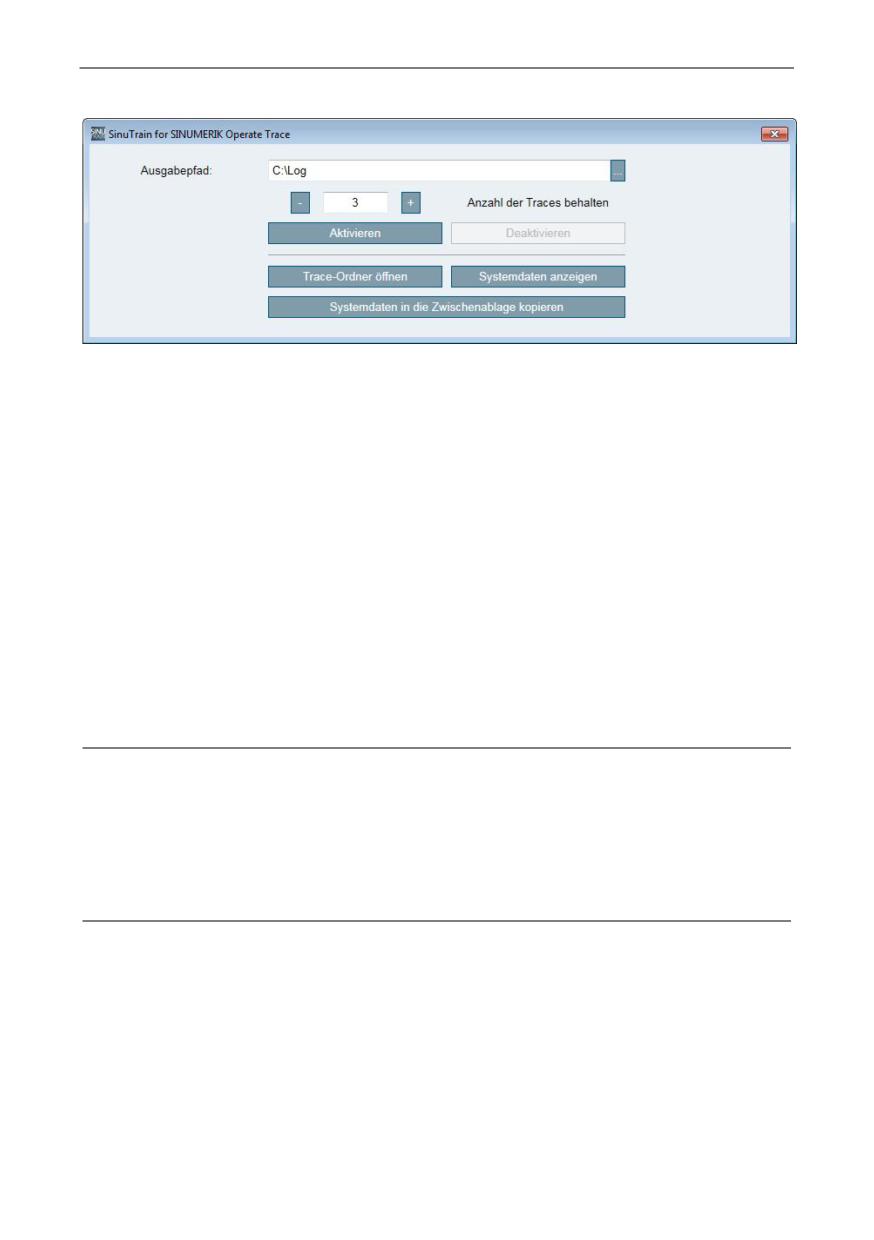
Das Tool "SinuTrain for SINUMERIK Operate Trace" wird geöffnet.
In "Ablagepfad" wird der Pfad zu dem Ordner angezeigt, in dem die Trace-Datei
abgelegt wird.
Training und Programmierung
A5E43899500, 01/2018
41
SinuTrain for SINUMERIK Operate
4. Ändern Sie gegebenenfalls den Ausgabepfad.
Klicken Sie auf die Schaltfläche "..." und navigieren Sie zu dem gewünschten
Ablageort, klicken Sie auf die Schaltfläche "Neuen Ordner erstellen", vergeben
Sie einen Namen und klicken Sie auf die Schaltfläche "OK".
5. Legen Sie die maximale Anzahl der gespeicherten Textdateien fest.
6. Klicken Sie auf die Schaltfläche "Aktivieren".
7. Starten Sie SinuTrain und reproduzieren Sie die Schritte, die zu dem Problem
führten.
8. Wechseln Sie zum Trace-Tool und klicken auf die Schaltfläche "Trace-Ordner"
öffnen.
9. Kopieren Sie die im Ordner abgelegte Datei "sitrace.txt" und senden Sie diese
per Mail an den Technical Support (Seite 3) zur Analyse.
10. Wenn Sie das Trace-Tool deaktivieren wollen, müssen Sie SinuTrain vorher
wieder beenden.
Hinweis
Informationen zu Systemdaten
Sie haben die Möglichkeit sich mit Hilfe der Schaltfläche "Systemdaten anzeigen"
Informationen zum Betriebssystem, zu den Prozessoren und zur aktuellen
Speicherbelegung anzeigen zu lassen. Über die Schaltfläche "Systemdaten in die
Zwischenablage kopieren" speichern Sie diese Daten zur Weiterleitung an die
Hotline in die Zwischenablage.
Training und Programmierung
42
A5E43899500, 01/2018
5
Ergänzende Dokumentationen
5.1
Bedienhandbücher und Trainingsanleitungen
Bei der Bedienung in SinuTrain haben Sie die Möglichkeit, die kontextsensitive
Online-Hilfe von SINUMERIK Operate über die HELP-Taste zu verwenden.
Zusätzlich stehen ergänzende und weiterführende Bedienhandbücher und
Trainingsunterlagen in sechs Sprachen (Deutsch, Englisch, Französisch, Italienisch,
Spanisch, Chinesisch vereinfacht) zur Verfügung.
Hinweis
Ist eine fremdsprachige Version eines Dokumentes nicht verfügbar, steht Ihnen
alternativ die englische Ausgabe zur Verfügung.
Bedienanleitungen und Trainingsunterlagen
●
Einfacher Fräsen mit ShopMill
- Grundlagen zu Fräsen
- Handhabung des Programms
- Schritt-für-Schritt-Anleitungen zur Programmierung und Bearbeitung
verschiedener Beispiele
●
Einfacher Drehen mit ShopTurn
- Grundlagen zu Drehen
- Handhabung des Programms
- Schritt-für-Schritt-Anleitungen zur Programmierung und Bearbeitung
verschiedener Beispiele
●
Fräsen
- Ausführliches Bedienhandbuch für SINUMERIK Operate auf SINUMERIK
840D sl/828D mit der Ausprägung Fräsen.
●
Drehen
- Ausführliches Bedienhandbuch für SINUMERIK Operate auf SINUMERIK
840D sl/828D mit der Ausprägung Drehen.
●
Universal
- Ausführliches Bedienhandbuch für SINUMERIK Operate auf SINUMERIK
840D sl mit der Ausprägung Universal (ohne Zyklenbeschreibungen).
●
Grundfunktionen
- Ausführliches Funktionshandbuch mit Beschreibung von SINUMERIK
Grundfunktionen.
Training und Programmierung
A5E43899500, 01/2018
43
Ergänzende Dokumentationen
● Programmierhandbuch Grundlagen
- Programmierhandbuch für Anwender mit Grundkenntnissen in Bohr-, Fräs-
und Drehbearbeitungen.
- Einfache Programmierbeispiele, die auch nach DIN 66025 bekannte Befehle
und Anweisungen erläutert.
● Programmierhandbuch Arbeitsvorbereitung
- Ausführliches Programmierhandbuch mit Beschreibung sämtlicher Parameter.
● Funktionshandbuch ISO Dialekte
- Beschreibung für die Inbetriebnahme und Abarbeitungsmöglichkeit von
Teileprogrammen externer CNC-Systeme.
● Programmierhandbuch ISO Fräsen
- Ausführliche Beschreibung der Besonderheiten der Programmierung im ISO-
Mode für die Ausprägung Fräsen.
Programmierhandbuch ISO Drehen
- Ausführliche Beschreibung der Besonderheiten der Programmierung im ISO-
Mode für die Ausprägung Drehen.
Training und Programmierung
44
A5E43899500, 01/2018
A
Anhang
A.1
Menübefehle
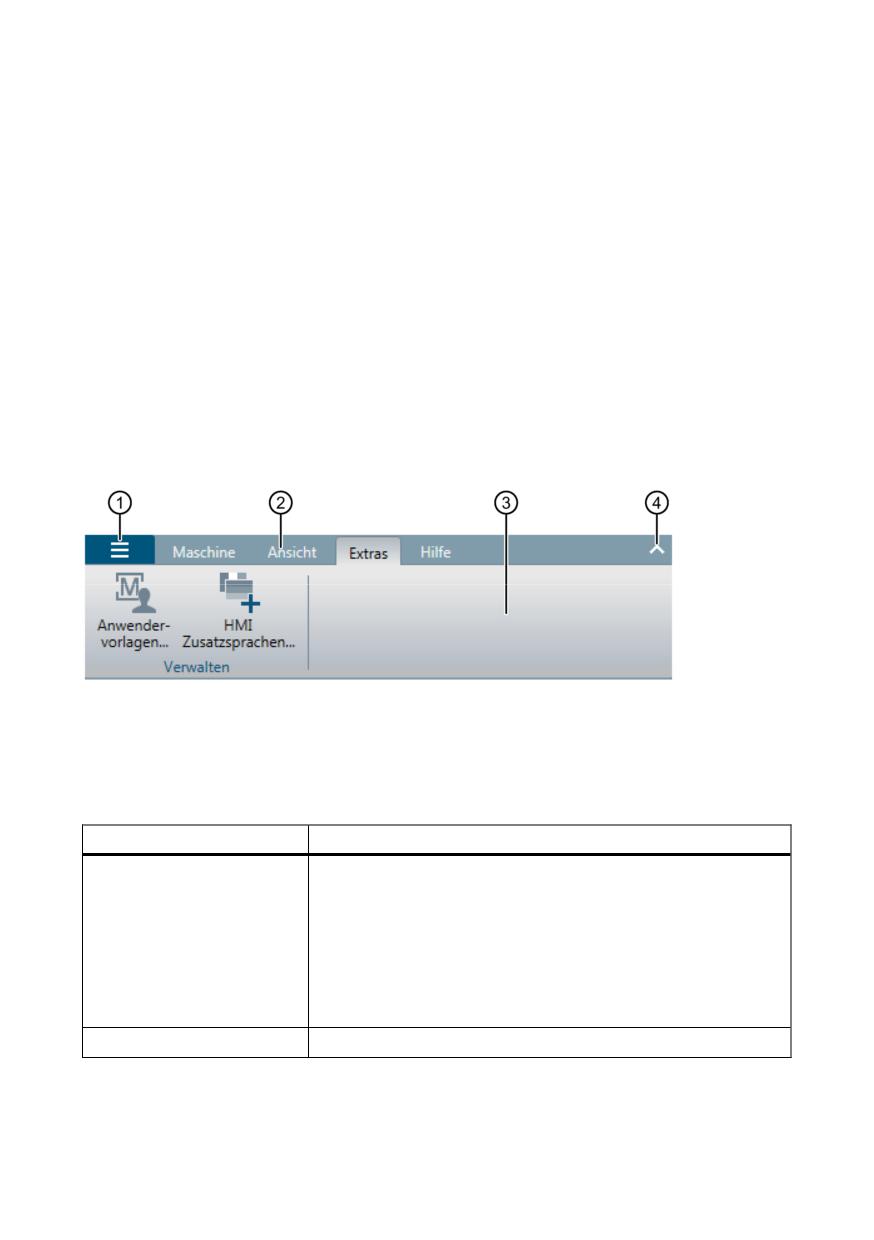
Die Befehle zur Bedienung von SinuTrain sind in einem Menüband organisiert.
Dieses Menüband enthält neben dem Anwendungsmenü folgende Register:
● Maschine
● Ansicht
● Extras
● Hilfe
① Anwendungsmenü
② Weitere Register
③ Menüband mit gruppierten Menübefehlen
④ Schaltfläche zum Minimieren bzw. Maximieren des Menübands
Befehle im Anwendungsmenü
Befehl
Funktion
SinuTrain
Wechselt in den Dialog "SinuTrain Einstellungen", um
Einstellungen...
Folgendes einzustellen:
· Wahl der Sprache der SinuTrain Oberfläche
· Aktivieren bzw. deaktivieren von Hinweismeldungen
in SinuTrain for SINUMERIK Operate (z. B. Hinweis
auf möglichen Datenverlust beim Löschen einer
SinuTrain-Maschine)
Beenden
Beendet SinuTrain for SINUMERIK Operate.
Training und Programmierung
A5E43899500, 01/2018
45
Anhang
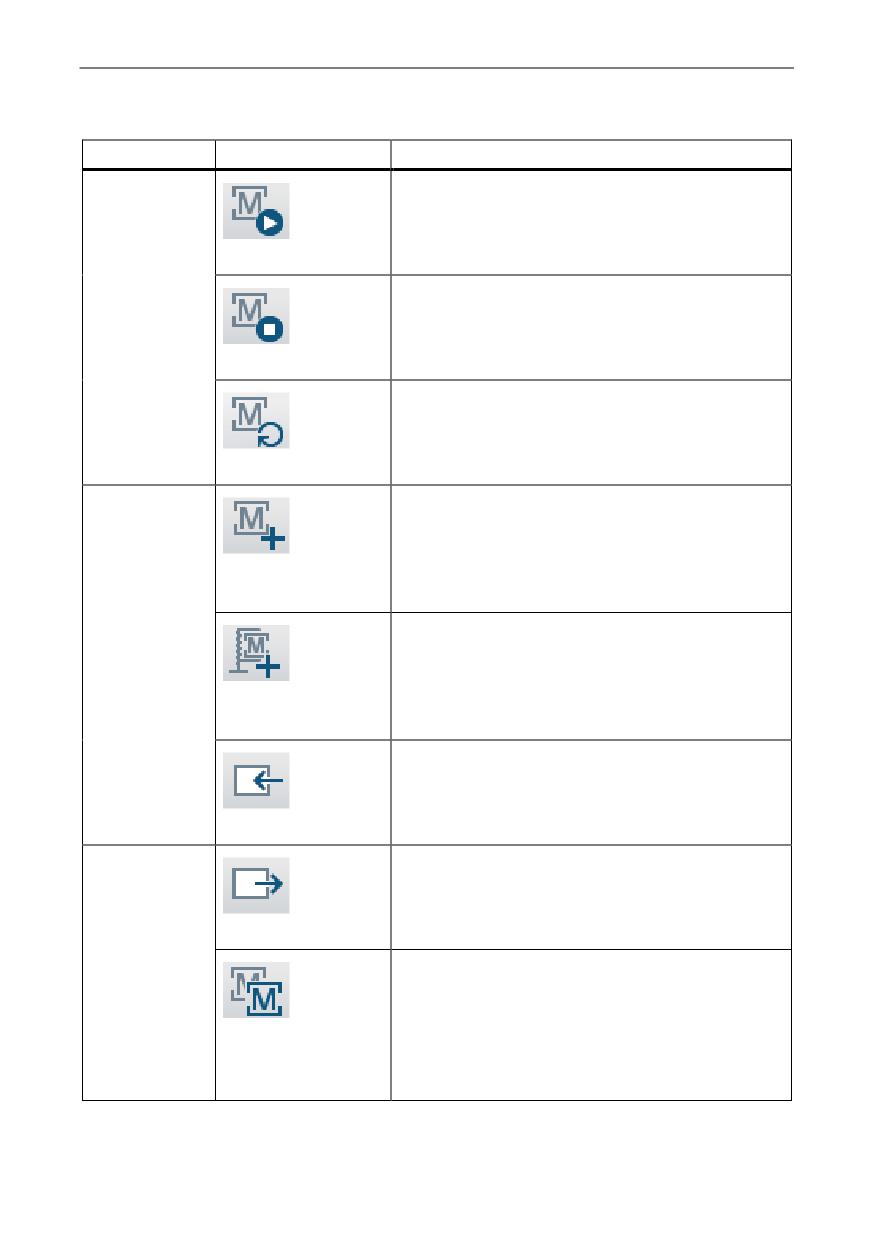
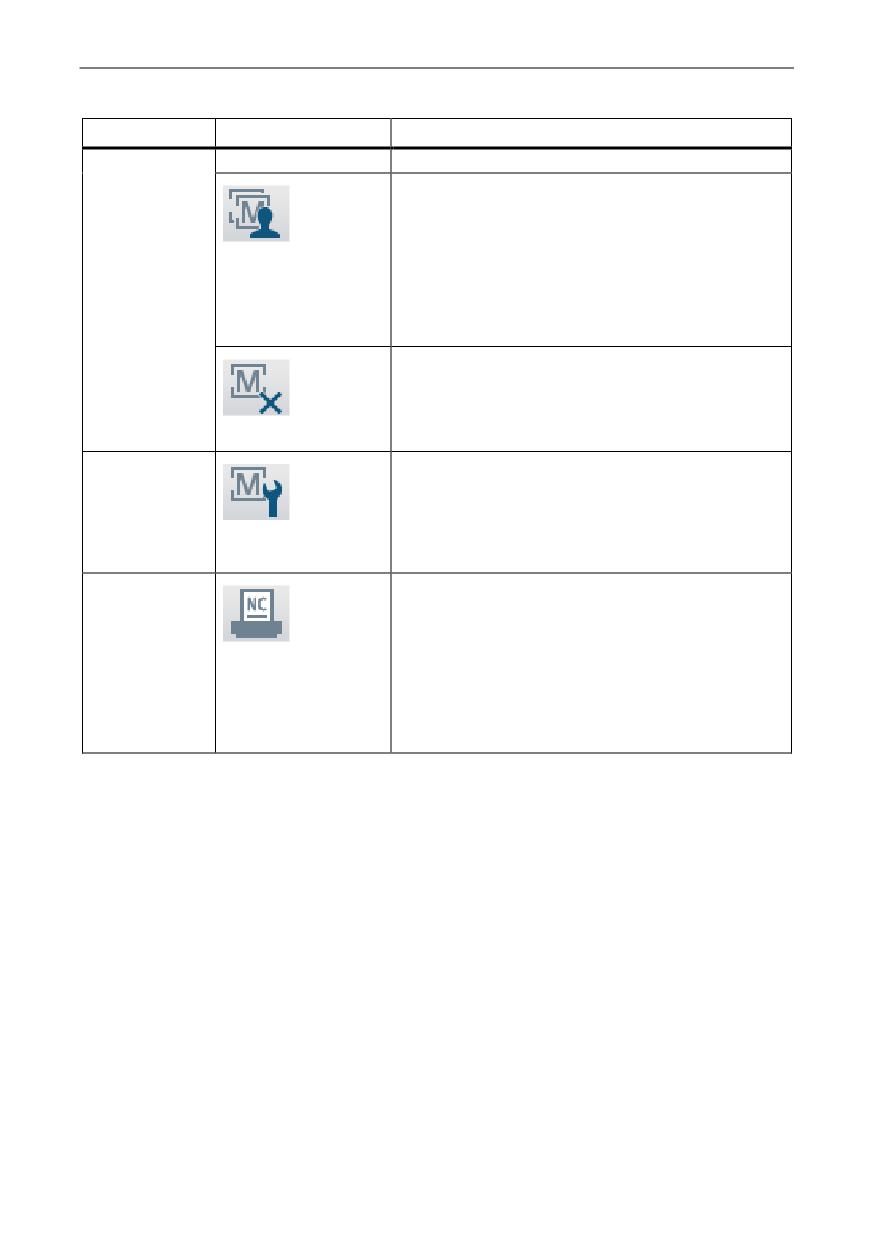
Befehle im Register "Maschine"
Gruppe
Befehl
Funktion
Bedienen
Startet die in der Maschinenübersicht
gewählte Maschinenkonfiguration.
Starten
Fährt die SinuTrain-Maschine herunter.
Die Maschinenübersicht wird geöffnet.
Herunterfahren
Fährt die SinuTrain-Maschine herunter und
startet sie anschließend wieder automatisch.
Neu starten
Neu
Wechselt in den Dialog "Neue Maschine
erstellen - Vorlage verwenden", zur Anlage
einer neuen Maschine.
aus einer
Vorlage...
Wechselt in den Dialog "Neue Maschine
erstellen - IBN-Archiv einlesen", zur Anlage
einer neuen Maschine.
aus einem IBN-
Archiv...
Wechselt in den Dialog "Neue Maschine
erstellen - Maschine importieren", um
abgelegte und gesicherte Maschinen in die
Maschinenübersicht zu übernehmen.
Importieren…
Aktionen
Öffnet den Dialog "Speichern unter", um
Maschinenkonfigurationen aus der
Maschinenübersicht abzulegen und zu
sichern.
Exportieren
Kopiert die in der Maschinenübersicht
selektierte Maschine und fügt sie der Liste der
Maschinen hinzu.
Kopieren und
Über den Befehl Maschine > Einstellungen...
einfügen
in der Gruppe "Einstellungen" ändern Sie
anschließend die Eigenschaften der kopierten
Training und Programmierung
46
A5E43899500, 01/2018
Anhang
Gruppe
Befehl
Funktion
Maschine.
Übernimmt die in der Maschinenübersicht
selektierte Maschine in die Liste der
Anwendervorlagen
Als
Über den Befehl Extras >
Anwendervorlage
Anwendervorlagen... in der Gruppe
erstellen
"Verwalten" ändern Sie anschließend die
Eigenschaften der Vorlage.
Löscht die ausgewählte SinuTrain-Maschine.
Löschen
Einstellungen
Wechselt in den Dialog "Maschine
bearbeiten", um Namen, Beschreibung,
Sprache und Maschinenbild sowie die
Auflösung der SINUMERIK Operate
Einstellungen…
Oberfläche zu ändern.
Drucken
Öffnet den Dialog "NC-Programm drucken",
um Seitenränder, Druckbereich und die
Darstellungsform für den Druck festzulegen.
NC-Programm
Anschließend starten Sie den Druck.
drucken...
Hinweis:
Nur aktiv, wenn ein Programm im Editor des
SINUMERIK Operate geöffnet ist.
Training und Programmierung
A5E43899500, 01/2018
47
Anhang
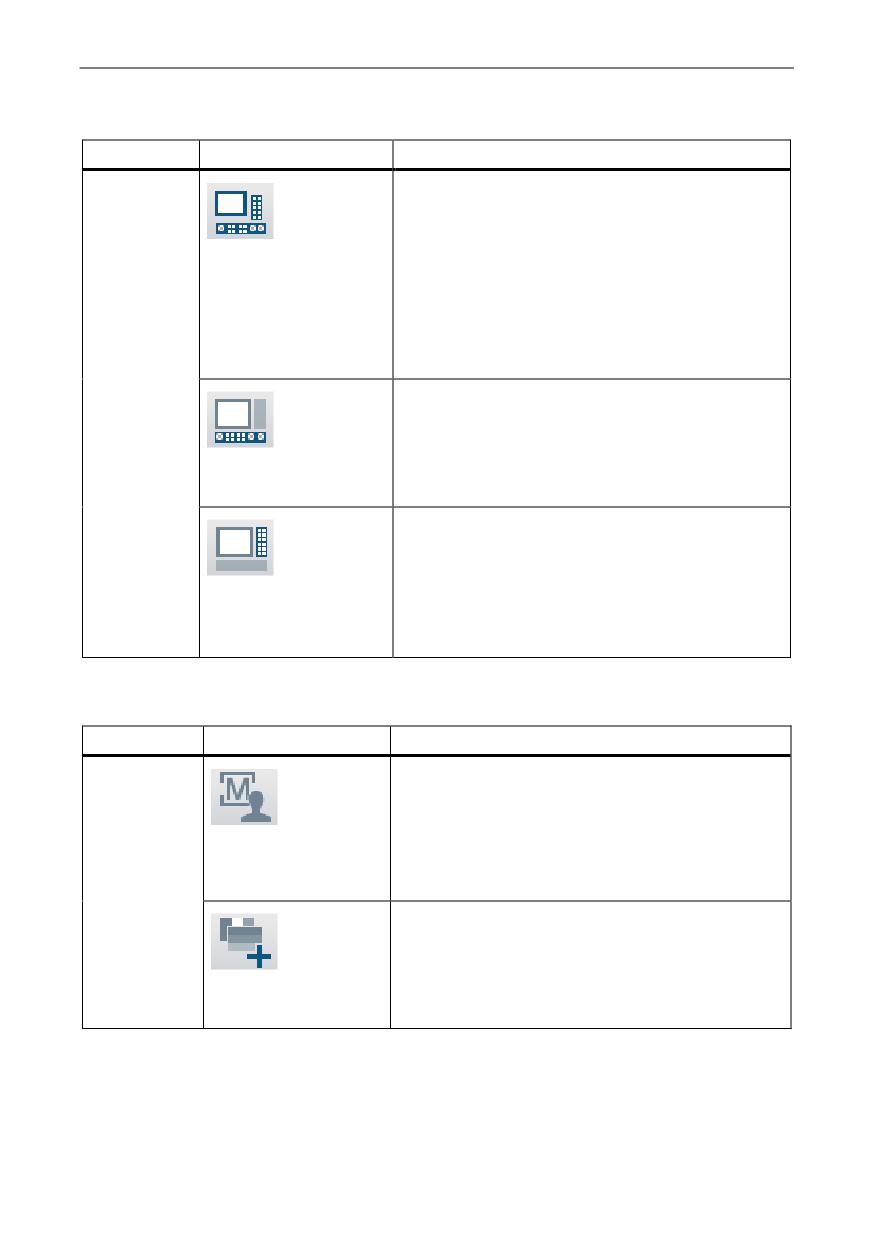
Befehle im Register "Ansicht"
Gruppe
Befehl
Funktion
Fenster
Teilt das Fenster der Maschinensimulation in
3 einzeln verschiebbare Fenster:
· Bedienoberfläche SINUMERIK Operate
In Einzelfenster
· Bedienelemente einer Bedientafel
aufteilen
· Maschinensteuertafel mit Vorschub- und
Spindeloverride
Hinweis:
Nur bei gestarteter Maschine aktiv.
Öffnet bzw. schließt das Fenster der
Maschinensteuertafel.
Hinweis:
Maschinensteuertafel
Nur bei Einzelfenstern aktiv.
einblenden
Öffnet bzw. schließt das Fenster der
Bedientafel.
Hinweis:
Bedientafel
Nur bei Einzelfenstern aktiv.
SINUMERIK Operate
einblenden
Befehle im Register "Extras"
Gruppe
Befehl
Funktion
Verwalten
Wechselt in den Dialog "Anwendervorlagen
verwalten", um Namen, Beschreibung,
Maschinen- und Vorlagenbild sowie die
Anwendervorlagen...
Auflösung der SINUMERIK Operate
Oberfläche einer Anwendervorlage zu ändern
oder eine Anwendervorlage zu löschen.
Wechselt in den Dialog "HMI Zusatzsprachen
installieren", um zusätzliche verfügbare
Sprachen für SINUMERIK Operate zu
installieren.
HMI
Zusatzsprachen...
Training und Programmierung
48
A5E43899500, 01/2018
Anhang
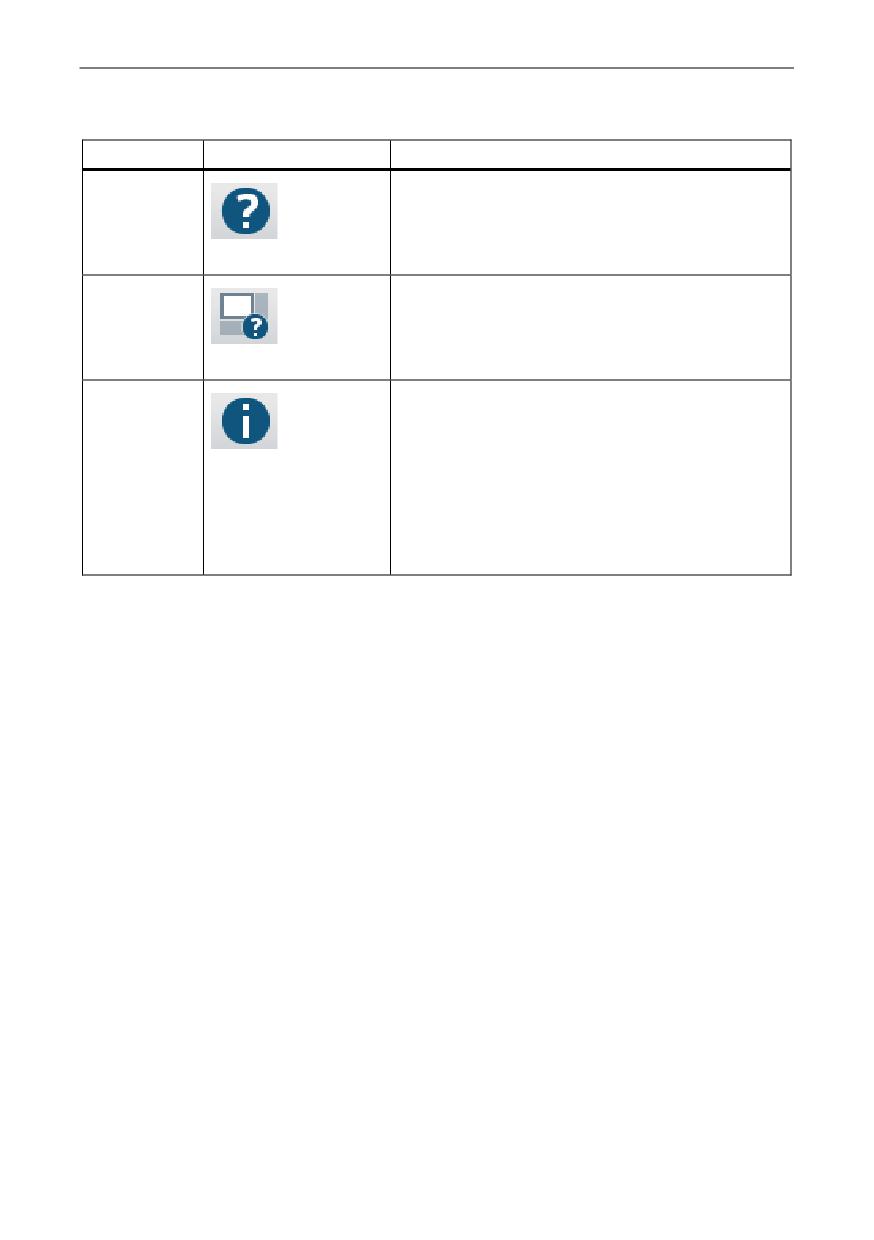
Befehle im Register "Hilfe"
Gruppe
Befehl
Funktion
SinuTrain
Öffnet die Online-Hilfe für SinuTrain for
SINUMERIK Operate.
Hilfe zu SinuTrain
CNC-SW
Öffnet die Online-Hilfe für die
releasespezifischen Informationen.
Die Befehle sind abhängig von den
Softwareversion
installierten CNC-Softwareständen.
Version
Wechselt in den Dialog "Über SinuTrain for
SINUMERIK Operate", in dem Sie folgende
Informationen erhalten:
Info...
· Produktversion des installierten SinuTrain
for SINUMERIK Operate
· Im Bereich "Installierte SINUMERIK CNC-
SW Pakete" Angabe der Versionen aller
CNC-Software Pakete
Training und Programmierung
A5E43899500, 01/2018
49

Anhang
A.2
Kontextmenü
In der Maschinenübersicht steht Ihnen für jede Maschinenkachel ein Kontextmenü
mit folgenden Befehlen zur Verfügung:
Befehl
Funktion
Starten
Startet diese Maschinenkonfiguration.
Exportieren
Öffnet den Dialog "Speichern unter", um diese
Maschinenkonfigurationen zu exportieren.
Kopieren und einfügen
Kopiert diese Maschine und fügt Sie der Liste der
Maschinen hinzu.
Über den Befehl Maschinen > Einstellungen... in der
Gruppe "Einstellungen" oder "Einstellungen..." im
Kontextmenü ändern Sie anschließend die Eigenschaften
der kopierten Maschine.
Als Anwendervorlage
Erstellt eine Anwendervorlage aus dieser Maschine.
erstellen
Über den Befehl Extras > Anwendervorlagen... in der
Gruppe "Verwalten" ändern Sie anschließend die
Eigenschaften der erstellten Vorlage.
Löschen
Löscht diese Maschine.
Einstellungen…
Wechselt in den Dialog "Maschine bearbeiten", um
Namen, Beschreibung, Sprache und Maschinenbild sowie
die Auflösung der SINUMERIK Operate Oberfläche zu
ändern.
Training und Programmierung
50
A5E43899500, 01/2018
Anhang
A.3
Bedienung mit PC-Standardtastatur
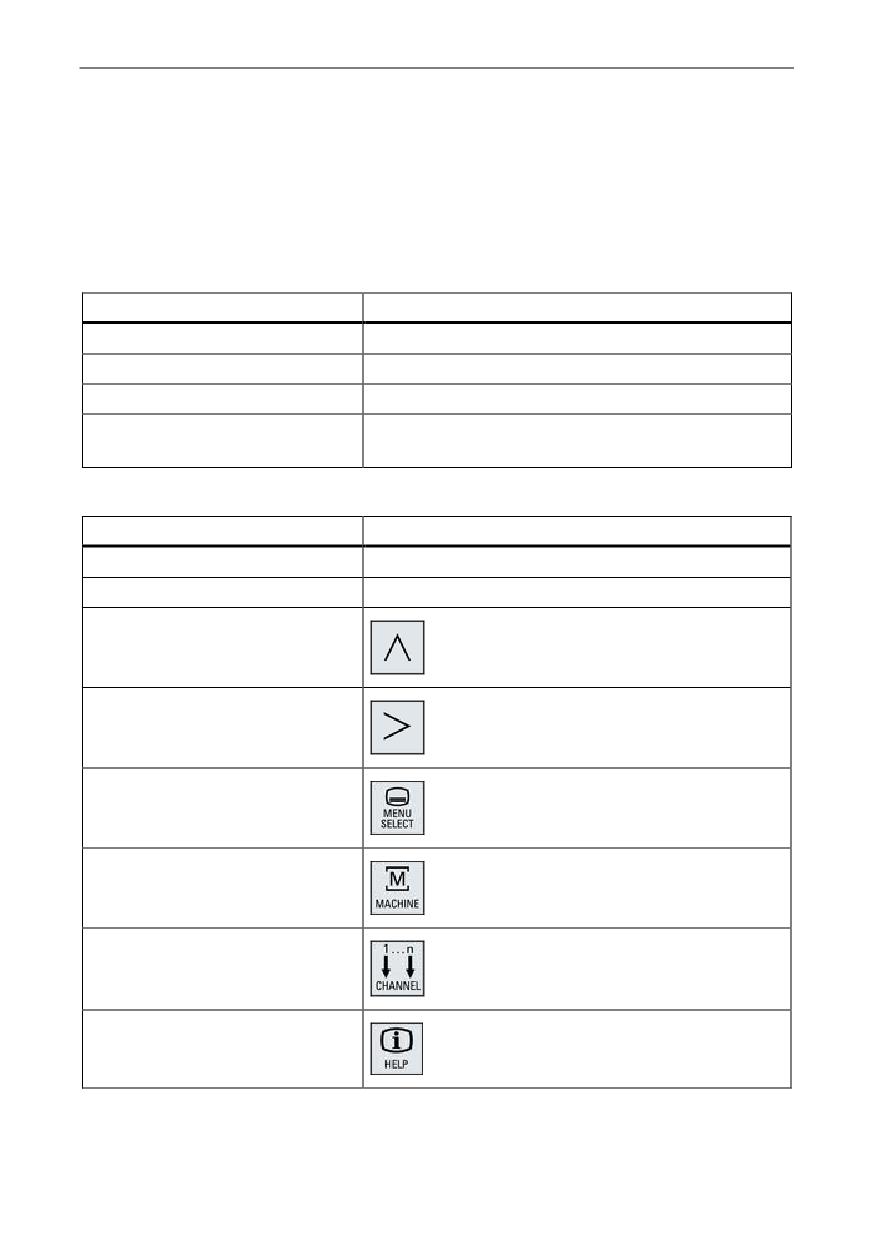
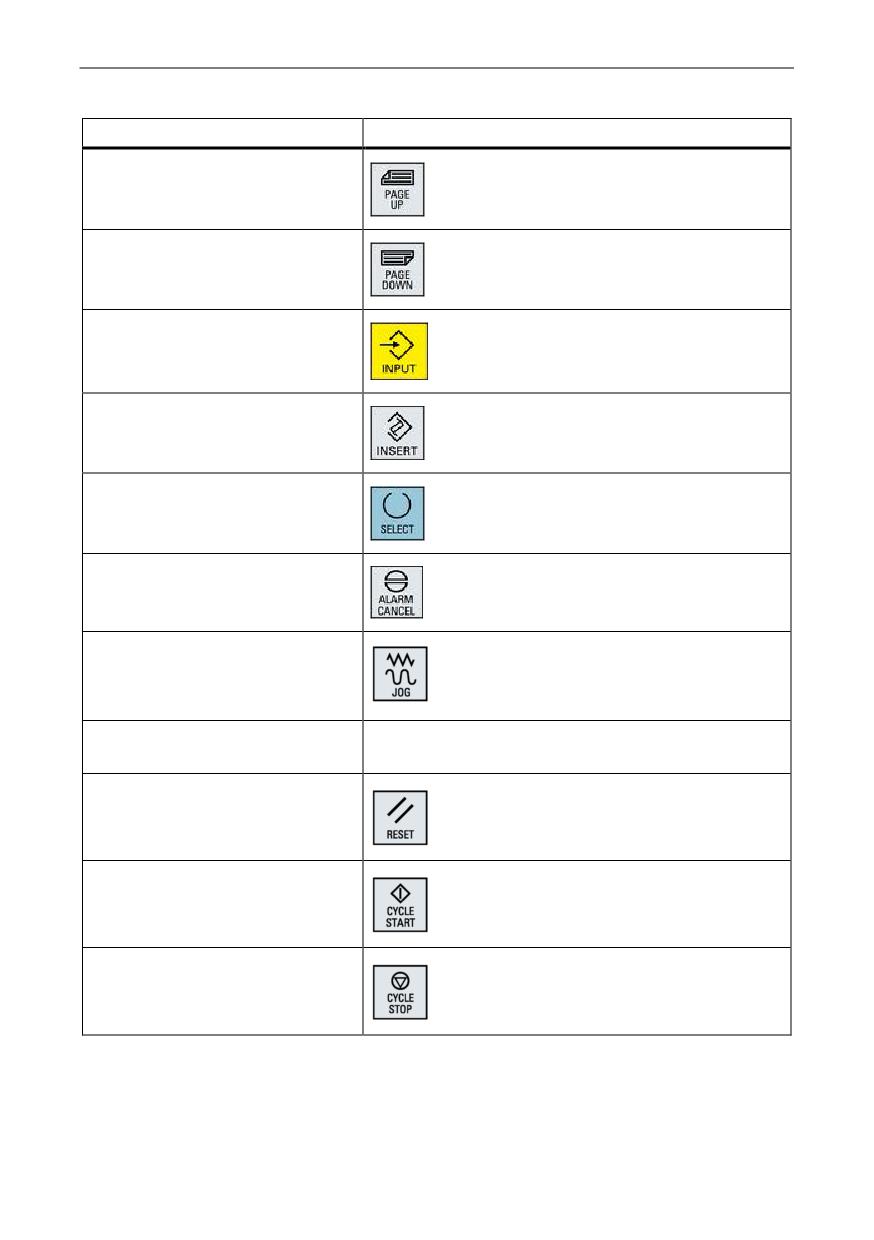
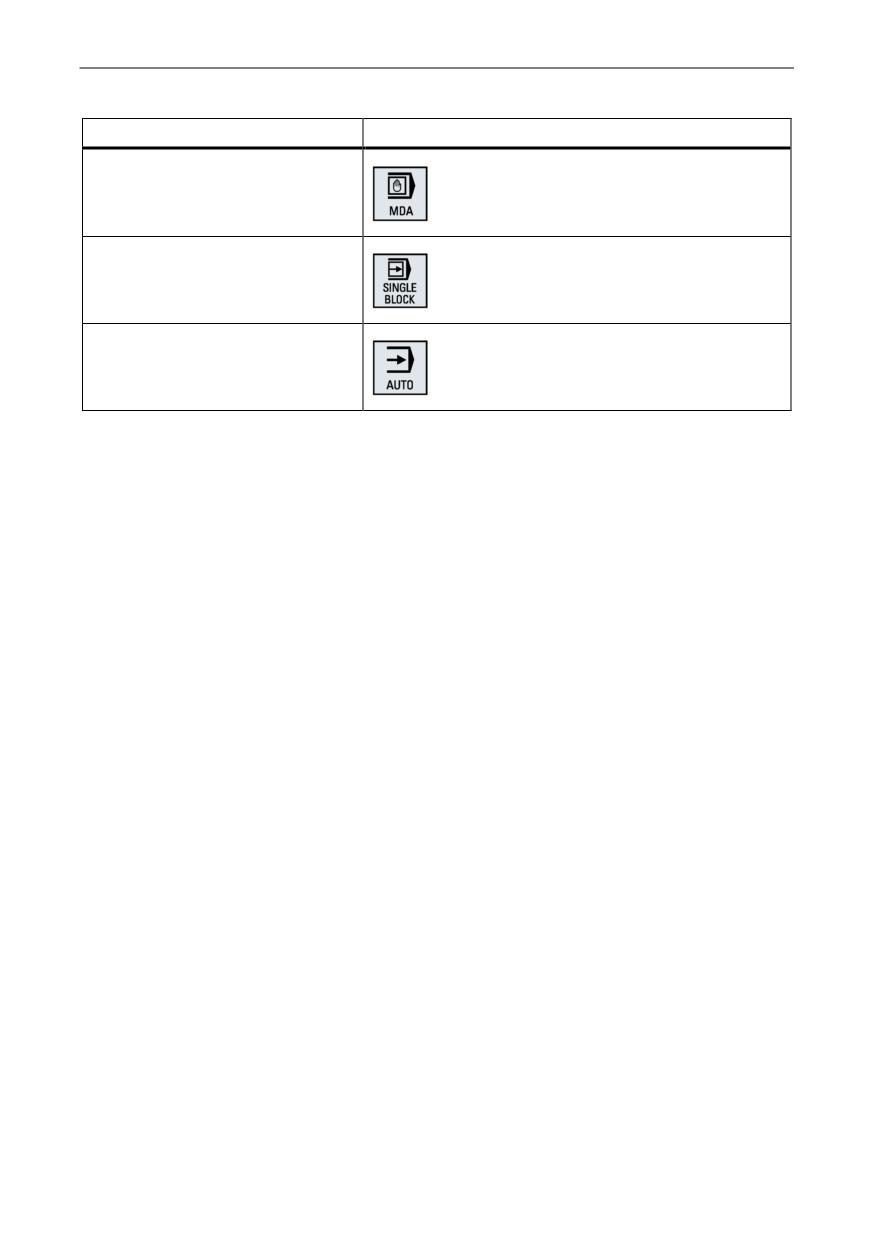
Zur Bedienung von SinuTrain for SINUMERIK Operate stehen folgende Tasten und
Tastenkombinationen zur Verfügung.
Tastaturbefehle in der Maschinenübersicht
PC-Tastatur
Funktion
< ↵ > oder <Enter>
Starten der selektierten Maschine
<Entf>
Löschen der selektierten Maschine
<Strg> + <C>
Duplizieren der selektierten Maschine
<Strg> + <T>
Erstellen einer Anwendervorlage aus der
selektierten Maschine
Tastaturbefehle in der Maschinensimulation
PC-Tastatur
Funktion
<F1> ... <F8>
Horizontale Softkeys 1 bis 8
Shift + <F1> ... <F8>
Vertikale Softkeys 1 bis 8
<F9>
Shift + <F9>
<F10>
Shift + <F10>
<F11>
<F12>
Training und Programmierung
A5E43899500, 01/2018
51
Anhang
PC-Tastatur
Funktion
<Bild ↑>
<Bild ↓>
<Enter>
<Einfg>
Ziffernblock <5>
<Esc>
<Strg> + <Alt> + <Shift> + <1>
<Strg> + <Alt> + <Shift> + <2>
Die laufende SinuTrain-Maschine wird
heruntergefahren.
<Strg> + <Alt> + <Shift> + <3>
<Strg> + <Alt> + <Shift> + <4>
<Strg> + <Alt> + <Shift> + <5>
Training und Programmierung
52
A5E43899500, 01/2018
Anhang
PC-Tastatur
Funktion
<Strg> + <Alt> + <Shift> + <6>
<Strg> + <Alt> + <Shift> + <7>
<Strg> + <Alt> + <Shift> + <8>
Training und Programmierung
A5E43899500, 01/2018
53
Index
konfigurieren, 23
kopieren, 23
A
löschen, 33
Anwendervorlagen
neu starten, 31
verwalten, 34
starten, 29
Ausdruck
Maschinenkonfigurationen
Layout, 36
verwalten, 13
Automation License Manager, 8
Maschinenübersicht, 13
Menübefehle, 42
D
DEMO Maschinen, 9
N
Drucken, 35
NC-Programme
drucken, 35
E
Einstellungen
P
für Maschine, 31
PC-Standardtastatur, 47
L
Lizenzierung, 8
Lizenzmodell, 8
M
Maschine
anlegen, 20
anlegen aus IBN-Archiv, 27
anlegen aus Vorlage, 21
Einstellungen, 31
exportieren, 32
herunterfahren, 31
importieren, 24
Training und Programmierung
54
A5E43899500, 01/2018
Index
S
SINUMERIK Operate, 7
kontextsensitive Online-Hilfe, 30
Sprache ändern, 32
Zusatzsprachen installieren, 17
SinuTrain
Allgemeiner Ablauf, 13
Bedienoberfläche, 16
beenden, 20
deinstallieren, 12
installieren, 11
Maschinenübersicht, 13
Sprache ändern, 18
Sprachen, 17
starten, 19
Systemvoraussetzungen, 10
Systemvoraussetzungen
SinuTrain, 10
W
Weiterführende Druckschriften, 40
Training und Programmierung
A5E43899500, 01/2018
55
Index
Siemens AG
Division Digital Factory
Postfach 48 48
90026 NÜRNBERG
DEUTSCHLAND
Training und Programmierung
A5E43899500, 01/2018
SINUMERIK
SinuTrain for SINUMERIK Operate
Training and Programming
Compact User Manual
Preface
Welcome to the SinuTrain for SINUMERIK Operate - Training and programming at
the PC.
The training software SinuTrain for SINUMERIK Operate teaches you how to operate
and program the 840D sl control system.
SinuTrain for SINUMERIK Operate - Training and programming
This documentation supports you step-by-step for the following tasks:
● Installing the training software from DVD
● Transferring the license
● Starting the program
● Selecting the machine tool
● Starting simulation
What groups does SinuTrain for SINUMERIK Operate address?
SinuTrain for SINUMERIK Operate is designed for basic and further training of the
following target groups:
● First time users, users changing over from a different system
● Training managers, trainers
● Sales personnel for customer presentations
● CNC programmer for work preparation
© Siemens AG 2015 - 2018. All rights reserved
A5E43899500, 01/2018
57
Preface
Information
Information on the following topics is available at the link SINUMERIK Technical
● Downloading documentation
Links to more information for downloading files from the Siemens Industry Online
Support Portal.
● Compile customized documentation
MySupport/ Documentation provides you with a range of features for generating
your own machine documentation.
See also MySupport/ Documentation
● Ordering documentation
Here you can find an up-to-date overview of publications.
● Training and FAQs
Information on our range of training courses and FAQs (frequently asked
questions) is available via the page navigation.
Legal basics
This software (SinuTrain™) is used to generate and simulate NC programs on a PC
based on the DIN 66025 programming language as well as the ShopMill and
ShopTurn products and language commands of the Sinumerik™ 840D sl type. The
programs generated with the software must only be used on machine tools for
production if the software (SinuTrain/JobShop), on which the generated program
should run, has been adapted to Sinumerik.
This adaptation must be professionally performed by authorized personnel, e.g. by
Siemens, by machine tool OEMs or by dealers; when carrying out any adaptation
work, the specifications of Siemens and the machine tool OEM must always be
carefully observed. Otherwise, the machine tool could malfunction.
Otherwise, for customers in Germany, the "Allgemeinen Bedingungen zur
Überlassung von Software für Automatisierungs- und Antriebstechnik an
Lizenznehmer mit Sitz in Deutschland" applies for the software and for customers
outside Germany "General License Conditions for Software Products for Automation
and Drives for Customers with a Seat or Registered Office outside of Germany".
Training and Programming
58
A5E43899500, 01/2018
Preface
Technical Support
If you have any technical questions, please contact our hotline:
Europe / Africa
Phone
+49 (0)911 895 7222
Fax
+49 (0)911 895 7223
0.14 €/min from the German landline; cell phone charges may vary.
Internet
Americas
Phone
+1 423 262 2522
Fax
+1 423 262 2200
E-mail
techsupport.sea@siemens.com
(mailto:techsupport.sea@siemens.com)
Asia / Pacific
Phone
+86 1064 757 575
Fax
+86 1064 747 474
E-mail
support.asia.automation@siemens.com
(mailto:support.asia.automation@siemens.com)
Note
Country-specific telephone numbers for technical support are provided under the
following Internet address:
Questions about the manual
If you have any queries (suggestions, corrections) in relation to this documentation,
please fax or e-mail us:
Fax
+49 9131- 98 2176
E-mail
docu.motioncontrol@siemens.com
(mailto:docu.motioncontrol@siemens.com)
Internet address
Training and Programming
A5E43899500, 01/2018
59
Table of contents
Preface
57
1
Overview
62
2
Licensing using the Automation License Manager
63
3
License model
64
4
SinuTrain for SINUMERIK Operate
66
4.1
Installing / uninstalling SinuTrain
66
4.1.1
System requirements
66
4.1.2
Installing SinuTrain
67
4.1.3
Uninstalling SinuTrain
68
4.2
Operating SinuTrain
69
4.2.1
This is how SinuTrain functions
69
4.2.2
Machine overview
69
4.2.3
Screen layout of the machine simulation
72
4.2.4
Installing languages
73
4.2.4.1
Installing additional languages for Sinutrain
73
4.2.4.2
Installing additional languages for SINUMERIK Operate
74
4.2.5
Changing the SinuTrain language
75
4.3
Working with SinuTrain
75
4.3.1
Starting and exiting SinuTrain
75
4.3.2
Creating a machine
77
4.3.2.1
Overview
77
4.3.2.2
Creating a machine from a template
77
4.3.2.3
Copying a machine
80
4.3.2.4
Importing a machine
80
4.3.2.5
Creating a machine from the start-up archive
83
4.3.3
Starting and shutting down a machine
86
4.3.4
Changing machine settings
88
4.3.5
Exporting a machine configuration
89
4.3.6
Deleting a machine
90
4.3.7
Managing custom templates
90
4.3.8
Printing-out a program
92
4.4
Problem handling
94
4.4.1
Unexpected shutdown of SinuTrain
94
4.4.2
Creating a trace
95
5
Additional documentation
97
5.1
Operating Manual and training instructions
97
Training and Programming
60
A5E43899500, 01/2018
Table of contents
A
Appendix
99
A.1
Menu commands
99
A.2
Context menu
104
A.3
Operation with standard PC keyboard
104
Index
107
Training and Programming
A5E43899500, 01/2018
61
1
Overview
The SinuTrain for SINUMERIK Operate training software (called SinuTrain in the
following) simulates a SINUMERIK 840D sl with the SINUMERIK Operate user
interface on your PC.
Note
License
You require a license to start a machine using the full functional scope.
True to original representation and behavior
As a result of the true to original representation of the operating panel front, machine
control panel and user interface, SinuTrain facilitates real operation.
● SinuTrain includes a machine control panel with specific functions of a real
control panel (e.g. CYCLE START, operating mode etc.).
● SinuTrain includes an operator panel, with which all of the specific functions of a
real operator panel can be used (hotkey etc.).
● The user interface corresponds to the original interface of SINUMERIK Operate.
● The simulation behaves in precisely the same way as a real control.
Saving and printing NC programs
SinuTrain offers the option of saving the NC programs that you have created (G code
and machining step programs).
You also have the option of printing out a program which is open in the user interface
of SINUMERIK Operate.
Training and Programming
62
A5E43899500, 01/2018
2
Licensing using the Automation License
Manager
No license is necessary for starting the SinuTrain for SINUMERIK Operate training
software or for its basic operation.
In order to set up and start a machine with the full scope of functions in SinuTrain,
however, you will require a valid license key. The license key is a component of
SinuTrain for SINUMERIK Operate and is supplied on a USB stick.
License
Additional functions are available with a license (Page 64).
Note
Information on the license
More detailed information on licenses is available in the readme.
Transferring the license using the Automation License Manager
Precondition: USB stick with the license to be transferred.
1. Start the Automation License Manager via the icon or from the Start menu.
The Automation License Manager opens.
2. Insert the USB stick.
The USB stick is displayed under "Own computer".
3. Select the entry for the USB stick on the left-hand side.
On the right-hand side you can see the available licenses on the USB stick.
4. Transfer the license by dragging and dropping it onto the local hard disk.
- OR -
Select "Transfer..." in the shortcut menu of the license.
5. In the window that opens, select where the license should be transferred to
(target).
After the license has been transferred, this is shown on the target drive.
Training and Programming
A5E43899500, 01/2018
63
3
License model
The usage and scope of functions provided by the various template machines
depends on the availability of a license.
DEMO machines
● DEMO machines are preconfigured machines that cannot be changed.
● You do not require a license for DEMO machines.
● You can start and operate the machines.
● You can, for example, transfer workpieces and part programs to the machine for
program simulation and customization, and then from the machine for further use
on CNCs.
● Workpieces and part programs can be printed out in the program editor of
SINUMERIK Operate.
● Selected functions are not available. You can find additional information in the
help for the CNC software.
Template machines / imported machines / machines created from the start-up
archive
● You can start and operate all machines. This makes it possible for you to try all
SINUMERIK functions.
● All machines have the full functional scope of SINUMERIK Operate.
● License
- Without license
The transfer of workpieces and part programs to or from the machine is not
possible. The "Print" function in the program editor of SINUMERIK Operate is
disabled.
- With license
The transfer of workpieces and part programs to or from the machine and
their printout are possible.
Note
Importing a license subsequently
If you import a license when the machine has already been started, this causes a
restart.
Only then is it possible to use the machine without restrictions.
Training and Programming
64
A5E43899500, 01/2018
License model
Functions that require a license
For the following functions you will generally require a license:
● Importing a machine
● Exporting a machine
● Creating a machine from the start-up archive
● Managing custom templates
Training and Programming
A5E43899500, 01/2018
65
SinuTrain for SINUMERIK Operate
4
SinuTrain for SINUMERIK Operate
4.1
Installing / uninstalling SinuTrain
4.1.1
System requirements
Hardware
Processor: 2 GHz (single core)
RAM: 4 GB
Hard disk:
●
3.3 GB for complete installation with all languages
●
1.2 GB for minimal installation (English)
DVD drive: For installation using DVD data storage medium
Graphic card:
● DirectX 9 or higher with WDDM 1.0 driver
● minimum resolution 800x600 pixel
USB interface
Mouse, keyboard
Operating systems
● Windows 7 SP1 (32 bit and 64 bit; Starter, Web Edition and Embedded are not
supported)
● Windows 8.1 (32 bit and 64 bit, the RT Edition is not supported)
● Windows 10 (64 bit)
Software
Adobe Acrobat Reader®
Training and Programming
66
A5E43899500, 01/2018
SinuTrain for SINUMERIK Operate
4.1.2
Installing SinuTrain
The SinuTrain for SINUMERIK Operate software product comprises various software
components.
Note
You require a license key to start and work with machines that have been created.
When installing SinuTrain, an additional program is installed for this purpose - the
Automation License Manager. The license key is transferred to the PC using the
Automation License Manager.
Procedure
1.
Double-click the "setup.exe" in the root directory of the DVD.
When the user account control is activated, after double-clicking the "setup.exe",
a system prompt appears. With this prompt, you agree that setup can make
changes to your system (this prompt comes from Windows and is not a
component created by Siemens). Confirm this dialog and continue with the
installation.
2.
Select the setup language and click the "Next >" button.
3.
Read the notes on the installation and usage of the program and click the "Next
>" button.
4.
Click the "Readme" button to read the readme text with the product notes, then
close the readme file and click the "Next >" button.
5.
Read the license agreement and then activate the checkbox to accept the
licensing agreement and the safety instructions and click the "Next >" button.
6.
Select the languages in which you wish to install SinuTrain for SINUMERIK
Operate .
The selected languages are available in SinuTrain as well as SINUMERIK
Operate.
7.
In the "Programs" window, activate the required checkbox and click the "Next>"
button.
If you want to change the installation path of the individual products, select the
specific product, click the "Browse" button and select the required folder.
Note
Before installing SinuTrain, under certain circumstances, system updates are
automatically installed, which may make it necessary to restart the computer.
Setup is automatically continued after the PC restarts.
Installation of the selected software components begins. You receive an
appropriate message after completing the installation of SinuTrain.
Training and Programming
A5E43899500, 01/2018
67
SinuTrain for SINUMERIK Operate
8. Click the "Exit" button.
SinuTrain and the Automation License Manager are ready.
Note
User account control system
When querying the user account control, if "unknown" is specified as the supplier,
respond with No and contact the hotline.
All released Siemens products have a certificate, where Siemens AG is always
specified when querying the supplier.
Note
Click the "Cancel" button to exit the installation.
Note
We recommend that the installation is not started from a network drive. This is
because problems can be encountered as a result of possible necessary system
updates.
4.1.3
Uninstalling SinuTrain
Procedure
1. In the Windows menu, select Start > Control Panel.
2. Double-click "Programs and functions" in the list of the Control Panel (Windows
7).
3. In the software list, select the installed versions of "SinuTrain Workbench" and
click the "Uninstall" button.
4. In the software list, select the installed versions of "SinuTrain SINUMERIK CNC-
SW" and click the "Uninstall" button.
Training and Programming
68
A5E43899500, 01/2018
SinuTrain for SINUMERIK Operate
4.2
Operating SinuTrain
4.2.1
This is how SinuTrain functions
Precondition
SinuTrain for SINUMERIK Operate is installed.
General sequence
● Selecting a language
Select the required language for SinuTrain at the first start.
● Starting SinuTrain
After confirming the Terms of Use, SinuTrain opens with the machine overview.
● Creating a machine
Create a machine in the machine overview.
First select a machine of the required type using templates. Then enter the name
and brief description of the machine and specify further properties of the machine
simulation.
● Starting a machine
The machine simulation opens. The SINUMERIK Operate user interface, the
operator panel and the machine control panel with feedrate and spindle override
are displayed.
● Simulating a machine
You can now operate the simulated machine just like a real machine and
generate programs, for example.
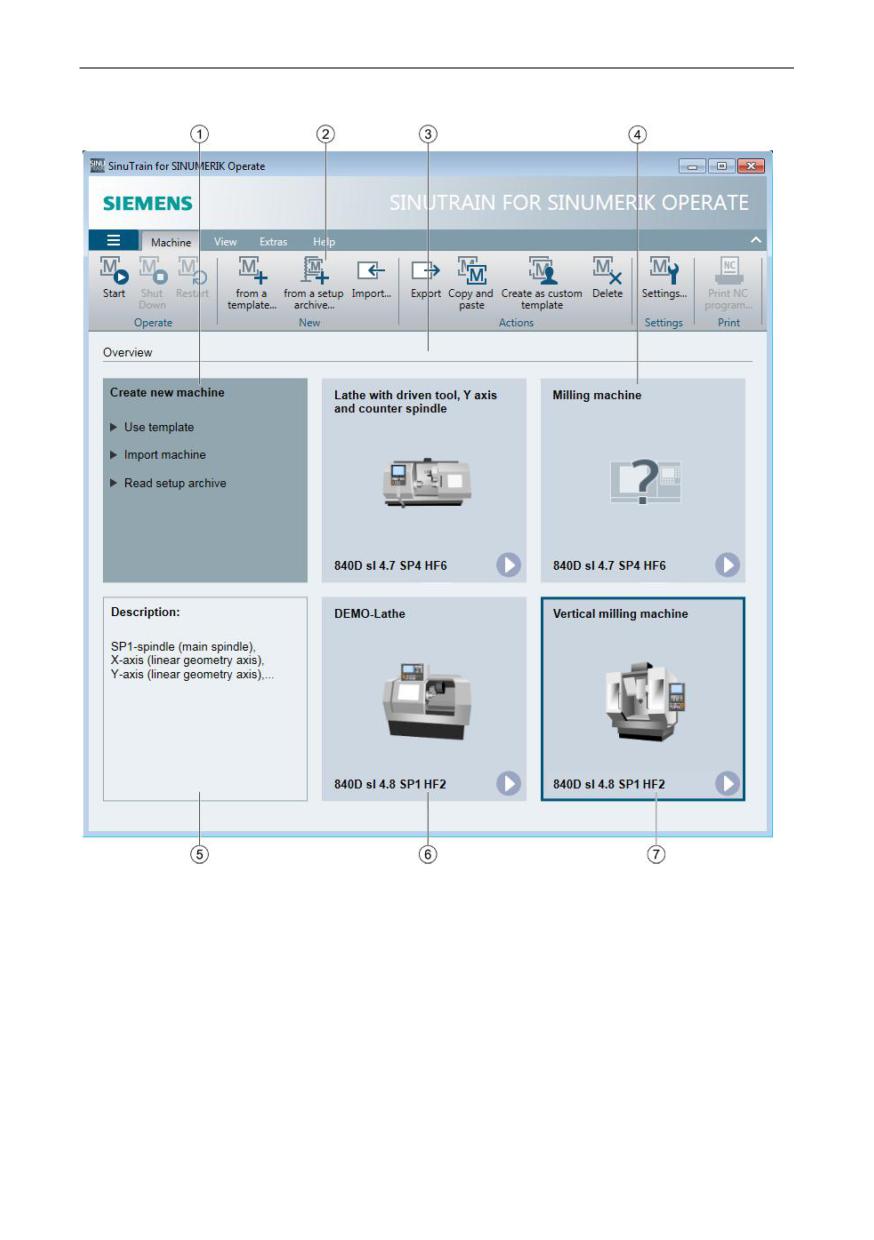
4.2.2
Machine overview
In the machine overview, you create machines and parameterize and manage the
machine configurations with which you train.
Training and Programming
A5E43899500, 01/2018
69
SinuTrain for SINUMERIK Operate
① Functions page with options for the creation of machine configurations
② SinuTrain menu bar
③ Machine overview with all created machines
④ Unknown machine
Please contact Technical Support (Page 57) for the analysis.
⑤ Information page with a description of the selected machine configuration
⑥ Created machine configuration with machine name and CNC software version
⑦ Selected machine configuration
Training and Programming
70
A5E43899500, 01/2018
SinuTrain for SINUMERIK Operate
Note
Sorting order of the machines
The machine configurations are sorted according to the order in which they are
created. You have the option of modifying this sorting to meet your requirements via
drag & drop.
See also
Menu commands (Page 99)
Context menu (Page 104)
Overview (Page 77)
Creating a machine from a template (Page 77)
Copying a machine (Page 80)
Importing a machine (Page 80)
Creating a machine from the start-up archive (Page 83)
Training and Programming
A5E43899500, 01/2018
71
SinuTrain for SINUMERIK Operate
4.2.3
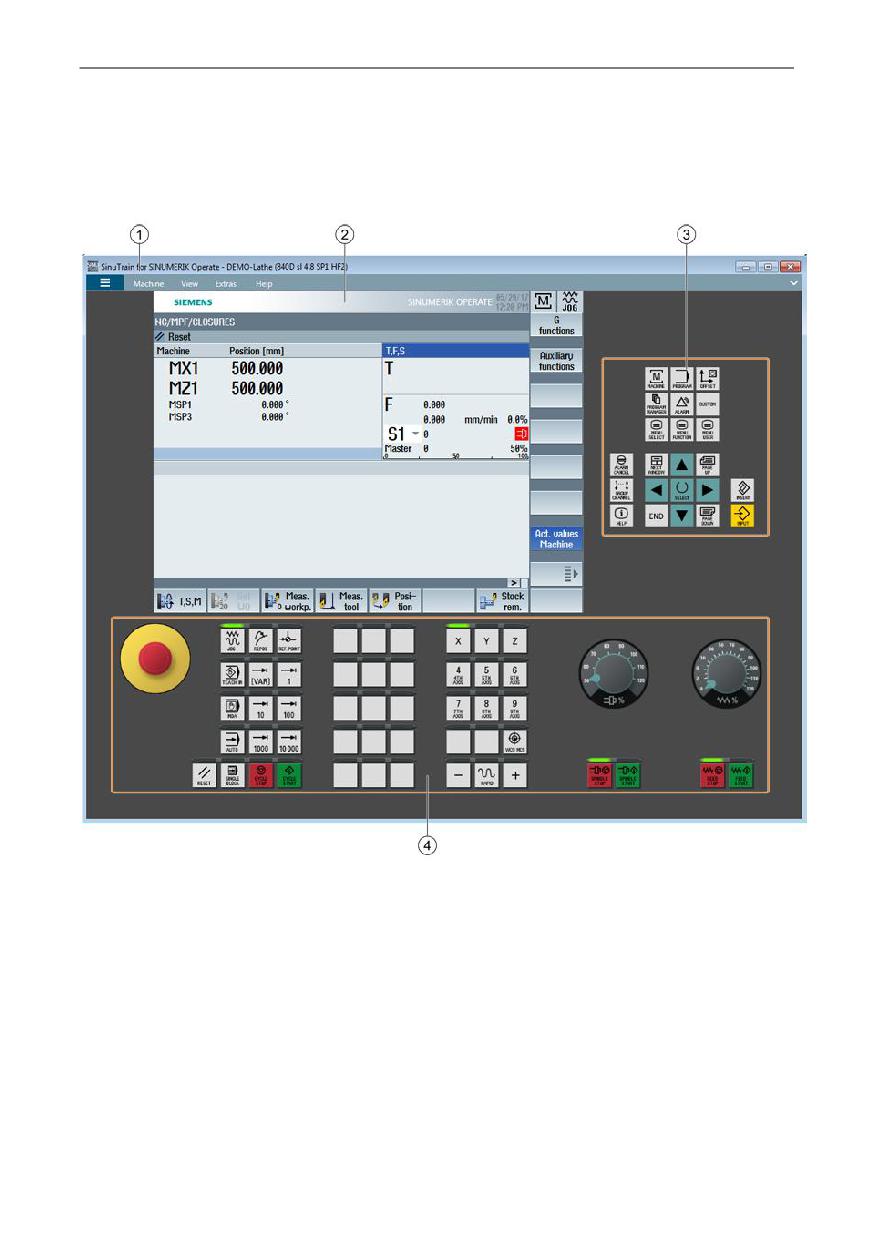
Screen layout of the machine simulation
User interface of SinuTrain
① SinuTrain menu bar
② SINUMERIK Operate user interface
③ Operator controls of an operator panel
④ Machine control panel with feedrate and spindle override
Training and Programming
72
A5E43899500, 01/2018
SinuTrain for SINUMERIK Operate
Note
Individual windows
In order to adapt the screen layout to your individual requirements, you have the
option of displaying the operator panel and machine control panel in separate
windows. To do this, select the command View > Split to single windows in the
"Windows" group.
You then have the option of moving or closing the windows individually. In order to
open the window again, select the command View > Show machine control panel or
View > Show SINUMERIK Operate machine control panel in the "Windows" group.
See also
Menu commands (Page 99)
4.2.4
Installing languages
4.2.4.1
Installing additional languages for Sinutrain
Select the required languages when installing SinuTrain for SINUMERIK Operate.
The user interface of SINUMERIK Operate is then installed with the selected
languages.
The following standard languages are available for selection during the installation:
English, German, French, Italian, Spanish and simplified Chinese.
Subsequent installation of SinuTrain languages
If you have not selected one of the standard languages during the installation of
SinuTrain, this language cannot subsequently be installed separately. In this case it
is necessary to uninstall SinuTrain and then reinstall it with all of the required
languages.
Training and Programming
A5E43899500, 01/2018
73
SinuTrain for SINUMERIK Operate
4.2.4.2
Installing additional languages for SINUMERIK Operate
You can install further languages for the SINUMERIK Operate user interface.
Installing additional languages
Additional language packages are offered for download on the following Internet
page:
Procedure
1. Select the Extras > Additional HMI languages... menu command in the "Manage"
group.
The "Install additional HMI languages" dialog then opens.
2. Click the "..." button and navigate in the "Open" dialog to the storage location of
the language packages.
3. Select the required language file (*.slf) and click the "Open" button.
You return to the "Install additional HMI languages" dialog.
The storage path has been entered. The selected language is displayed and
marked with a flag icon. In addition, the version of the SINUMERIK Operate
language package and the control type are displayed.
4. If necessary, select the CNC software release for which the language package
should be installed.
5. Click the "Install" button.
You receive a message after successful installation.
6. Click the "OK" button to complete the installation.
Note
You have the option of disabling the message regarding successful installation for
future installations of language packages. To do this, activate the "Do not display this
message again" checkbox.
Select the SinuTrain options... command and activate the "Report completion of the
language installation" checkbox in order to switch the message on again for future
installations.
Training and Programming
74
A5E43899500, 01/2018
SinuTrain for SINUMERIK Operate
4.2.5
Changing the SinuTrain language
You have the option of changing the language of the SinuTrain user interface.
At setup, you determine which languages (German, English, French, Spanish, Italian,
simplified Chinese) will be installed. Any of the installed languages can then be
selected for the user interface.
Procedure
1. In the application menu, select the SinuTrain options... command.
2. Select the required language in the "Language of the SinuTrain user interface"
drop-down list and click "OK".
3. Confirm the message stating that the changed language setting will only take
effect after SinuTrain for SINUMERIK Operate has been restarted.
See also
Installing additional languages for SINUMERIK Operate (Page 74)
4.3
Working with SinuTrain
4.3.1
Starting and exiting SinuTrain
Starting SinuTrain
1. Select the start menu entry SinuTrain for SINUMERIK Operate > SinuTrain.
- OR -
Double-click the SinuTrain icon on your desktop.
When starting for the first time, the dialog opens for selecting the language of the
SinuTrain user interface.
2. Select the required language and click "Next".
Note: The languages are available that you selected during the installation of
SinuTrain.
The Terms of Use for SinuTrain for SINUMERIK Operate open.
Training and Programming
A5E43899500, 01/2018
75
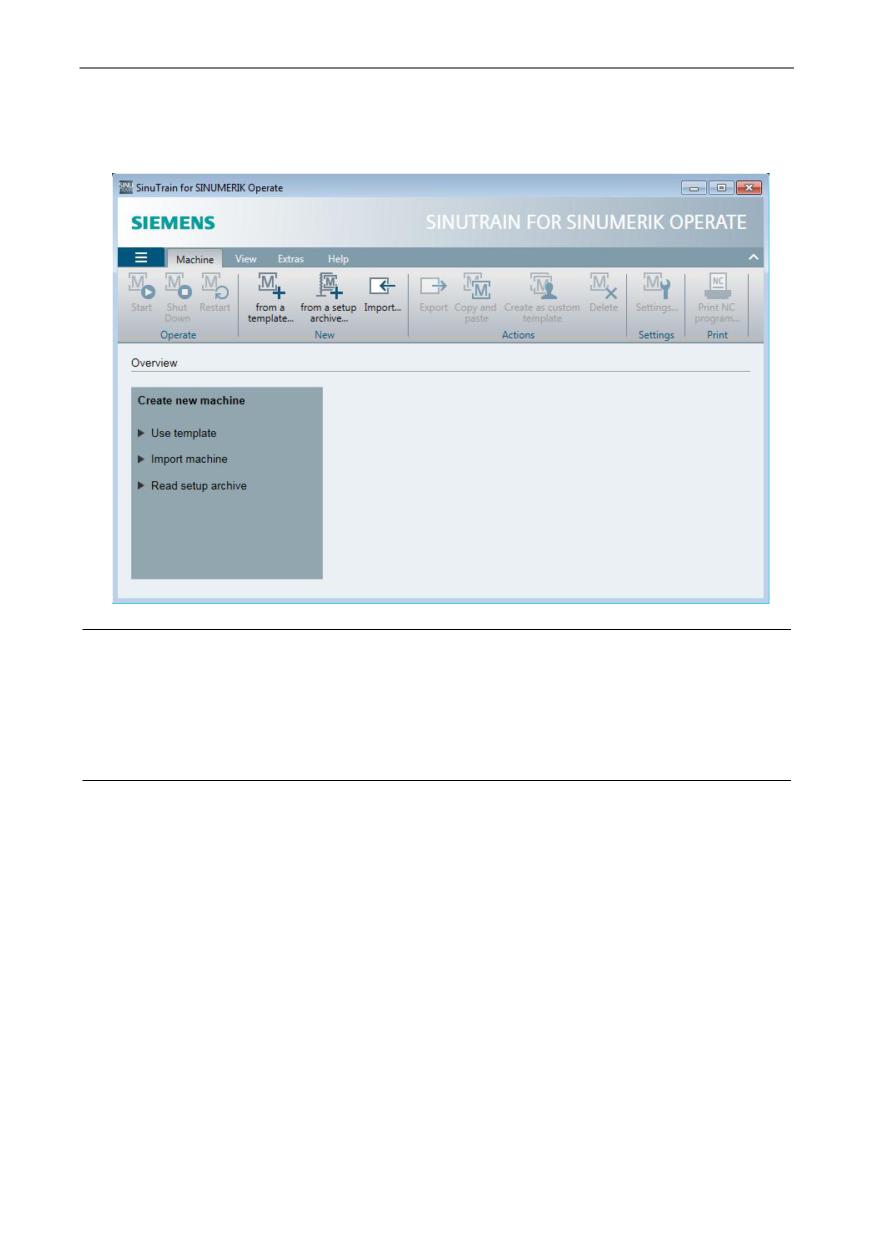
SinuTrain for SINUMERIK Operate
3. Click "OK" to start the program.
The machine overview opens.
Note
You can deactivate the Terms of Use for future program starts. To do this, activate
the "Do not display this message again" checkbox.
Select the SinuTrain options... command in the application menu and activate the
"Display Terms of Use" checkbox in order to switch the message on again for future
program starts.
Exiting SinuTrain
● In the application menu, select the Exit command.
SinuTrain closes.
See also
Installing additional languages for Sinutrain (Page 73)
Training and Programming
76
A5E43899500, 01/2018
SinuTrain for SINUMERIK Operate
4.3.2
Creating a machine
4.3.2.1
Overview
You have the following options when creating a machine:
● Creating a machine from a template (Page 77)
This is based on standard configurations supplied for lathes and milling
machines, or custom templates that you have created.
● Copying a machine (Page 80)
The basis is a machine configuration that you created, which already exists in the
machine overview.
● Importing a machine (Page 80)
The basis is an exported machine configuration, which you import and modify.
● Creating a machine from the start-up archive (Page 83)
The basis is a start-up archive (*.arc).
4.3.2.2
Creating a machine from a template
You have the option of creating a machine from the following templates:
● Supplied standard configurations
● Machine configurations that you have previously created and saved as templates
All available templates are offered to you for selection in the "Template" list. The
configurations are sorted in a tree structure according to controller type (e.g. 840D sl)
and CNC software (e.g. 4.7 SP3 HF1). Custom templates are marked with an
additional symbol.
Requirement
SinuTrain has been started and the machine overview is open.
Training and Programming
A5E43899500, 01/2018
77
SinuTrain for SINUMERIK Operate
Creating a machine from a template
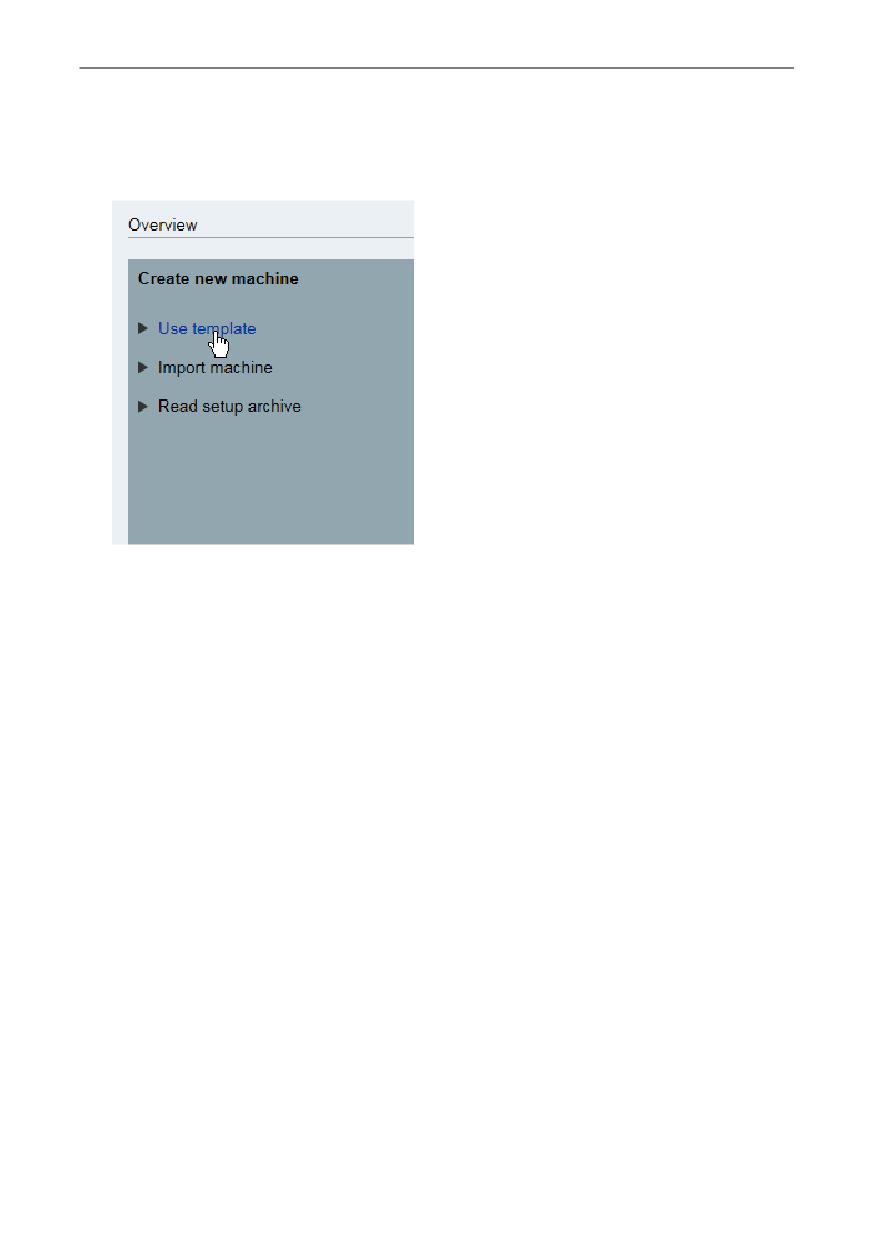
1. Click the "Use template" option in the "Create new machine" functions page.
- OR -
Select the Machine > From a template... command in the "New" group.
The "Create new machine - Use template" dialog opens.
2. Open the "Template" drop-down list and select the required machine type.
After selection, the control type and software version of the selected machine are
displayed in the "Created with CNC SW" display field.
3. In the "Name" entry field, enter the required name for the machine (e.g. My
machine).
4. If required, enter a short description in the "Description" entry field.
5. Select the resolution for the machine simulation (e.g. 1024 x 768).
6. Select the language for the machine simulation (e.g. English).
7. If you want to use your own image for display of the machine in the overview,
click the "..." button next to the "Machine image" field, navigate in the "Open"
dialog to the storage location of the graphic (*.png, *.jpg, *.bmp), and click
"Open".
You return to the "Create new machine - Use template" dialog. The storage path
and the preview image are displayed.
8. Click the "Create" button.
Training and Programming
78
A5E43899500, 01/2018
SinuTrain for SINUMERIK Operate
Note
If a machine with this name already exists, a corresponding message is
displayed. Click "OK" and enter a new machine name.
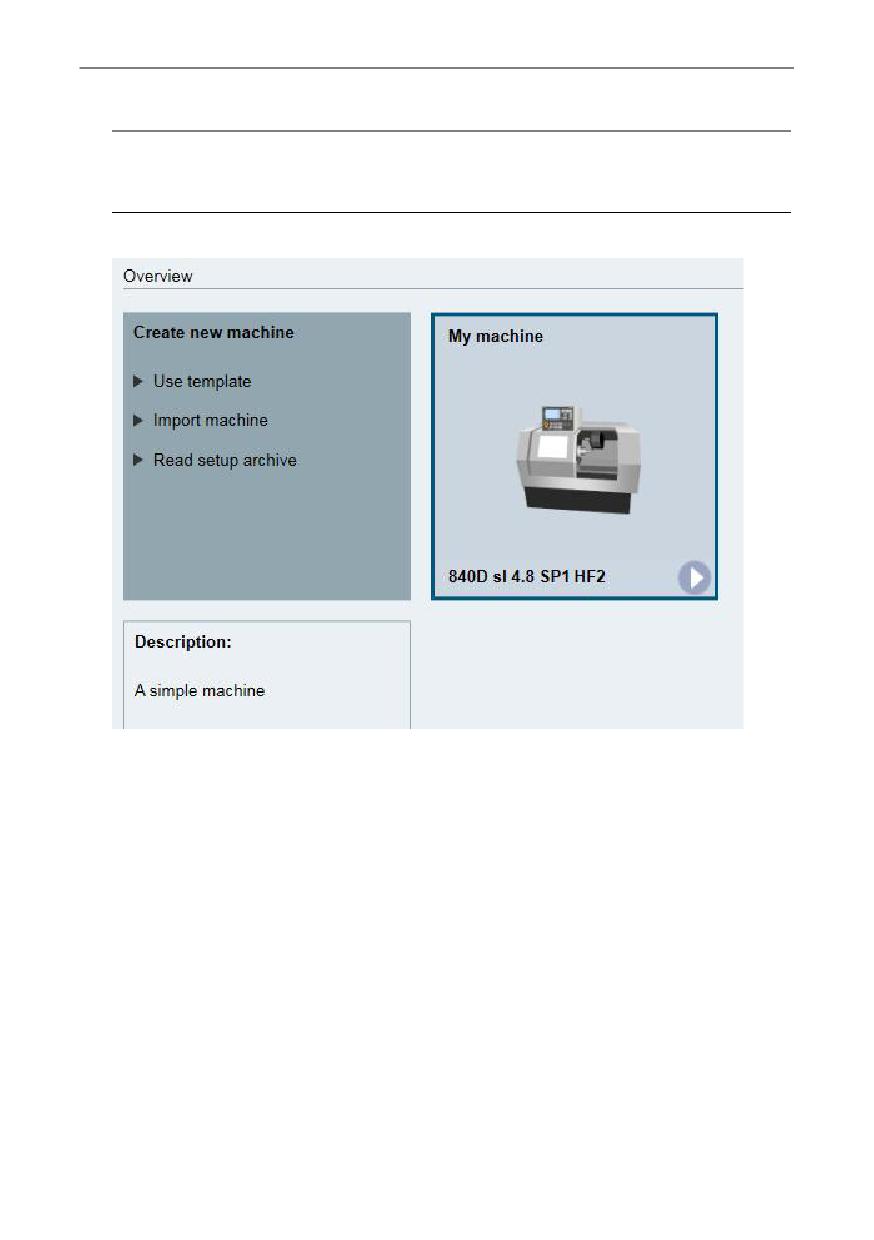
The created machine is inserted in the overview.
Training and Programming
A5E43899500, 01/2018
79
SinuTrain for SINUMERIK Operate
4.3.2.3
Copying a machine
Requirement
● SinuTrain has been started and the machine overview is open.
● Machines have been created.
Creating a new machine configuration
1. In the machine overview, select the machine configuration that you want to copy
and use for another machine.
2. Select the Machine > Copy and Paste... command in the "Actions" group.
- OR -
Right-click and select “Copy and Paste" from the shortcut menu.
The machine is added to the machine overview and identified by a number in the
machine name.
3. Select the Machine > Settings... command in the "Settings" group for the copied
machine.
- OR -
Right-click and select "Settings..." from the shortcut menu.
The "Edit machine" dialog opens.
4. Enter the desired changes (e.g. name, resolution, language, machine image) and
click "Save and close".
See also
Changing machine settings (Page 88)
4.3.2.4
Importing a machine
Requirements
● You have a license.
● SinuTrain has been started and the machine overview is open.
● You have exported machine configurations.
● The file to be imported was created with a CNC software version that belongs to
the same product line (e.g. 4.7) as the CNC software version installed in
SinuTrain for SINUMERIK Operate.
Training and Programming
80
A5E43899500, 01/2018
SinuTrain for SINUMERIK Operate
Note
If the CNC software versions are different, manual changes may have to be made
subsequently in accordance with the NC upgrade instructions.
Importing a machine
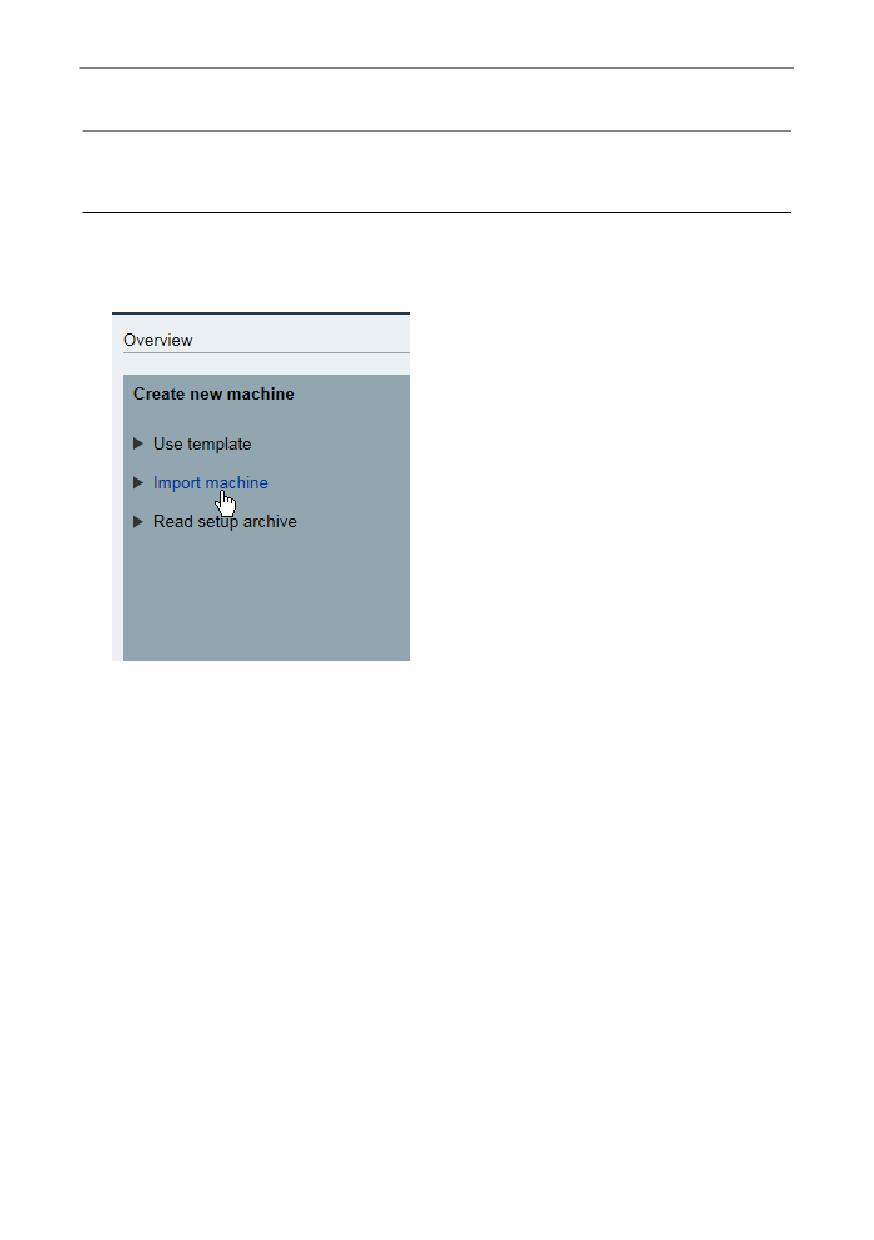
1. Click the "Import machine" option in the "Create new machine" functions page.
- OR -
Select the Machine > Import... command in the "New" group.
The "Create new machine - Import machine" dialog opens.
2. Click the "..." button next to the "Selected file" field and navigate in the "Open"
dialog to the storage location of the exported configurations.
3. Select the required machine configuration file (*.set) and click the "Open" button.
This returns you to the "Create new machine - Import machine" dialog:
- The storage path is shown in the "Selected file" field.
- The "Created with CNC SW" field shows with which controller type (e.g. 840D
sl) and under which SINUMERIK CNC software version the machine has been
created.
4. If you have installed several versions of the CNC software, in field "Accept in",
select for which software release the machine should be created.
5. Change the required settings as needed (e.g. name, description) and import your
own machine image if applicable.
Training and Programming
A5E43899500, 01/2018
81
SinuTrain for SINUMERIK Operate
6.
If you want to use the selected configuration as a template for other machines in
the future, check the checkbox "Accept machine in the list of template machines".
Note
Templates do not contain any default setting for the language. For this reason,
the "Language" drop-down list is hidden as soon as you check this checkbox.
7.
If necessary, import a template image to identify the custom template.
To do this, click on the "..." button next to the "Template image" field and navigate
to where the graphic is stored.
8.
Click the "Create" button.
Note
If a machine with this name already exists, a corresponding message is
displayed. Click "OK" and enter a new machine name.
Note
Notice messages
If problems occur when importing the machine configuration, a window opens
with the appropriate messages. Depending on the CNC software version used,
this window shows either an error description or an error code for each element
(e.g. cycle) that has been imported with an error.
You have the option of using the button to copy the error codes entered in the
"Description" column and then to send them to the hotline (Page 57) for analysis.
You return to the machine overview and the machine is created.
Training and Programming
82
A5E43899500, 01/2018
SinuTrain for SINUMERIK Operate
4.3.2.5
Creating a machine from the start-up archive
Note the following conditions when creating machines from start-up archives.
● The setup archive must contain all NC data.
● If it contains data that is not suitable or not required for use in SinuTrain (e.g. for
the PLC, drives or compile cycles), the machine configuration is automatically
adapted.
Note
An overview of all adapted machine data and a listing of the released compile
cycles can be found in the online help for the CNC software. Select the Help >
CNC SW > command and the corresponding software version.
● The file to be imported (setup archive) was created with a CNC software version
that belongs to the same product line (e.g. 4.7) as the CNC software version
installed in SinuTrain for SINUMERIK Operate. Otherwise it may not be possible
to automatically adapt the machine configuration.
Note
Manual adaptation of the machine configuration
If an automatic adaptation is not possible, manual changes must be made
subsequently in accordance with the NC upgrade instructions.
● Start-up archives from powerline systems and HMI-Advanced/Embedded cannot
be used.
Requirement
● You have an MCT or archive license for the CNC software version used.
● SinuTrain has been started and the machine overview is open.
Training and Programming
A5E43899500, 01/2018
83
SinuTrain for SINUMERIK Operate
Creating a machine from a setup archive
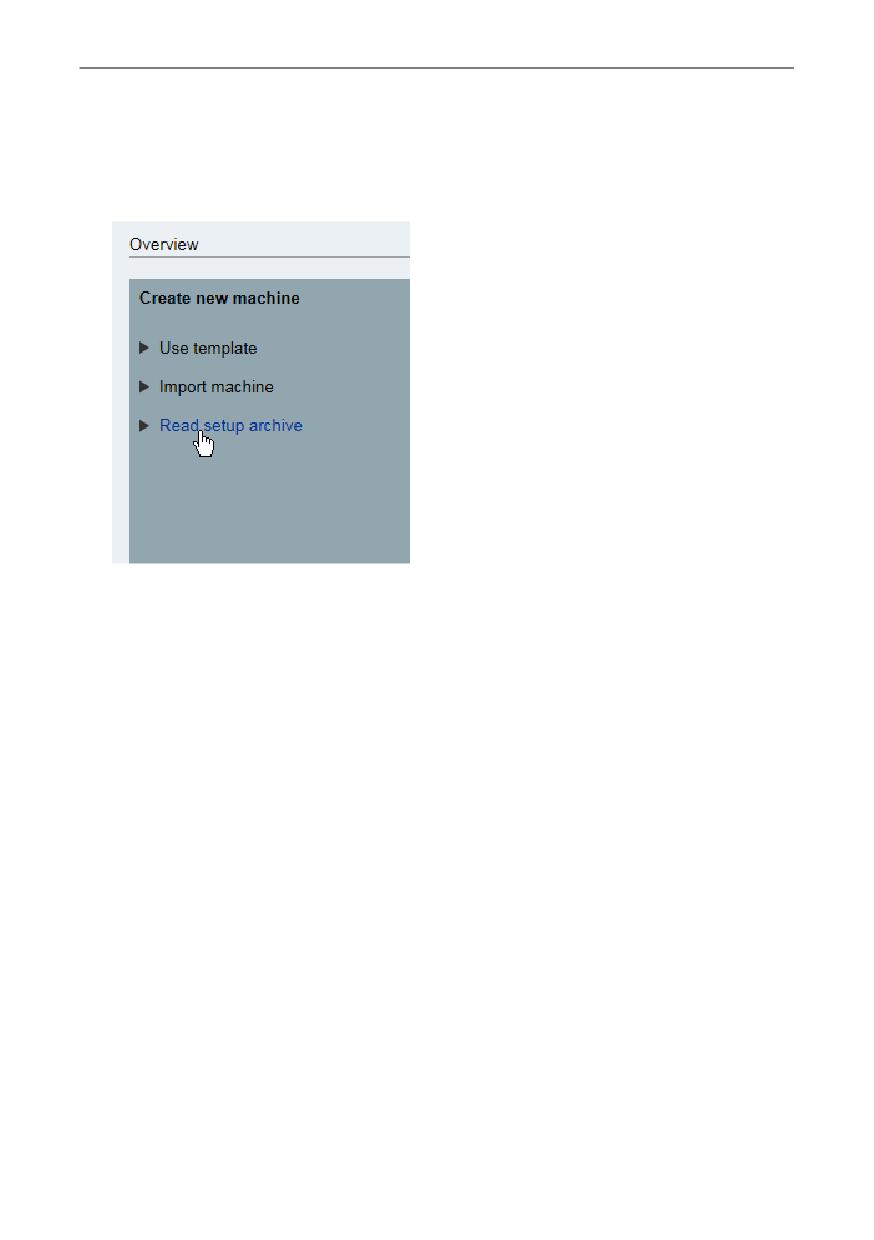
1. Click the "Read setup archive" option in the "Create new machine" functions
page.
- OR -
Select the Machine > From a setup archive... command in the "New" group.
The "Create new machine - Read setup archive" dialog opens.
2. Click the "..." button next to the "Selected file" field and navigate in the "Open"
dialog to the storage location of the required archive file (*.arc), select the file and
click "Open".
You return to the dialog and the selected file is displayed with the directory path.
A message informs you that the archive is being checked.
3. If you have installed several versions of the CNC software, in field "Accept in",
select for which software release the machine should be created.
4. Enter the required specifications for the machine configuration (name and
description) in the corresponding entry fields, if required, import your own
machine image and select the resolution (e.g. 1024 x 768) and language
(e.g. English) of the machine simulation.
5. If you want to use the selected configuration as a template for other machines in
the future, check the checkbox "Accept machine in the list of template machines".
Training and Programming
84
A5E43899500, 01/2018
SinuTrain for SINUMERIK Operate
Note
Templates do not contain any default setting for the language. For this reason,
the "Language" drop-down list is hidden as soon as you check this checkbox.
6. If necessary, import a template image to identify the custom template.
To do this, click on the "..." button next to the "Template image" field and navigate
to where the graphic is stored.
7. Click the "Create" button.
Note
If a machine with this name already exists, a corresponding message is
displayed. Click "OK" and enter a new machine name.
Note
Notice messages
If problems occur when importing the setup archive, a window opens with the
appropriate messages. Depending on the CNC software version used, this
window shows either an error description or an error code for each element
(e.g. cycle) that has been imported with an error.
You have the option of using the button to copy the error codes entered in the
"Description" column and then to send them to the hotline (Page 57) for analysis.
The created machine configuration is inserted in the overview, indicating the
controller type (e.g. 840D sl) and the SINUMERIK CNC software version.
Training and Programming
A5E43899500, 01/2018
85
SinuTrain for SINUMERIK Operate
4.3.3
Starting and shutting down a machine
Precondition
● Machine configurations are available in the machine overview.
● You need a license to be able to use the entire range of functions. Information on
function restrictions can be found under License model (Page 64).
Starting a machine
The machine overview is open.
1. Select the required machine from the list of machine configurations.
2. Select the Machine > Start command in the "Operate" group.
- OR -
Right-click and select "Start" from the context menu.
- OR -
Click the arrow in the machine configuration.
The machine simulation opens with the SINUMERIK Operate user interface,
operator panel and machine control panel with feedrate and spindle override.
3. You operate SINUMERIK Operate using a mouse or a standard keyboard.
4. When operating SINUMERIK Operate, click the <HELP> key or press key <F12>
to obtain context-sensitive online help for the window and the input screens of
SINUMERIK Operate.
Training and Programming
86
A5E43899500, 01/2018
SinuTrain for SINUMERIK Operate
NOTICE
Loss of data when SinuTrain is exited in a non-scheduled fashion
If the operating system forces SinuTrain to shut down (e.g. when the current user is
logging off), then only the NCK data of the currently operating machine is backed
up. Changes to the machine settings and HMI data are lost.
Regularly shut down the machine in order to avoid this data loss.
More information is provided in Section Unexpected shutdown of SinuTrain
(Page 94).
Restarting the machine
● Select the Machine > Restart command in the "Operate" group if you wish to
restart the actual machine configuration, for instance, after changing machine
data.
The machine shuts down and is then immediately run up again.
Shutting down the machine
● Select the Machine > Shut down command in the "Operate" group if you wish to
exit the current machine configuration.
You return to the machine overview.
Training and Programming
A5E43899500, 01/2018
87
SinuTrain for SINUMERIK Operate
4.3.4
Changing machine settings
You can change the following settings for a machine:
● General
- Machine name
- Description
● Resolution of the machine simulation
● Machine image
Your own machine images can be imported in the following formats:
- PNG
- JPG
- BMP
● Language of the machine simulation
The following languages are available for selection:
- Languages that were selected during the installation (German, English,
French, Spanish, Italian, simplified Chinese)
- Additional HMI languages installed at a later date
Note
Changing the language of SINUMERIK Operate
In SINUMERIK Operate you can change the language of the SINUMERIK
Operate user interface using the key combination <CTRL + L> or in the "Start-up"
operating area, using the "Change language" softkey.
Procedure
1. In the machine overview, select the machine for which you want to change the
settings.
2. Select the Machine > Settings... command in the "Settings" group.
- OR -
Right-click and select "Settings..." from the context menu.
The "Edit machine" dialog opens.
3. Enter the required changes and click "Save and close".
Training and Programming
88
A5E43899500, 01/2018
SinuTrain for SINUMERIK Operate
4.3.5
Exporting a machine configuration
You have the option of exporting machines that you have configured in order to back
them up or forward them. The exported machine configurations are available as a
starting point for later machine configurations or as a back-up copy.
Exported machine configurations allow you to exchange these between two
computers or to subsequently import them into more recent SinuTrain versions.
Requirement
You have a license.
Procedure
1. In the machine overview, select the machine configuration that you want to
export.
2. Select the Machine > Export command in the "Actions" group.
- OR -
Right-click and select "Export" from the shortcut menu.
The "Save as" dialog opens.
3. Navigate to the desired storage location, if required, change the file name and
click "Save".
You receive a message after a successful export.
4. Click "OK" to complete the export.
Note
You can deactivate the message for the successful export. To do this, activate the
"Do not display this message again" checkbox.
Select the SinuTrain options... command and activate the "Report completion of the
machine export" checkbox in order to switch the message on again for future exports.
Training and Programming
A5E43899500, 01/2018
89
SinuTrain for SINUMERIK Operate
4.3.6
Deleting a machine
If you do not require a machine configuration any longer, delete it from the machine
overview.
Procedure
1. Select the machine that you want to remove from the Machine configuration list.
2. Select the Machine > Delete command in the "Actions" group.
- OR -
Right-click and select "Delete" from the context menu.
3. Confirm the message regarding the possible loss of data with "OK" and click in
the subsequent prompt dialog box the "Yes" button to delete the machine.
Note
SinuTrain machine with user data
When deleting a machine, all user data (e.g. NC programs, work offsets) is lost. The
data associated with a deleted machine cannot be restored.
Note
You have the option of disabling the message regarding data loss for future delete
operations. To do this, activate the "Do not display this message again" checkbox.
In the application menu, select the SinuTrain options... command and activate the
"Inform of possible data loss before deleting" checkbox in order to switch the
message on again for future deletions.
4.3.7
Managing custom templates
You have the option of saving machines that you have configured as custom
templates. These machine configurations are then available as a starting point for
setting up new machines at a later date.
Requirement
You have a license.
Training and Programming
90
A5E43899500, 01/2018
SinuTrain for SINUMERIK Operate
Creating a custom template
1. In the machine overview, select the machine configuration that you want to save
as a custom template.
2. Select the Machine > Create as custom template command in the "Actions"
group.
- OR -
Right-click and select "Create as custom template" from the shortcut menu.
You receive a message after the operation has been successfully completed.
3. Click "OK".
Note
For future creation of custom templates, you have the option of deactivating the note
regarding the successful completion. To do this, activate the "Do not display this
message again" checkbox.
In the application menu, select the SinuTrain options... command and activate the
"Report completion of the creation of custom template" checkbox in order to switch
the message on again.
Changing the properties of a custom template
1. Select the Extras > Custom templates... command in the "Manage" group.
The "Manage custom templates" dialog box opens.
2. Open the "Template" drop-down list and select the template that you wish to edit.
After selection, the control type and software version of the selected machine are
displayed in the "Created with CNC SW" display field.
3. If necessary, enter a new name in the "Name" field.
4. If required, enter a short description in the "Description" entry field.
5. If you want to use your own image for the display of the machine in the machine
overview, click the "..." button next to the "Machine image" field, navigate to the
storage location of the graphic (*.png, *.jpg, *.bmp), and click "Open".
You return to the "Manage custom templates" dialog. The storage path and the
preview image are displayed.
6. Select the resolution for the machine simulation.
7. If you want to use your own image to identify the template in the drop-down list,
click the "..." button next to the "Template image" field, navigate to the storage
location of the graphic (*.png, *.jpg, *.bmp), and click "Open".
8. Click the "Save" button to confirm the changes.
Training and Programming
A5E43899500, 01/2018
91

SinuTrain for SINUMERIK Operate
Deleting a custom template
1. Select the Extras > Custom templates... command in the "Manage" group.
The "Manage custom templates" dialog box opens.
2. Open the "Template" drop-down list and select the template that you wish to
delete.
3. Click on the "Delete" button and confirm the confirmation prompt by clicking "OK".
4.3.8
Printing-out a program
You can print out the contents of text files (e.g. NC programs) using a printer
configured on the PC (local printer, network printer) directly via SinuTrain from the
SINUMERIK Operate user interface.
You can print a G code program as well as ShopMill and ShopTurn machining step
programs with G code.
Defining the layout
In the "Print NC program" dialog, select the printer and specify the layout for the
printout. To do this, define the scope of the NC program that is to be printed and
configure the display of the program.
Settings
Effect
Printers
Here you can select a printer from the list
of printers configured on the PC.
Printer properties
This opens the "Properties" window of the
selected printer.
Margins
Here you define the margins of the printout.
(mm)
Left:
Right:
Defines the distance between the top,
bottom, right and left margin and the
Top:
Bottom:
respective edge of the lines in mm.
Note: For some printers it is possible to set
additional print margins in the printer driver.
These print margins are then added to the
margins specified here.
Print
Here you define the scope of the program
area
printout.
All
Defines that the complete NC program is
printed.
Selected range
Defines that only the part of the NC
program marked in the editor is to be
printed.
Training and Programming
92
A5E43899500, 01/2018
SinuTrain for SINUMERIK Operate
Settings
Effect
Print programs as text
Defines that sequence programs
(ShopMill/ShopTurn) are printed out as G
code.
Print programs with graphical
Defines that machining step programs
illustrations
(ShopMill/ShopTurn) will be printed in the
same way as they appear in the editor.
Print programs with
Defines that the parameter screens for the
input screen
machining steps are also printed out.
Print closed blocks
Defines that when using program blocks,
the program sets in the blocks are also
printed.
Requirement
Unless you are using a DEMO machine, you require a license to print from the
SINUMERIK Operate user interface.
Procedure
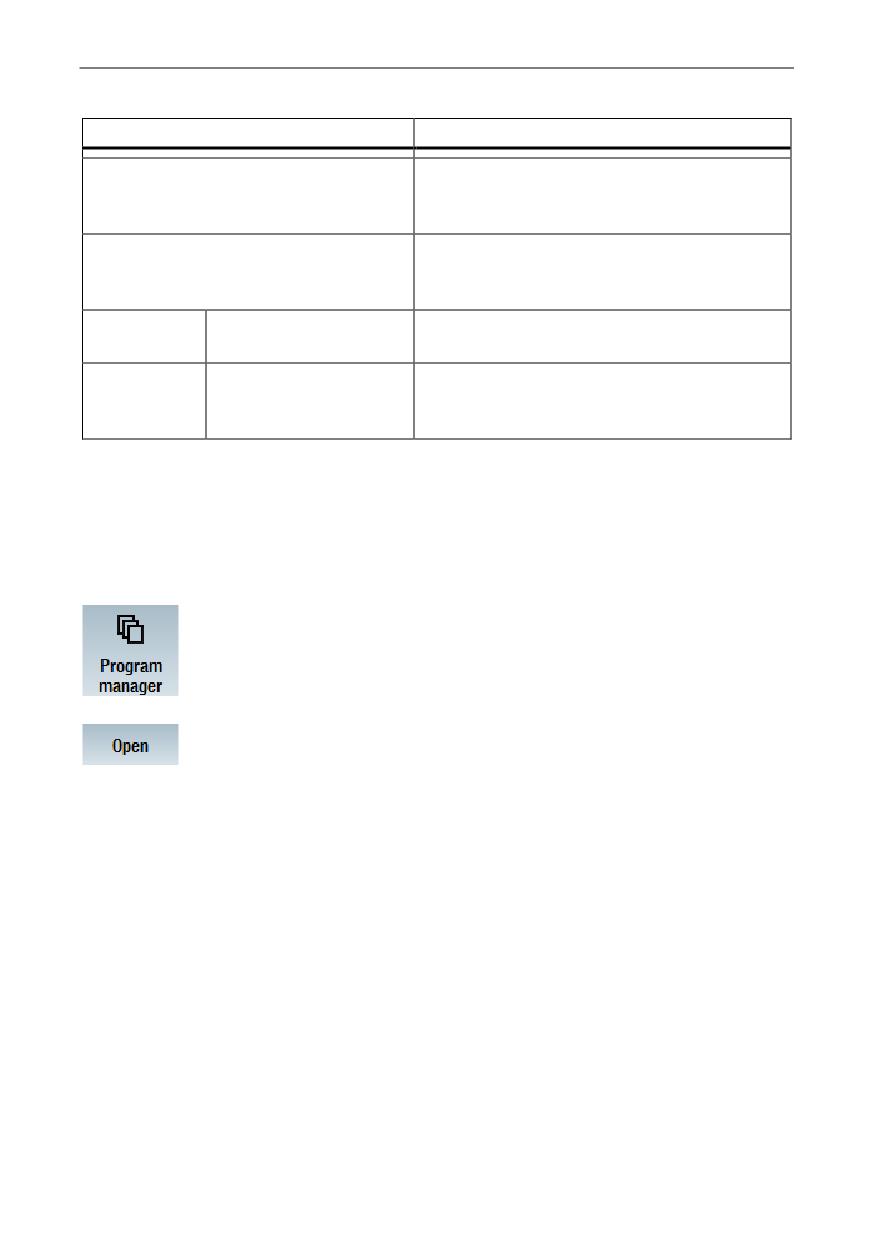
1.
In the archive folder of the program manager, select the program
that you wish to print out.
2.
Place the cursor on the program and press the "Open" softkey.
The program opens in the editor.
3.
Select the Machine > Print NC program... command in the "Print"
group.
The "Print NC program" dialog is opened with the activated
default printer.
4.
Select the printer and, if necessary, change the printer properties.
5.
Enter the distances for the margins and define the print range and
the representation type of the program.
6.
Click the "Print" button.
Depending on the print range that has been defined, either the
complete program, or a selected range of the program is printed.
Training and Programming
A5E43899500, 01/2018
93
SinuTrain for SINUMERIK Operate
4.4
Problem handling
4.4.1
Unexpected shutdown of SinuTrain
In certain situations, the operating system forces all of the programs running to be
shut down, e.g.:
● When the current user is logging off.
● For a computer warm start after an update.
If SinuTrain is running and a machine was started at this point in time, then the data
associated with the started machine are only partially backed up, and SinuTrain is
exited.
Backed up data
NOTICE
Data loss
As SinuTrain must be exited as quickly as possible by the operating system, only
the NCK data of the started machine are backed up. Changes to the HMI data are
not saved.
To backup all data, you must regularly run down the machine.
Data that is backed up:
Data that is not backed up:
· NCK data
· All newly added user data in the HMI
directory
· Changed HMI settings, e.g. the HMI
language
Restoring data
The NCK data of the machine involved is automatically restored as soon as the user
involved logs on again, calls SinuTrain and starts the machine.
The required HMI settings must be manually changed.
Training and Programming
94
A5E43899500, 01/2018
SinuTrain for SINUMERIK Operate
4.4.2
Creating a trace
Should problems occur while working with SinuTrain, you have the capability of
creating a trace.
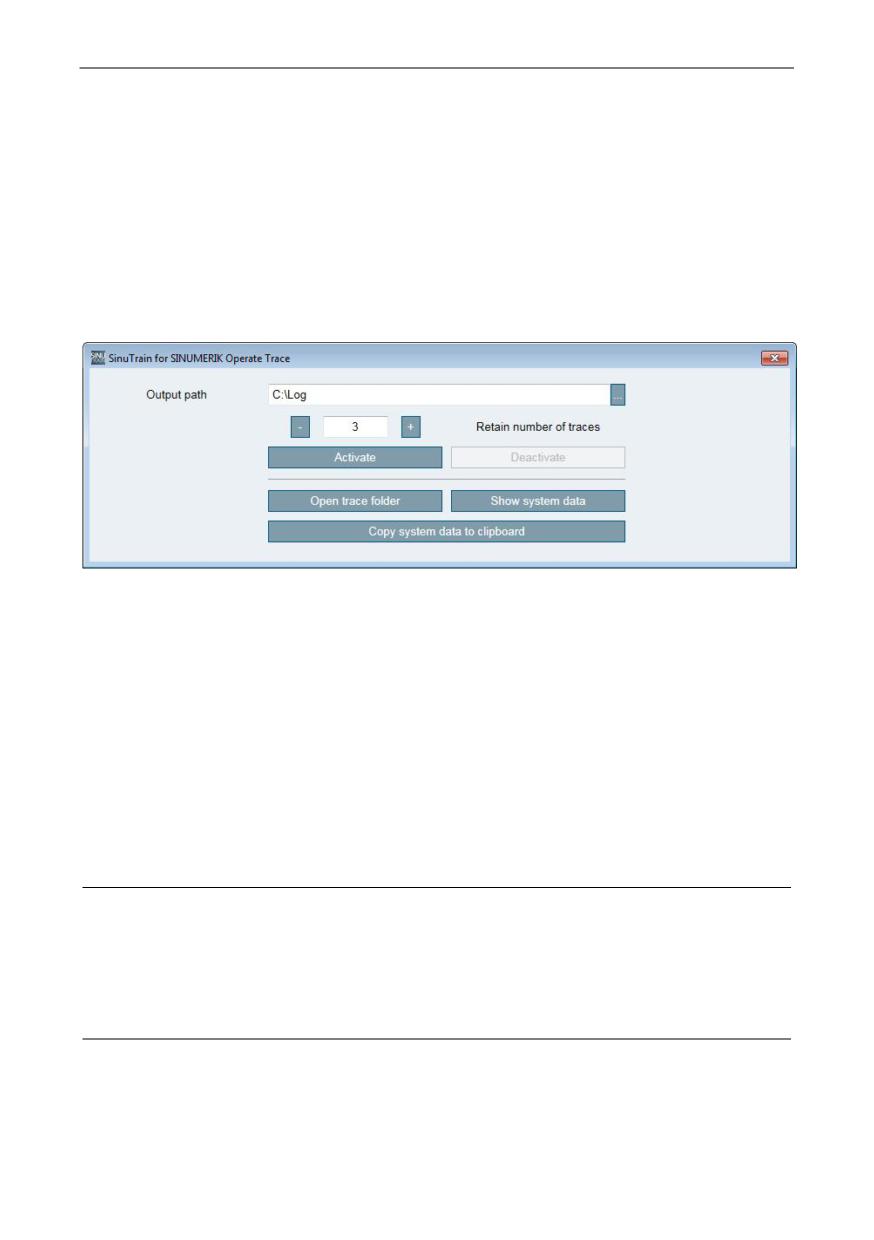
To do so, activate the tool "SinuTrain for SINUMERIK Operate Trace". The tool then
logs the next SinuTrain session in a text file. All events, sequences and
messages/signals that are relevant for troubleshooting are recorded. Send this text
file to the hotline for analysis.
Note
You can only activate and deactivate the tool if SinuTrain has first been closed.
The trace settings can only be changed if the tool is deactivated.
Archiving data
After starting SinuTrain for SINUMERIK Operate Trace you can freely select the
archiving directory for the trace files.
Each time that SinuTrain is started, a sub-folder with the date and time specified in its
name is created there, in which the actual trace file is saved.
It can be helpful to analyze several trace files simultaneously when it comes to
clarifying a problem. For this reason a trace history is created. The number of saved
protocols can be selected, up to a maximum of 20 files.
Note
Changes to the settings to archive trace files only become effective when SinuTrain
is started the next time.
This means that if an already existing trace history is reduced, the number of traces
is kept until SinuTrain for SINUMERIK Operate Trace is activated and SinuTrain has
been started.
Training and Programming
A5E43899500, 01/2018
95
SinuTrain for SINUMERIK Operate
Procedure
1. Ensure that SinuTrain is not running.
2. Navigate to the installation directory (default path: "C:\Programs
(x86)\SIEMENS\SinuTrain") and open the "SinuTrain Workbench" folder.
3. Double-click the file "sinutraintrace.exe".
The tool "SinuTrain for SINUMERIK Operate Trace" is opened.
"Storage path" shows the path to the folder in which the trace file is saved.
4. If required, change the output path.
Click on the "..." button and navigate to the desired save location. Click on the
"Create new folder" button, assign a name, and click on the "OK" button.
5. Specify the maximum number of text files to be saved.
6. Click the "Activate" button.
7. Start SinuTrain and reproduce the steps that led to the problem.
8. Switch to the trace tool and click on the open "Trace folder" button.
9. Copy the file "sitrace.txt" that was saved in the folder and send it via e-mail to
Technical Support (Page 57) for analysis.
10. If you want to deactivate the trace tool, you must first close SinuTrain.
Note
Information on system data
With the aid of the "Display system data" button, you have the capability of displaying
information about the operating system, the processors, and the current memory
allocation. Using the "Copy system data to the clipboard" button, save this data to the
clipboard for forwarding to the hotline.
Training and Programming
96
A5E43899500, 01/2018
Additional documentation
5
Additional documentation
5.1
Operating Manual and training instructions
When using SinuTrain, you have the option of using the context-sensitive online help
of SINUMERIK Operate via the HELP key.
Furthermore, additional and more in depth operating manuals and training
documents are available in six languages (German, English, French, Italian, Spanish,
simplified Chinese).
Note
If a particular foreign language version of a document is not available, then as an
alternative, the English edition is available.
Operating Manuals and Training Documents
● Easy milling with ShopMill
- Milling basics
- Handling the program
- Step-by-step instructions for programming and machining various examples
● Turning made easy with ShopTurn
- Turning basics
- Handling the program
- Step-by-step instructions for programming and machining various examples
● Milling
- Detailed operating manual for SINUMERIK Operate on SINUMERIK 840D
sl/828D, milling version.
● Turning
- Detailed operating manual for SINUMERIK Operate on SINUMERIK 840D
sl/828D, turning version.
● Universal
- Detailed Operating Manual for SINUMERIK Operate on SINUMERIK 840D sl,
Universal version (without cycles description).
● Basic Functions
- Detailed Function Manual with a description of basic SINUMERIK functions.
Training and Programming
A5E43899500, 01/2018
97
Additional documentation
● Programming Manual, Fundamentals
- Programming Manual for users with a basic knowledge about drilling, milling
and turning.
- Simple programming examples that also explain commands and operations
according to DIN 66025.
● Programming Manual Advanced
- Detailed Programming Manual with a description of all parameters.
● Function Manual ISO Dialects
- Description for the commissioning and execution option of part programs
belonging to external CNC systems.
● Programming Manual, ISO milling
- Detailed description of the special issues when programming in the ISO
mode, milling version.
Programming Manual, ISO turning
- Detailed description of the special features when programming in the ISO
mode, turning version.
Training and Programming
98
A5E43899500, 01/2018
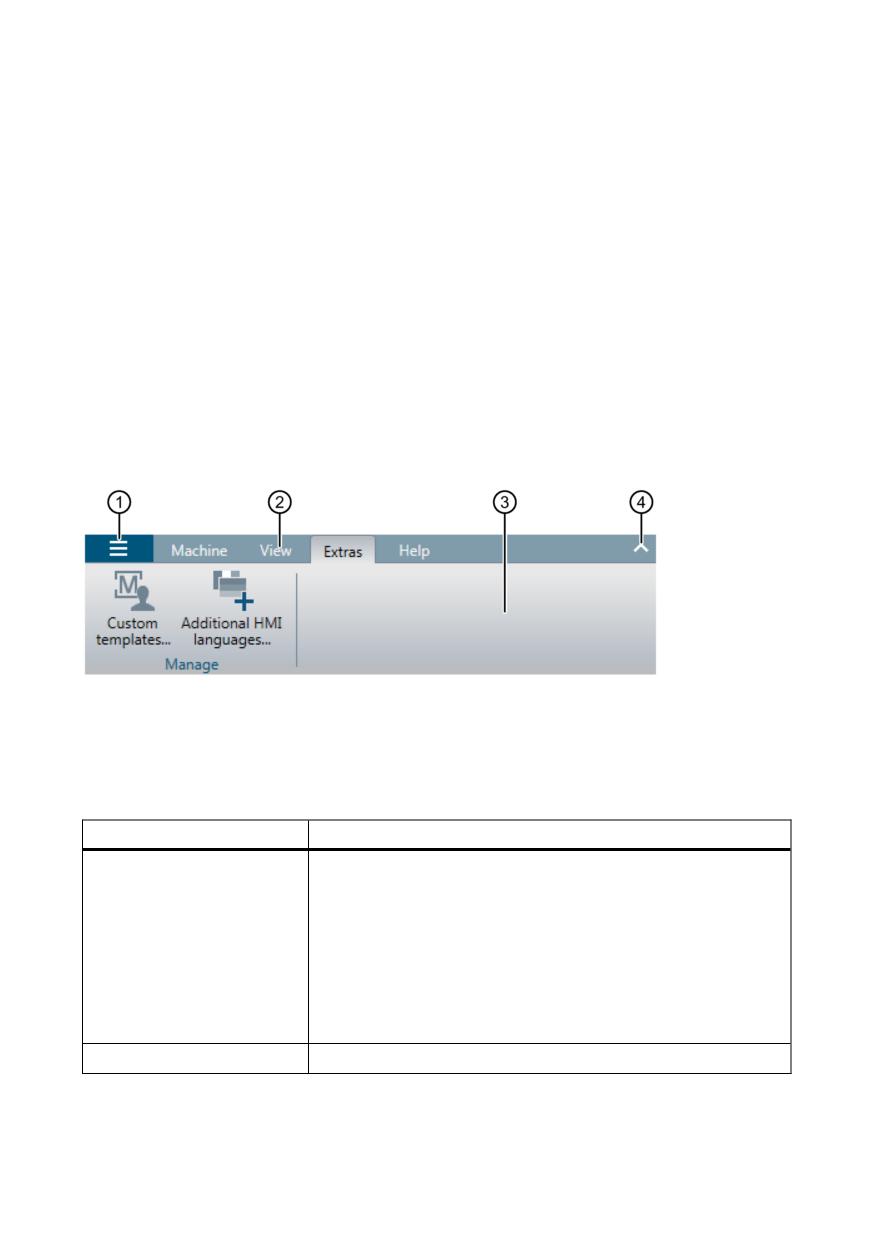
A
Appendix
A.1
Menu commands
The commands for operating SinuTrain are organized in a menu bar. In addition to
the application menu, this menu bar contains the following tabs:
● Machine
● View
● Extras
● Help
① Application menu
② Additional tabs
③ Menu bar with grouped menu commands
④ Button for minimizing or maximizing the menu bar
Commands in the application menu
Command
Function
SinuTrain options...
Changes to the "SinuTrain options" dialog in order to set
the following:
· Selection of the language for the SinuTrain user
interface
· Activation or deactivation of messages in SinuTrain
for SINUMERIK Operate (e.g. message regarding
possible data loss when deleting a SinuTrain
machine)
Exit
Exits SinuTrain for SINUMERIK Operate.
Training and Programming
A5E43899500, 01/2018
99
Appendix
Commands on the "Machine" tab
Group
Command
Function
Operate
Starts the machine configuration selected in
the machine overview.
Start
Shuts down the SinuTrain machine.
The machine overview is opened.
Shut down
Shuts down the SinuTrain machine and then
restarts it automatically.
Restart
New
Changes to the "Create new machine - Use
template" dialog, for the creation of a new
machine.
From a template...
Changes to the "Create new machine - Read
setup archive" dialog, for the creation of a new
machine.
From a setup
archive...
Changes to the "Create new machine - Import
machine" dialog to transfer stored and saved
machines to the machine overview.
Import...
Actions
Opens the "Save as" dialog to store and back
up machine configurations from the machine
overview.
Export
Copies the machine selected in the machine
overview and inserts it in the list of machines.
Using the Machine > Settings... command in
Copy and paste
the "Settings" group, you can then change the
properties of the copied machine.
Training and Programming
100
A5E43899500, 01/2018
Appendix
Group
Command
Function
Transfers the machine selected in the
machine overview into the list of custom
templates
Create as custom
Using the Extras > Custom templates...
template
command in the "Manage" group, you can
then change the properties of the template.
Deletes the selected SinuTrain machine.
Delete
Settings
Changes to the "Edit machine" dialog in order
to change the name, description, language
and machine image as well as the resolution
Settings…
of the SINUMERIK Operate user interface.
Print
Opens the "Print NC program" dialog in order
to define margins, print area and the display
format for printing.
Print NC program...
You then start the printing.
Note:
Only active if a program is open in the editor
of SINUMERIK Operate.
Training and Programming
A5E43899500, 01/2018
101
Appendix
Commands on the "View" tab
Group
Command
Function
Windows
Splits the machine simulation window into 3
individual windows that can be moved:
· SINUMERIK Operate user interface
Split to single
· Controls of an operator panel
windows
· Machine control panel with feedrate and
spindle override
Note:
Only active for machines that have been
started.
Opens or closes the machine control panel
window.
Note:
Show machine
Only active for individual windows.
control panel
Opens or closes the operator panel window.
Note:
Only active for individual windows.
Show SINUMERIK
Operate machine
control panel
Commands on the "Extras" tab
Group
Command
Function
Manage
Changes to the "Manage custom templates"
dialog in order to change the name,
description, machine and template image, as
well as the resolution of the SINUMERIK
Custom templates...
Operate user interface, or to delete a custom
template.
Changes to the "Install additional HMI
languages" dialog in order to install additional
available languages for SINUMERIK Operate.
Additional HMI
languages...
Training and Programming
102
A5E43899500, 01/2018
Appendix
Commands on the "Help" tab
Group
Command
Function
SinuTrain
Opens the online help for SinuTrain for
SINUMERIK Operate.
Help for SinuTrain
CNC-SW
Opens the online help for release-specific
information.
The commands depend on the installed CNC
Software version
software versions.
Version
Changes to the "About SinuTrain for
SINUMERIK Operate" dialog to obtain the
following information:
Info...
· Product version of the installed SinuTrain
for SINUMERIK Operate
· Data of the versions of all CNC software
packages in the "Installed SINUMERIK
CNC SW packages" area
Training and Programming
A5E43899500, 01/2018
103
Appendix
A.2
Context menu
There is a context menu with the following commands for each machine page in the
machine overview:
Command
Function
Start
Starts this machine configuration.
Export
Opens the "Save as..." dialog to export these machine
configurations.
Copy and paste
Copies this machine and inserts it in the list of machines.
Using the Machines > Settings... command in the
"Settings" group or "Settings..." in the shortcut menu, you
can then change the properties of the copied machine.
Create as custom
Creates a custom template from this machine.
template
Using the Extras > Custom templates... command in the
"Manage" group, you can then change the properties of
the created template.
Delete
Deletes this machine.
Settings…
Changes to the "Edit machine" dialog in order to change
the name, description, language and machine image as
well as the resolution of the SINUMERIK Operate user
interface.
A.3
Operation with standard PC keyboard
The following keys and shortcut keys are available when using SinuTrain for
SINUMERIK Operate .
Keyboard commands in the machine overview
PC keyboard
Function
< ↵ > or <Enter>
Start the selected machine
<Del>
Delete the selected machine
<Ctrl> + <C>
Duplicate the selected machine
<Ctrl> + <T>
Create a custom template from the selected
machine
Training and Programming
104
A5E43899500, 01/2018