FANUC Series 30i/300i/300is-MODEL A. Machining Center System. User's manual - page 160
 

  Index      Manuals     FANUC Series 30i/300i/300is-MODEL A. Machining Center System. User's manual (B-63944EN/03)


Search            copyright infringement  


Content      ..     158      159      160      161     ..


FANUC Series 30i/300i/300is-MODEL A. Machining Center System. User's manual - page 160


 OPERATION 

B-63944EN/03


- 1236 - 

7. ALARM AND SELF-DIAGNOSIS 

FUNCTIONS 

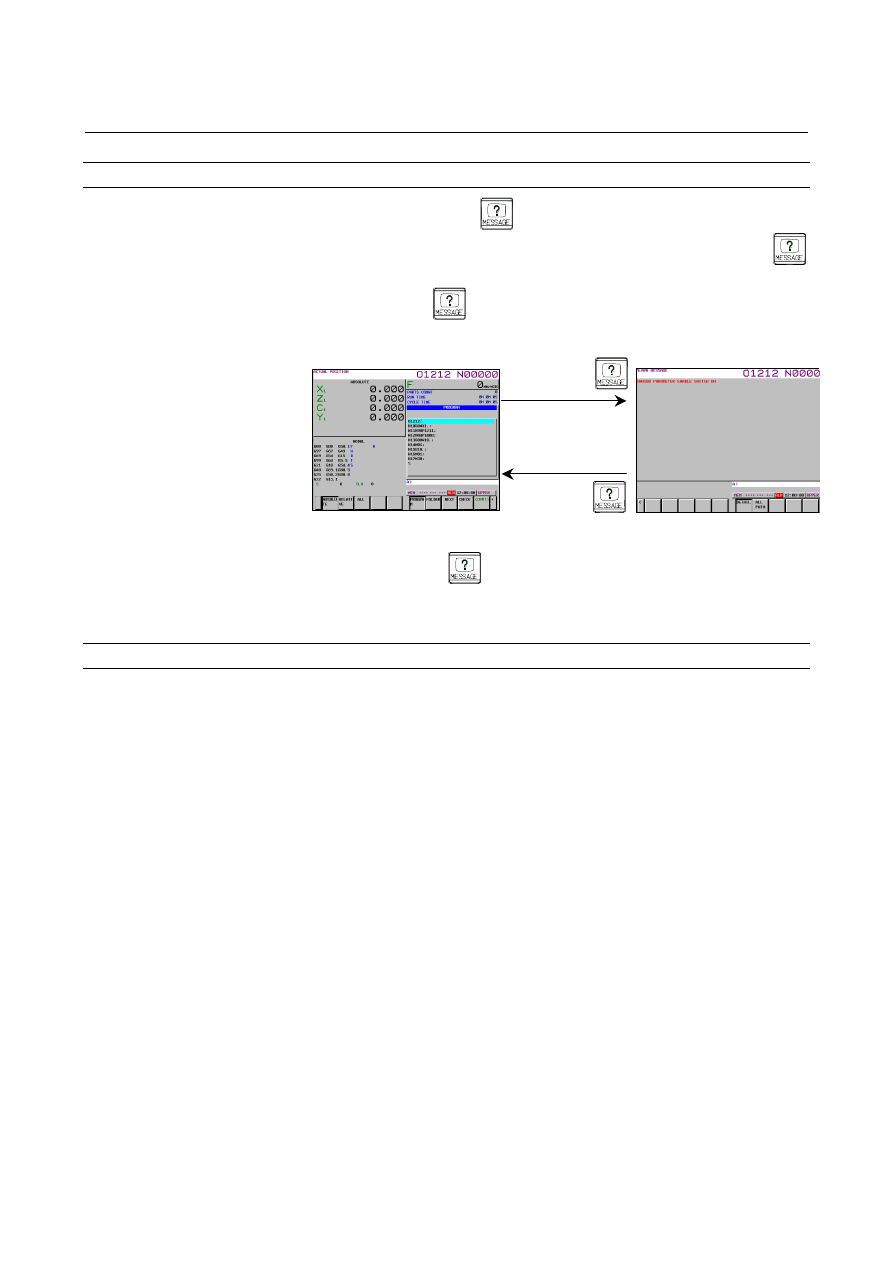
Switching between screens by the function key 

When function key 

  is pressed on the alarm screen, the screen 

displayed before the alarm screen appears.    Press function key 


to switch to the alarm screen for checking for alarms and then press 
function key 

  to return to the previous screen. 


(Example) 


If function key 

  is pressed when 

the alarm screen was displayed automatically due to occurrence of an 
alarm, the screen displayed before the alarm screen appears again. 


Restrictions 


Switching to the interactive macro screen is not performed. 


The screens to which the alarm screen can be switched are only 
the screen selected by the chapter selection soft key. 


PROGRAM screen 

Function key 


Function key 


ALARM screen 

B-63944EN/03

 OPERATION 


- 1237 - 

7.ALARM AND SELF-DIAGNOSIS 

FUNCTIONS

7.4.2 

Relationship with Other Functions 


Relationship between the screen switching function and a return from the 
alarm screen during switching between paths 

(1)  When bit 5 (PSC) of parameter No. 3208 is set to 0, if paths are 

switched by the path switching signal or switching to the loader, 
the screen last selected in the path appears again. 
At this time, even if a return from the alarm screen to the 
previous screen is performed in one path, a return is not 
performed in the other path and the alarm screen remains 
displayed. 

 
 (Example) 


<1> When the message key is pressed on the offset screen of 

path 1, the alarm screen (path 1) appears. 

<2>  When switching to path 2 is performed on the alarm screen 

of path 1, the position screen of path 2 appears (when the 
screen last displayed in path 2 is the position screen). 

<3> When the message key is pressed on the position screen of 

path 2, the alarm screen (path 2) appears. 

<4>  When the alarm is cleared or the message key is pressed on 

the alarm screen of path 2, a return to the position screen 
(path 2) is performed. 

<5> When switching to path 1 is performed, the alarm screen 

(path 1) appears. 


(2)  When PSC of parameter No. 3208 is set to 1, if paths are 

switched by the path switching signal or switching to the loader, 
the screen displayed immediately before the path switching 
appears again. 
At this time, if a return from the alarm screen to the previous 
screen is performed in one path, the screen of the path in which a 
return was performed appears in the other path. 


Path 1


Path 2


Alarm 

Offset 

Alarm 

Position

<3>

<4>

<5> 

<1>

<2>

 OPERATION 

B-63944EN/03


- 1238 - 

7. ALARM AND SELF-DIAGNOSIS 

FUNCTIONS 

 (Example) 


<1> When the message key is pressed on the offset screen of 

path 1, the alarm screen (path 1) appears. 

<2>  When switching to path 2 is performed on the alarm screen 

of path 1, the alarm screen (path 2) appears. 

<3>  When the alarm is cleared on the alarm screen of path 2, the 

offset screen (path 2) appears.   

<5>  When switching to path 1 is performed, the offset screen of 

path 1 appears. 


Path 1


Path 2


Alarm 

Offset 

Alarm 

Position

<3>

<4>

<2> 

<1>

B-63944EN/03

 OPERATION 

8.DATA INPUT/OUTPUT


- 1239 - 

DATA INPUT/OUTPUT 

 
Information stored in external I/O devices can be read into the CNC, 
and information can be written into external I/O devices. 
External I/O devices include memory cards that can be mounted to the 
memory card interface located on the left side of the display unit and 
personal computers and data servers that can be connected via 
embedded Ethernet. 
The following types of data can be input and output. 
 

Data type 

Default file name 

Program ALL-PROG.TXT 
Offset data 

TOOLOFST.TXT 

Parameter CNC-PARA.TXT 
Pitch error compensation data 

PITCH.TXT 

Custom macro common variable 

MACRO.TXT 

Workpiece coordinate system data 

EXT_WKZ.TXT 

Operation history data 

OPRT_HIS.TXT 

Maintenance information 

MAINTINF.TXT 

Periodic maintenance data (periodic maintenance:status screen) 

MAINTENA.TXT 

Tool management data (tool management function) 

TOOL_MNG.TXT 

Magazine data (tool management function) MAGAZINE.TXT 
Tool life status name (tool management function) 

STATUS.TXT 

Customize data name (tool management function) 

CUSTOMIZ.TXT 

Second geometry tool offset 

SEC_GEOM.TXT 

Three-dimensional error compensation data 

COMP3D.TXT 

Rotary table dynamic fixture offset 

FIXTURE.TXT 

Customize data displayed as tool management data (tool 
management expansion) 

DISPCSTM.TXT 

Spindle waiting position name (tool management expansion) 

POSNAME.TXT 

Decimal point position data of customize data (tool management 
expansion) 

POINTPOS.TXT 

Real time custom macro variable 

RTMMACRO.TXT 

System configuration data 

SYS-CONF.TXT 

PMC signal protect 

DIDOENBL.TXT 

Tool geometry data (tool management function for oversize tools) 

TOOLGEOM.TXT 

Cause data (tool management tool attachment/detachment 
function) 

TLCAUSE.TXT 

Attachment history data (tool management tool 
attachment/detachment function) 

TLATAHIS.TXT 

Detachment history data (tool management tool 
attachment/detachment function) 

TLDTAHIS.TXT 

Servo/spindle information 

SV_SP_ID.TXT 

Machine system name data (periodic maintenance:machine 
system screen) 

MAINTEMC.TXT 

Servo waveform diagnosis 

WAVE-DGN.TXT 

Tool geometry data (check for tool post interference) 

TOOL-FRM.TXT 

P code variable 

PCODE.TXT 

8.DATA INPUT/OUTPUT

 OPERATION 

B-63944EN/03


- 1240 - 

Data type 

Default file name 

Learning control data (learning control for parts cutting) 

PRT_LN.TXT 

Learning control data (learning control) 

LEARN.TXT 

High precision pitch error compensation 

UPEC.TXT 

 
The above types of data can be input and output on the screens for 
displaying and setting those types of data. 
If NC data such as programs and parameters is to be written to a 
memory card, and if a file with the same name already exists, it is 
possible to select whether to overwrite the existing file or cancel 
writing with appropriate operation. 
This function is enabled by setting bit 1 (COW) of parameter No. 
11308. 


The external I/O device set in NC parameter No. 0020 is selected. See 
the table below for details. 
 

Correspondence between settings and input/output units 

Setting Description 

0,1 

RS-232-C serial port 1 

RS-232-C serial port 2 

Memory card interface 

Data server interface 

Embedded Ethernet interface 


NOTE 


External I/O devices can handle file names of up to 
12 characters each. NC programs on the memory 
of the CNC can each be assigned any file name of 
up to 32 characters, but the name is restricted to 
up to 12 characters in the input/output to and from 
external I/O devices. 


B-63944EN/03

 OPERATION 

8.DATA INPUT/OUTPUT


- 1241 - 

8.1 

OVERWRITING FILES ON A MEMORY CARD 


Screen display 

When an attempt is made to output NC data to a memory card, and if 
the specified file name or the default file name is the same as an 
existing file name on the memory card, a confirmation message 
"OVERWRITE?" appears. (Bit 1 (COW) of parameter No. 11308 = 1) 


Fig. 8.1 (a)    Screen display example 


Procedure 

On the output screen for the desired function, perform the following 
operation. 

Press the soft key [PUNCH]. 

Press the soft key [EXEC]. If a file with the same name does not 
exist on the memory card, the file is output in this step. 

If a file with the same name exists on the memory card, soft keys 
[REWRITE] and [CAN] appear. 
Pressing the soft key [REWRITE] causes the file to be 
overwritten. 
Pressing the soft key [CAN] causes output to be canceled. 

 
Example)  Output from the parameter screen (for 7.2/8.4/10.4-inch 

display unit) 

Press the function key 

Press the soft key [PARAMETER].   

Enter the EDIT mode or state emergency stop. 

Press the soft key [(OPRT)].   

5  For 7.2/8.4-inch display unit, press the continuous menu key 

8.DATA INPUT/OUTPUT

 OPERATION 

B-63944EN/03


- 1242 - 

Press the soft key [PUNCH]. The soft key display switches from 
the one in Fig. 8.1 (b) to the one in Fig. 8.1 (c). 

Press the soft key [EXEC]. Because no file name is specified, the 
file is output with a file name of CNC-PARA.TXT, but if a file 
with the same name exists on the memory card, the soft key 
display switches from the one in Fig. 8.1 (c) to the one in Fig. 8.1 
(d), with a confirmation message appearing. 
If a file with the same name does not exist on the memory card, 
the file is output directly. 

8  Pressing the soft key [REWRITE] causes the file to be 

overwritten. 
Pressing the soft key [CAN] causes output to be canceled. If 
wishing to output the file after changing the file name, specify a 
file name after step 6, and perform step 7 again. 


Fig. 8.1 (b)    Soft key display before [PUNCH] is pressed 


Fig. 8.1 (c)    Soft key display after [PUNCH] is pressed 


Fig. 8.1 (d)    Soft key display after [EXEC] is pressed 

 
Example)  Output from the parameter screen (for 15-inch display 

unit) 


Press the function key 

Press the vertical soft key [PARAMETER].   

Enter the EDIT mode or state emergency stop. 

Press the horizontal soft key [PUNCH]. The horizontal soft key 
display switches from the one shown in Fig. 8.1 (e) to the one in 
Fig. 8.1 (f). 

Press the horizontal soft key [EXEC]. Because no file name is 
specified, the file is output with a file name of CNC-PARA.TXT, 
but if a file with the same name exists on the memory card, the 
horizontal soft key display switches from the one in Fig. 8.1 (f) 
to the one in Fig. 8.1 (g), with a confirmation message appearing. 
If a file with the same name does not exist on the memory card, 
the file is output directly. 

Pressing the horizontal soft key [REWRITE] causes the file to be 
overwritten. 
Pressing the horizontal soft key [CAN] causes output to be 
canceled. If wishing to output the file after changing the file 
name, specify a file name after step 4, and perform step 5 again. 


Fig. 8.1 (e)    Soft key display before [PUNCH] is pressed 

B-63944EN/03

 OPERATION 

8.DATA INPUT/OUTPUT


- 1243 - 


Fig. 8.1 (f)    Soft key display after [PUNCH] is pressed 


Fig. 8.1 (g)    Soft key display after [EXEC] is pressed 


 CAUTION 


Even if soft key [REWRITE] is pressed, warning 
message "OVER WRITE FAILED" is issued and 
output is canceled in the following cases: 

-  The file to be overwritten is for read only. 
-  The memory card is pulled out while the 

confirmation message appears. 


Content      ..     158      159      160      161     ..