Kia Forte (2024 year). Manual in english - page 11
 

  Index      Kia     Kia Forte (2024 year). Manual in english


Search            copyright infringement  


Content      ..     9      10      11      12     ..


Kia Forte (2024 year). Manual in english - page 11


Driving assistance system

64

6

Smart Cruise Control (SCC)

Smart Cruise Control (SCC) (if 
equipped)

Smart Cruise Control allows you to pro

-

gram the vehicle to maintain constant 
speed and distance detecting the vehicle 
ahead without depressing the accelera

-

tor or brake pedal.

Overtaking Acceleration Assist

While Smart Cruise Control is operating, 
if the function judges that the driver is 
determined to overtake the vehicle in 
front, acceleration will be assisted.

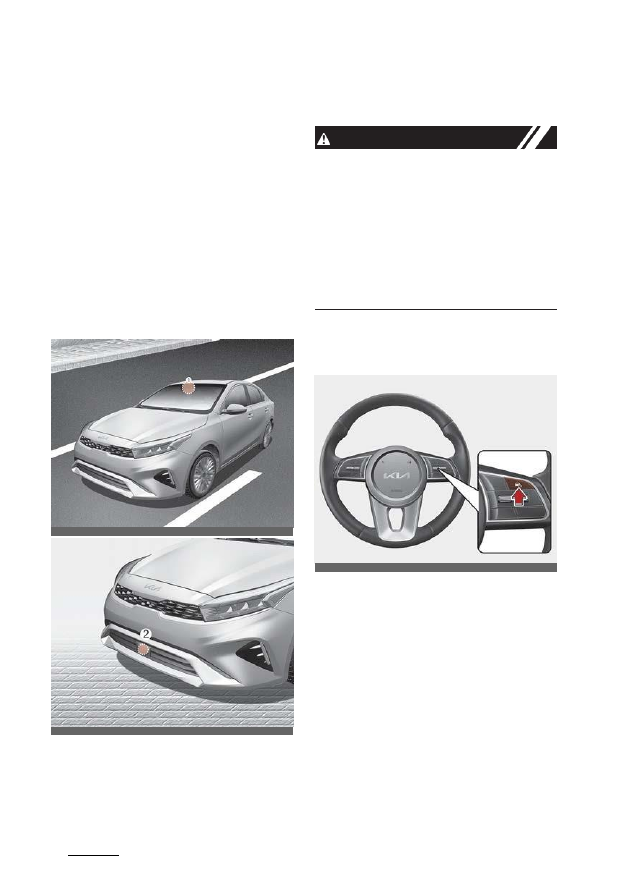
Detecting sensor

[1]: Front view camera, [2]: Front radar 

The front view camera and front radar
are used as a detecting sensor to detect 
vehicles in front. Refer to the picture

above for the detailed location of the 
detecting sensor.

CAUTION

Always keep the front view camera and 
front radar in good condition to maintain 
optimal performance of Smart Cruise 
Control.

For more details on the precautions of 
the front view camera and front radar, 
refer to "Forward Collision-Avoidance 
Assist (FCA) (Sensor fusion) (if 
equipped)" on page 6-15.

Smart Cruise Control setting 

Turning on Smart Cruise Control

• Press the Driving Assist button to turn 

on Smart Cruise Control. Set speed 
will be set to the current speed on the 
cluster.

• If there is no vehicle in front of you, the 

set speed will be maintained, but if 
there is a vehicle in front of you, set 
speed may decrease to maintain the 
distance to the vehicle ahead. If the 
vehicle ahead accelerates, your vehi

-

cle will travel at a steady cruising 
speed after accelerating to the set 
speed.

OBDM052015N

OBDM052014N

OBDM051369

65

6

6

Driving assistance system

Smart Cruise Control (SCC)

NOTICE

• If your set speed is between 0~20 mph

(0~30 km/h) when you press the 
Driving Assist button, Smart Cruise 
Control speed will be set to 20 mph 
(30 km/h).

• The symbol of the Driving Assist but

-

ton may vary depending on your vehi

-

cle option.

Setting Vehicle Distance

Each time the Vehicle Distance button is 
pressed, the Vehicle Distance changes
as follows:

NOTICE

• If you drive at 56 mph (90 km/h), the 

distance is maintained as follows:

- Distance 4 - approximately 172 ft. 

(52.5 m)

- Distance 3 - approximately 130 ft. 

(40 m)

- Distance 2 - approximately 106 ft. 

(32.5 m)

- Distance 1 - approximately 82 ft. (25 

m)

• The distance is set to the last set dis

-

tance when the engine is restarted, or 
when Smart Cruise Control was tem

-

porarily canceled.

Increasing set speed

• Push up the + switch, and release it 

immediately. The set speed will 
increase by 1 mph (1 km/h) each time 
the switch is operated in this manner.

• Push up the + switch, and hold it while 

monitoring the set speed on the clus

-

ter. The set speed will increase by 5
mph or 10 km/h each time the switch 
is operated in this manner. Release 
the switch when the desired speed is 
shown, and the vehicle will accelerate 
to that speed. Speed can increase the 
set speed to 110 mph (180 km/h).

W ARNING

Check the driving condition before using
the + switch. Driving speed may sharply
increase when you push up and hold the
+ switch.

OBD051374

OBD051021

Driving assistance system

66

6

Smart Cruise Control (SCC)

Decreasing set speed

• Push down the - switch, and release it 

immediately. The set speed will 
decrease by 1 mph (1 km/h) each time 
the switch is operated in this manner.

• Push down the - switch, and hold it 

while monitoring the set speed on the 
cluster. The set speed will decrease by 
5 mph or 10 km/h each time the switch
is operated in this manner.

• Release the switch at set speed you 

want to maintain. Speed can decrease 
the set speed to 20 mph (30 km/h).

Temporarily canceling Smart 
Cruise Control

Press the

switch or depress the 

brake pedal to temporarily cancel Smart 
Cruise Control.

Resuming Smart Cruise Control

To resume Smart Cruise Control after 
the function was canceled, operate the
+, - or

switch.

If you push the + switch up or - switch 
down, the set speed will be set to the 
current speed on the cluster.

If you press the

switch, set speed 

will resume to the preset speed.

W ARNING

Check the driving condition before press 
the

switch. Driving speed may 

sharply increase or decrease when you
press the

switch.

Turning off Smart Cruise Control

Press the Driving Assist button to turn 
Smart Cruise Control off.

NOTICE

If your vehicle is equipped with Manual 
Speed Limit Assist, press and hold the

OBD051020

OCK050035N

OBD051375

OBDM051369

67

6

6

Driving assistance system

Smart Cruise Control (SCC)

Driving Assist button to turn off Smart 
Cruise Control. However Manual Speed 
Limit Assist will turn on.

SCC Reaction

The sensitivity of set speed when follow

-

ing the front vehicle to maintain the set 
distance can be adjusted. With the igni

-

tion switch or ENGINE START/STOP
but

-

ton in the ON position, select 'Driver 

Assistance

→ SCC Reaction' from the 

'User Settings (LCD display) or Setup

Vehicle (Infotainment System screen)' 
menu to set one of the three stages you 
prefer.

Warning Volume

With the ignition switch or ENGINE 
START/STOP button in the ON
position,

select 'Driver Assistance

→ Warning Vol

-

ume' from the 'User Settings (LCD dis

-

play) or Setup

→ Vehicle (Infotainment 

System screen)' menu to change the 
Warning Volume to 'High', 'Medium' or 
'Low' for Smart Cruise Control.

If you change the Warning Volume, the 
Warning Volume of other Driver Assis

-

tance systems may change.

NOTICE

If the engine is restarted, Warning Vol

-

ume will maintain the last setting.

Smart Cruise Control operation 

Operating conditions

Smart Cruise Control will operate when 
the following conditions are satisfied.
• The gear is in D (Drive)
• The driver’s door is closed
• EPB (Electronic Parking Brake) is

not applied

• Your set speed is within the operating 

speed range

5~110 mph (10~180 km/h): when 
there is no vehicle in front

0~110 mph (0~180 km/h): when there 
is a vehicle in front

• ESC (Electronic Stability Control),

TCS (Traction Control System) and
ABS is on

• ESC (Electronic Stability Control),

TCS (Traction Control System) and
ABS is not controlling the vehicle

• Engine rpm is not in the red zone
• Forward Collision-Avoidance Assist 

brake control is not operating

OBD041248L

OBD041619L

Driving assistance system

68

6

Smart Cruise Control (SCC)

NOTICE

When stopped behind another vehicle, 
the driver can turn on Smart Cruise Con

-

trol while the brake pedal is depressed.

Overtaking Acceleration Assist

Overtaking Acceleration Assist will oper

-

ate when the turn signal indicator is 
turned on to the left while Smart Cruise 
Control is operating, and the following 
conditions are satisfied:
• Your set speed is above 40 mph (60 

km/h)

• The hazard warning flasher is off
• A vehicle is detected in front of your 

vehicle

• Deceleration is not needed to main

-

tain distance with the vehicle in front

W ARNING

• When the turn signal indicator is turned

on to the left while there is a vehicle
ahead, the vehicle may accel

-

erate

temporarily. Pay attention to the road
conditions at all times.

• Regardless of your country's driving 

direction, Overtaking Acceleration 
Assist will operate when the condi

-

tions are satisfied. When using the 
function in countries with different 
driving direction, always check the 
road conditions at all times.

Basic function

Operating

Temporarily canceled

You can see the status of Smart Cruise 
Control operation in the Driving Assist 
view on the cluster. Refer to "Instrument 
cluster" on page 4-52.

Smart Cruise Control will be displayed as 
below depending on the status of the 
function.
• When operating
(1) Whether there is a vehicle ahead and 
the selected distance level

(2) Set speed
(3) Whether there is a vehicle ahead and 
the target vehicle distance
• When temporarily canceled

OBDM052389N

OBDM051390

69

6

6

Driving assistance system

Smart Cruise Control (SCC)

(1)

CRUISE indicator

(2) The previous set speed

NOTICE

• The actual distance with the front 

vehicle is displayed.

• The target distance may vary accord

-

ing to the set speed and the set dis

-

tance level. If the set speed is low, 
even though the vehicle distance have 
changed, the change of the target 
vehicle distance may be small.

Accelerating temporarily

If you want to speed up temporarily when
Smart Cruise Control is on, depress the
accelerator pedal for a cer

-

tain amount. 

While depressing the accel

-

erator pedal

for a certain amount, the set speed,
distance level and target dis

-

tance will 

blink on the cluster. However, if the
accelerator pedal is insufficiently 
depressed, the vehicle may slow down.

W ARNING

Be careful when accelerating temporar

-

ily, because set speed is not controlled 
automatically even if there is a vehicle in 
front of you.

Temporarily canceling Smart 
Cruise Control

Smart Cruise Control will be temporarily 
canceled automatically when:
• The set speed is above 110 mph (180 

km/h)

• The vehicle is stopped for a certain 

period of time

• The accelerator pedal is continuously 

depressed for a certain period of time

• The conditions for Smart Cruise Con

-

trol to operate is not satisfied

If Smart Cruise Control is temporarily 
canceled, the 'Smart Cruise Control can

-

celed' warning message will appear on 
the cluster, and an audible warning will 
sound to warn the driver.

If Smart Cruise Control is temporarily 
canceled while the vehicle is at a stand

-

still with the function operating, EPB 
(Electronic Parking Brake) may be 
applied.

W ARNING

When Smart Cruise Control is temporar

-

ily canceled, distance with the front vehi

-

cle will not be maintained. Always have 
your eyes on the road while driving, and if
necessary, depress the brake pedal to

OBDM052391N

OMQ4050134L

Driving assistance system

70

6

Smart Cruise Control (SCC)

reduce your driving speed in order to 
maintain a safe distance.

Smart Cruise Control conditions 
not satisfied

If the Driving Assist button, +, - or
switch is operated when Smart Cruise 
Control’s operating conditions are not 
satisfied, the

‘Smart Cruise Control con

-

ditions not

met’ will appear on the clus

-

ter, and an audible warning will sound.

In traffic situation

In traffic, your vehicle will stop if the 
vehicle ahead of you stops. Also, if the 
vehicle ahead of you starts moving, your 
vehicle will start as well. In addition, after

the vehicle has stopped and a certain 
time has passed, the

‘Use switch or 

pedal to

accelerate’ message will appear 

on the cluster. Depress the accelerator 
pedal or operate the + switch, - switch or

switch to start driving.

W ARNING

While the message is displayed on the 
cluster, if there is no vehicle in front or the
vehicle is far away from you, and the
+ switch,

– switch or

switch is oper

-

ated, Smart Cruise Control will automati

-

cally cancel and the EPB will be applied. 
However, if the accelerator pedal is 
depressed, EPB will not be applied even 
though Smart Cruise Control is canceled. 
Always pay attention to the road condi

-

tion ahead.

Warning road conditions ahead

In the following situation, the 'Watch for 
surrounding vehicles' warning message 
will appear on the cluster, and an audi

-

ble warning will sound to warn the driver 
of road conditions ahead.

The vehicle in front disappears when 
Smart Cruise Control is maintaining the 
distance with the vehicle ahead while 
driving in low speed.

OBD041243L

OMQ4050288L

OBD041244L

71

6

6

Driving assistance system

Smart Cruise Control (SCC)

W ARNING

Always pay attention to vehicles or 
objects that may suddenly appear in 
front of you, and if necessary, depress 
the brake pedal to reduce your driving 
speed in order to maintain a safe dis

-

tance.

Collision warning

While Smart Cruise Control is operating, 
when the collision risk with the vehicle 
ahead is high, the 'Collision Warning' 
warning message will appear on the 
cluster, and an audible warning will 
sound to warn the driver. Always have 
your eyes on the road while driving, and if
necessary, depress the brake pedal to 
reduce your driving speed in order to 
maintain a safe distance.

W ARNING

• In the following situations, Smart

Cruise Control may not warn the
driver of a collision.

- The distance from the front vehicle 

is near, or the set speed of the other
vehicle is faster or similar with your
vehicle

- The speed of the front vehicle is 

very slow or is at a standstill

- The accelerator pedal is depressed 

right after Smart Cruise Control is 
turned on

W ARNING

Take the following precautions when 
using Smart Cruise Control :
• Smart Cruise Control does not substi

-

tute for proper and safe driving. It is 
the responsibility of the driver to 
always check the speed and distance 
to the vehicle ahead.

• Smart Cruise Control may not recog

-

nize unexpected and sudden situa

-

tions or complex driving situations, so 
always pay attention to driving condi

-

tions and control your set speed.

• Keep Smart Cruise Control off when 

the function is not in use to avoid 
inadvertently setting a speed.

• Do not open the door or leave the 

vehicle when Smart Cruise Control is 
operating, even if the vehicle is 
stopped.

• Always be aware of the selected 

speed and vehicle distance.

• Keep a safe distance according to 

road conditions and set speed. If the 
vehicle distance is too close during 
high-speed driving, a serious collision 
may result.

• When maintaining distance with the 

vehicle ahead, if the front vehicle dis

-

appears, Smart Cruise Control may 
suddenly accelerate to the set speed. 
Always be aware of unexpected and 
sudden situations from occurring.

• Set speed may decrease on an 

upward slope and increase on a
downward slope.

• Always be aware of situations such as 

when a vehicle cuts in suddenly.

OBD041231L

Driving assistance system

72

6

Smart Cruise Control (SCC)

• When you are towing a trailer or 

another vehicle, we recommend that 
Smart Cruise Control is turned off due 
to safety reasons.

• Turn off Smart Cruise Control when 

your vehicle is being towed.

• Smart Cruise Control may not operate 

properly if interfered with by strong 
electromagnetic waves.

• Smart Cruise Control may not detect 

an obstacle in front and lead to a colli

-

sion. Always look ahead cautiously to 
prevent unexpected and sudden situ

-

ations from occurring.

• Vehicles moving in front of you with a

frequent lane change may cause a
delay in Smart Cruise Control's reac

-

tion or may cause Smart Cruise Con

-

trol to react to a vehicle actually in an 
adjacent lane. Always drive cautiously 
to prevent unexpected and sudden 
situations from occurring.

• Always be aware of the surroundings 

and drive safely, even though a warn

-

ing message does not appear or an 
audible warning does not sound.

• If any other function’s warning mes

-

sage is displayed or warning sound is 
generated, Smart Cruise Control 
warning message may not be dis

-

played and warning sound may not be
generated.

• You may not hear the warning sound

of Forward Collision-Avoidance Assist
if the surrounding is noisy.

• The vehicle manufacturer is not 

responsible for any traffic violation or 
accidents caused by the driver.

• Always set the set speed under the 

speed limit in your state.

NOTICE

• Smart Cruise Control may not operate 

in few seconds after the vehicle is 
started or the front view camera or 
front radar is initialized.

• You may hear a sound when the 

brake is controlled by Smart Cruise 
Control.

Smart Cruise Control malfunc

-

tion and limitations

Smart Cruise Control malfunction

When Smart Cruise Control is not work

-

ing properly, the 'Check Smart Cruise 
Control system' warning message will 
appear (turns off after a certain time),

and the

warning light will illuminate

on the cluster. In this case, take your 
vehicle to an authorized Kia dealer and 
have the function checked.

OMQ4050145L

73

6

6

Driving assistance system

Smart Cruise Control (SCC)

Smart Cruise Control disabled

When the front radar cover or sensor is 
covered with snow, rain, or foreign mat

-

ters, it can reduce the detecting perfor

-

mance and temporarily limit or disable 
Smart Cruise Control.

If this occurs, the 'Smart Cruise Control
disabled. Radar blocked' warning mes

-

sage will appear for a certain period of
time on the cluster.

Smart Cruise Control will operate prop

-

erly when such snow, rain or foreign 
matter is removed.

W ARNING

Even though the warning message does 
not appear on the cluster, Smart Cruise 
Control may not properly operate.

CAUTION

Smart Cruise Control may not properly 
operate in an area (for example, open 
terrain), where any objects are not 
detected after turning ON the engine.

Limitations of Smart Cruise Con

-

trol

Smart Cruise Control may not operate 
properly or it may operate unexpectedly 
under the following circumstances:

• The detecting sensor or the surround

-

ings are contaminated or damaged

• Washer fluid is continuously sprayed, 

or the wiper is on

• The camera lens is contaminated due 

to tinted, filmed or coated windshield, 
damaged glass, or stuck of foreign 
matters (sticker, bug, etc.) on the
glass

• Moisture is not removed or frozen on 

the windshield

• The field of view of the front view 

camera is obstructed by sun glare

• Street light or light from an oncoming 

vehicle is reflected on the wet road 
surface, such as a puddle in the road

• The temperature around the front 

view camera is high or low

• An object is placed on the dashboard

The surrounding is very bright

• The surrounding is very dark, such as 

in a tunnel, etc.

• The brightness changes suddenly, for 

example when entering or exiting a
tunnel

• The brightness outside is low, and the 

headlamps are not on or are not bright

• Driving in heavy rain or snow, or thick 

fog

• Driving through steam, smoke or 

shadow

• Only part of the vehicle is detected
• The vehicle in front has no tail lights, 

tail lights are located unusually, etc.

• The brightness outside is low, and the 

tail lamps are not on or are not bright

• The rear of the front vehicle is small or 

does not look normal (for example, 
tilted, overturned, etc.)

OMQ4050144L

Driving assistance system

74

6

Smart Cruise Control (SCC)

• The front vehicle's ground clearance 

is low or high

• Your vehicle is being towed
• A vehicle suddenly cuts in front
• Driving through a tunnel or railroad 

bridge

• An object reflecting off the front radar 

such as a guardrail, nearby vehicle, 
etc.

• The bumper around the front radar is

impacted, damaged or the front radar
is out of position

• The temperature around the front

radar is high or low

• Driving in vast areas where there are

few vehicles or structures (for exam

-

ple, desert, meadow, suburb, etc.)

• The vehicle in front is made of mate

-

rial that does not reflect on the front
radar

• Driving near a highway (or motorway)

interchange or tollgate

• Driving on a slippery surface due to 

snow, water puddle, ice, etc.

• Driving on a curved road
• The vehicle in front is detected late

The vehicle in front is suddenly
blocked by a obstacle

• The vehicle in front suddenly changes 

lane or suddenly reduces speed

• The vehicle in front is bent out of 

shape

• The front vehicle's speed is fast or 

slow

• With a vehicle in front, your vehicle 

changes lane at low speed

• The vehicle in front is covered with 

snow

• You are driving unstably
• You are on a roundabout and the 

vehicle in front is not detected

• You are continuously driving in a cir

-

cle

• Driving in a parking lot
• Driving through a construction area, 

unpaved road, partial paved road, 
uneven road, speed bumps, etc.

• Driving on an incline road, curved 

road, etc.

• Driving through a roadside with trees 

or streetlights

• The adverse road conditions cause 

excessive vehicle vibrations while 
driving

• Your vehicle height is abnormally low

or high due to heavy loads, abnormal
tire pressure, etc.

• Driving through a narrow road where

trees or grass are overgrown

• There is interference by electromag

-

netic waves, such as driving in an area 
with strong radio waves or electrical 
noise

• Driving on a curved road

On curves, Smart Cruise Control may
not detect a vehicle in the same lane, 
and may accelerate to the set speed. 
Also, the set speed may rapidly decrease 
when the vehicle ahead is detected sud

-

denly.

OHM051527

75

6

6

Driving assistance system

Smart Cruise Control (SCC)

Select the appropriate set speed on 
curves and apply the brake pedal or 
accelerator pedal according to the road 
and driving conditions ahead.

Your set speed can be reduced due to a
vehicle in the adjacent lane.

Apply the accelerator pedal and select 
the appropriate set speed. Check to be 
sure that the road conditions permit safe 
operation of Smart Cruise Control.
• Driving on an inclined road

During uphill or downhill driving, Smart 
Cruise Control may not detect a moving 
vehicle in your lane, and cause your 
vehicle to accelerate to the set speed. 
Also, the set speed will rapidly decrease 
when the vehicle ahead is detected sud

-

denly.

Select the appropriate set speed on 
inclines and apply the brake pedal or 
accelerator pedal according to the road 
and driving conditions ahead.
• Changing lanes

[A]: Your vehicle, [B]: Lane changing 
vehicle

When a vehicle moves into your lane 
from an adjacent lane, it cannot be 
detected by the sensor until it is in the 
sensor's detection range.

Smart Cruise Control may not immedi

-

ately detect the vehicle when the vehicle 
changes lanes abruptly. You must main

-

tain a safe braking distance, and if nec

-

essary, depress the brake pedal to 
reduce your driving speed in order to 
maintain a safe distance.

OHM051530

OHM051533

OHM051518

Driving assistance system

76

6

Smart Cruise Control (SCC)

• Detecting vehicle

In the following cases, some vehicles in 
your lane cannot be detected by the 
sensor:
• Vehicles offset to one side
• Slow-moving vehicles or sudden-

decelerating vehicles

• Oncoming vehicles

Stopped vehicles

• Vehicles with small rear profile, such 

as trailers

• Narrow vehicles, such as motorcycles 

or bicycles

• Special vehicles
• Animals and pedestrians

In the following cases, the vehicle in 
front cannot be detected by the sensor:

• Vehicles with higher clearance or 

vehicles carrying loads that stick out 
of the back of the vehicle

• Vehicles that have the front lifted due 

to heavy loads

• You are steering your vehicle
• Driving on narrow or sharply curved 

roads

When a vehicle ahead disappears at an 
intersection, your vehicle may acceler

-

ate. Always pay attention to road and 
driving conditions while driving.

When a vehicle in front of you merges 
out of the lane, Smart Cruise Control 
may not immediately detect the new 
vehicle that is now in front of you.
Always pay attention to road and driving 
conditions while driving.

ODL3A052415

OBDM052365N

OCK050269

OBD051360

77

6

6

Driving assistance system

Navigation-based Smart Cruise Control (NSCC)

Always look out for pedestrian when 
your vehicle is maintaining a distance 
with the vehicle ahead.

This device complies with Part 15
of the FCC rules.

Operation is subject to the following
three conditions:

1. This device may not cause harmful

interference, and

2. This device must accept any interfer

-

ence received, including interference
that may cause undesired operation.

3. Changes or modifications not 

expressly approved by the party 
responsible for compliance could void 
the user's authority to operate the 
device.

Radio frequency radiation expo

-

sure information:

This equipment complies with FCC radi

-

ation exposure limits set forth for an 
uncontrolled environment. This equip

-

ment should be installed and operated 
with minimum distance of 8 in (20 cm) 
between the radiator and your body.

This transmitter must not be co-located 
or operating in conjunction with any other
antenna or transmitter.

Navigation-based

Smart

Cruise Control (NSCC) (if
equipped)

Navigation-based Smart Cruise Control 
can help drive at a certain speed accord

-

ing to the road conditions when driving on
highways (or motorways) by using road
information from the navigation system
while Smart Cruise Control is operating.

NOTICE

• Navigation-based Smart Cruise Con

-

trol is available only on controlled 
access road of certain highways.

*Controlled access road indicates 

roads with limited entrances and 
exits that allow uninterrupted high 
speed traffic flow. Only passenger 
cars and motorcycles are allowed on 
controlled access roads.

• Additional highways may be 

expanded by future navigation 
updates.

NOTICE

Navigation-based Smart Cruise Control 
operates on main roads of highways (or 
motorways), and does not operate on 
interchanges or junctions.

W ARNING

Navigation-based Smart Cruise Control
is a supplemental function and is not a
substitute for safe driving. It is the

OCK050271

Available highway (Controlled access road)

USA

Select Interstate Highway and
U.S. (Federal) and State
High

-

ways

Canada

Select Provincial and Territo

-

rial Highways

Driving assistance system

78

6

Navigation-based Smart Cruise Control (NSCC)

responsibility of the driver to always 
check the speed and distance to the 
vehicle ahead. Always drive safely and 
use caution.

Highway Curve Zone Auto Slow

-

down

If vehicle speed is high, Highway Curve 
Zone Auto Slowdown function will tem

-

porarily decelerate your vehicle to help 
you drive safely on a curve, based on the 
curve information from the navigation.

Set Speed Auto Change

Set Speed Auto Change function 
changes Smart Cruise Control set speed 
based on the speed limit information from
the navigation.

Navigation-based Smart Cruise 
Control setting

Highway Auto Curve Slowdown

• With the ignition switch or ENGINE 

START/STOP button in the ON posi

-

tion, select

‘Driver Assistance → Driv

-

ing Convenience

→ Highway Auto 

Curve

Slowdown’ from the 'Setup →

Vehicle (Infotainment System screen)'

menu to set whether to use each 
function.

NOTICE

When there is a problem with Naviga

-

tion-based Smart Cruise Control, the 
function cannot be set from the Settings 
menu.

Navigation-based Smart Cruise 
Control operation

Operating conditions

Navigation-based Smart Cruise Control
is ready to operate if all of the following
conditions are satisfied:
• Smart Cruise Control is operating
• Driving on main roads or highways (or

motorways)

NOTICE

For more details on how to operate 
Smart Cruise Control, refer to "Smart 
Cruise Control (SCC) (if equipped)" on 
page 6-64.

Display and control

When Navigation-based Smart Cruise 
Control operates, it will be displayed on 
the cluster as follows:

OSP2N052273

79

6

6

Driving assistance system

Navigation-based Smart Cruise Control (NSCC)

Navigation-based Smart Cruise 
Control standby

If the operating conditions are satisfied, 
the white (

) symbol will illuminate.

Navigation-based Smart Cruise 
Control operating

If temporary deceleration is required in 
the standby state and Navigation-based 
Smart Cruise Control is operating, the 
green (

) symbol will illuminate on 

the cluster.

If the Set Speed Auto Change function 
operates, the green (

) symbol and

green set speed will illuminate on the 
cluster, and an audible alarm will sound.

W ARNING

'Drive carefully' warning message will 
appear in the following circumstances:

• Navigation-based Smart Cruise Con

-

trol is not able to slow down your 
vehicle to a safe speed.

NOTICE

Highway Curve Zone Auto Slowdown
and Set Speed Auto Change function
uses the same (

) symbol.

Highway Curve Zone Auto Slow

-

down

• Depending on the curve ahead on the 

highway (or motorway), the vehicle will
decelerate, and after passing the 
curve, the vehicle will accelerate to 
Smart Cruise Control set speed.

• Vehicle deceleration time may differ 

depending on the vehicle speed and 
the degree of the curve on the road. 
The higher the driving speed, the 
faster the vehicle will decelerate.

Set Speed Auto Change

• Set Speed Auto Change function will 

operate when Smart Cruise Control

OBDM052413N

OBDM052414N

OBD041233L

Driving assistance system

80

6

Navigation-based Smart Cruise Control (NSCC)

set speed and the highway (or motor

-

way) speed limit is matched.

• While Set Speed Auto Change func

-

tion is operating, when the highway 
(or motorway) speed limit changes, 
Smart Cruise Control set speed auto

-

matically changes to the changed 
speed limit.

• If Smart Cruise Control set speed is 

adjusted different from the speed limit,
Set Speed Auto Change function will
be in the standby state.

• If Set Speed Auto Change function 

has changed to the standby state by 
driving on a road other than the high

-

way (or motorway) main road, Set 
Speed Auto Change function will 
operate again when you drive on the 
main road again. At this time, the set 
speed does not need to be adjusted.

• If Set Speed Auto Change function 

has changed to the standby state by 
depressing the brake pedal, press the 
(

) switch to restart the Highway 

Set Speed Auto Change function.

• Set Speed Auto Change function does

not operate on highway interchanges
or junctions.

NOTICE

• Set Speed Auto Change function only 

operates based on the speed limits of 
the highway (or motorway), but it does
not work with the speed cam

-

eras.

• When Set Speed Auto Change func

-

tion is operating, the vehicle automati

-

cally accelerates or decelerates when 
the highway (or motorway) speed
limit changes.

• If the speed limit is higher than the 

speed limit of the speed camera while 
Set Speed Auto Change function is

operating, an audible warning may 
sound.

• The maximum set speed for Set 

Speed Auto Change function to oper

-

ate is 90 mph (140 km/h).

• If the speed limit of a new road is not

reflected in the navigation, Set Speed
Auto Change function may not oper

-

ate properly.

• If the speed unit is set to a unit other 

than the speed unit used in your state, 
Set Speed Auto Change function may 
not operate properly.

Limitations

of

Navigation-based

Smart Cruise Control

Navigation-based Smart Cruise Control
may not operate properly under the fol

-

lowing circumstances:
• The navigation is not working prop

-

erly.

• The navigation is not updated to 

include the latest information about 
road curvature and changes.

• Speed limit and road information in 

the navigation is not updated

• The map information and the actual 

road is different because of real-time 
GPS data or map information error

• The navigation searches for a route 

while driving

• GPS signals are blocked in areas

such as a tunnel

• A road that divides into two or more 

roads and joins again

• The driver goes off course the route 

set in the navigation

• The route to the destination is 

changed or canceled by resetting the 
navigation (including TPEG change)

• The navigation cannot detect the cur

-

rent vehicle position (for example, ele

-

81

6

6

Driving assistance system

Navigation-based Smart Cruise Control (NSCC)

vated roads including overpass 
adjacent to general roads or nearby 
roads exist in a parallel way)

• The vehicle enters a service station or 

rest area

• The speed limit of some sections 

changes depending on the road situa

-

tions

• Android Auto or CarPlay is operating

The navigation is being updated while

driving

• The navigation is being restarted 

while driving

1

: Driving route, [2]: Set route, [3]: Main 

road, [4]: Branch line
• When there is a difference between 

the navigation set route (branch line) 
and the driving route (main road), 
Highway Curve Zone Auto Slowdown 
function may not operate until the 
driving route is recognized as the 
main road.

• When the vehicle's driving route is 

recognized as the main road by main

-

taining the main road instead of the 
navigation set route, Highway Curve 
Zone Auto Slowdown function will 
operate. Depending on the distance to 
the curve and the current vehicle 
speed, vehicle deceleration may not

be sufficient or may decelerate rap

-

idly.

1

: Driving route, [2]: Main road, [3]: Set 

route, [4]: Branch line
• When there is a difference between 

the navigation route (main road) and 
the driving route (branch line), High

-

way Curve Zone Auto Slowdown func

-

tion may temporarily operate due to the
navigation information of the highway
curve section.

• When it is judged that you are driving 

out of the route by entering the high

-

way interchange and junction, High

-

way Curve Zone Auto Slowdown 
function will not operate.

[1]: Driving route, [2]: Main road, [3]: 
Branch line

OCK050334N

OCK050335N

OON051194N

Driving assistance system

• The navigation's speed limit informa

-

tion may differ from the actual speed 
limit information on the road. It is the 
driver's responsibility to check the 
speed limit on the actual driving road 
or lane.

• Highway Curve Zone Auto Slowdown 

and Set Speed Auto Change function 
will automatically cancel when you 
leave the main road of the highway. 
Always pay attention to road and driv

-

ing conditions while driving.

• Navigation-based Smart Cruise Con

-

trol may not operate due to the exis

-

tence of leading vehicles and the 
driving conditions of the vehicle. 
Always pay attention to road and driv

-

ing conditions while driving.

• When you are towing a trailer or 

another vehicle, we recommend that 
Navigation-based Smart Cruise Con

-

trol is turned off due to safety rea

-

sons.

• After you pass through a tollgate on a

highway, Navigation-based Smart 
Cruise Control operates based on the 
first lane. If you enter one of the other 
lanes, Navigation-based Smart Cruise 
Control might not properly decelerate.

• The vehicle will accelerate if the driver 

depresses the accelerate pedal while 
Navigation-based Smart Cruise Con

-

6

82

Navigation-based Smart Cruise Control (NSCC)

• If there is no destination set on the 

navigation, Highway Curve Zone Auto 
Slowdown function will operate based 
on the curve information on the main 
road.

• Even if you depart from the main

road, Highway Curve Zone Auto Slow

-

down function may temporarily oper

-

ate due to navigation information of the
highway curve section.

W ARNING

trol is operating, and function will not 
decelerate the vehicle. However, if the 
accelerator pedal is insufficiently 
depressed, the vehicle may slow 
down.

• If the driver accelerates and releases 

the accelerator pedal while Naviga

-

tion-based Smart Cruise Control is 
operating, the vehicle may not decel

-

erate sufficiently or may rapidly 
decelerate to a safe speed.

• If the curve is too large or too small, 

Navigation-based Smart Cruise Con

-

trol may not operate.

NOTICE

• When the function is activated, the 

vehicle decelerates automatically 
before reaching the curved road 
according to its curvature, and the 
driving speed returns to the speed set 
by Smart Cruise Control after passing 
the curved section.

• The speed information on the cluster 

and navigation may differ.

• A time gap could occur between the 

navigation's guidance and when Navi

-

gation-based Smart Cruise Control 
operation starts and ends.

• Even if you are driving at a speed 

lower than Smart Cruise Control set 
speed, acceleration may be limited by 
speed cameras and curve sections 
ahead.

• If Navigation-based Smart Cruise 

Control is operating while leaving the 
main road to enter an interchange, 
junction, rest area, etc., the function 
may operate for a certain period of 
time.

• Deceleration by Navigation-based 

Smart Cruise Control may not be suf

-

ficient due to road conditions such as

83

[1]: Front view camera
The front view camera is used as a
detecting sensor to detect lane markings

6

and front vehicles. Refer to the picture
above for the detailed location of the 
detecting sensor.

6

Driving assistance system

Lane Following Assist (LFA)

uneven road surfaces, narrow lanes, 
etc.

This device complies with Part 15
of the FCC rules.

Operation is subject to the following
three conditions:

1. This device may not cause harmful

interference, and

2. This device must accept any interfer

-

ence received, including interference
that may cause undesired operation.

3. Changes or modifications not 

expressly approved by the party 
responsible for compliance could void 
the user's authority to operate the 
device.

Radio frequency radiation expo

-

sure information:

This equipment complies with FCC radi

-

ation exposure limits set forth for an 
uncontrolled environment.

This equipment should be installed and 
operated with minimum distance of 8 in 
(20 cm) between the radiator and your 
body. This transmitter must not be co-
located or operating in conjunction with 
any other antenna or transmitter.

Lane Following Assist (LFA) (if 
equipped)

Lane Following Assist is designed to 
detect lane markings or vehicles on the 
road, and assists the driver's steering to 
help center the vehicle in the lane.

Detecting sensor

CAUTION

For more details on the precautions of 
the front view camera, refer to "Forward 
Collision-Avoidance Assist (FCA) (Sen

-

sor fusion) (if equipped)" on page 6-15.

OBDM052015N

Driving assistance system

84

6

Lane Following Assist (LFA)

Lane Following Assist setting

Turning Lane Following Assist 
On/Off

With the ignition switch or ENGINE 
START/STOP button in the ON
position, press the Lane Driving Assist
button located on the steering wheel to
turn on Lane Following Assist. The white
or
green (

) indicator light will illuminate 

on the cluster.

Press the Lane Driving Assist button 
again to turn off the function.

Warning Volume

With the ignition switch or ENGINE 
START/STOP button in the ON position, 
select 'Driver Assistance

→ Warning Vol

-

ume' from the 'User Settings (LCD dis

-

play) or Setup

→ Vehicle (Infotainment 

System screen)' menu to change the 
Warning Volume to 'High', 'Medium' or 
'Low' for Hands-off warning.

If you change the Warning Volume, the 
Warning Volume of other Driver Assis

-

tance systems may change.

Lane Following Assist operation 

Warning and control

Lane Following Assist

If the vehicle ahead or both lane mark

-

ings are detected and your vehicle 
speed is below 110 mph (180 km/h), the
green (

) indicator light will illuminate 

on the cluster, and the function will help
center the vehicle in the lane by con

-

trolling the steering wheel.

CAUTION

When the steering wheel is not con

-

trolled, the green (

) indicator light will 

blink and change to white.

OBD051366

OBD041619L

OBDM052392N

85

6

6

Driving assistance system

Lane Following Assist (LFA)

Hands-off warning

If the driver takes their hands off the 
steering wheel for several seconds, the 
'Keep hands on steering wheel' warning 
message will appear and an audible 
warning will sound in stages.
• First stage: Warning message
• Second stage: Warning message

(red steering wheel) and audible
warning

If the driver still does not have their 
hands on the steering wheel after the 
hands-off warning, the 'Lane Following 
Assist (LFA) canceled' warning
message will appear and Lane
Following Assist will be automatically
canceled.

W ARNING

• The steering wheel may not be 

assisted if the steering wheel is held

very tight or the steering wheel is 
steered over a certain degree.

• Lane Following Assist does not oper

-

ate at all times. It is the responsibility 
of the driver to safely steer the vehicle 
and to maintain the vehicle in its lane.

• The hands–off warning message may

appear late depending on road condi

-

tions. Always have your hands on the
steering wheel while driving.

• If the steering wheel is held very

lightly the hands

–off warning mes

-

sage may appear because the func

-

tion may not recognize that the driver 
has their hands on the steering wheel.

• If you attach objects to the steering 

wheel, the hands-off warning may not 
work properly.

NOTICE

• For more details on setting the func

-

tions in the infotainment system, refer 
to "LCD display modes" on page 4-58.

• When both lane markings are 

detected, the lane lines on the cluster 
will change from gray to white.

Lane undetected

OBD041236L

OMQ4040509L

OBDM042267N

Driving assistance system

86

6

Lane Following Assist (LFA)

Lane detected

• If lane markings are not detected, 

steering wheel control by Lane Fol

-

lowing Assist can be limited depend

-

ing on whether a vehicle is in front or 
the driving conditions of the vehicle.

• Even though the steering is assisted 

by Lane Following Assist, the driver 
may control the steering wheel.

• The steering wheel may feel heavier

or lighter when the steering wheel is
assisted by the function than when it
is not.

Lane Following Assist malfunc

-

tion and limitations

Lane Following Assist malfunc

-

tion

When Lane Following Assist is not work

-

ing properly, the 'Check Lane Following 
Assist (LFA) system' warning message 
will appear on the cluster (turns off after

a certain time) and the

warning

light will illuminate. In this case, have the 
function checked by an authorized Kia 
dealer.

Limitations of Lane Following 
Assist

For more details on system limita

-

tions,refer to "Limitations of Lane Keep

-

ing Assist" on page 6-31.

CAUTION

For more details on the function precau

-

tions, refer to "Lane Keeping Assist (LKA)
(if equipped)" on page 6-27.

OBDM042268N

OMQ4050157L

87

6

6

Driving assistance system

Highway Driving Assist (HDA)

Highway Driving Assist (HDA) 
(if equipped)

Highway Driving Assist is designed to 
help detect vehicles and lanes ahead, 
and help maintain distance from the 
vehicle ahead, maintain the set speed, 
and help center the vehicle in the lane.

NOTICE

Highway Driving Assist operates on
main roads of highways (or motorways), 
and does not operate on interchanges or 
junctions.

NOTICE

• Highway Driving Assist is available 

only on controlled access road of cer

-

tain highways.

*Controlled access road indicates roads 

with limited entrances and exits that 
allow uninterrupted high speed traffic 
flow. Only passenger cars and motor

-

cycles are allowed on controlled 
access roads.

• Additional highways may be 

expanded by future navigation 
updates.

Detecting sensors

[1] : Front view camera, [2]: Front radar 

Refer to the picture above for the
detailed location of the detecting sen

-

sors.

CAUTION

For more details on the precautions of 
the detecting sensors, refer to "Forward 
Collision-Avoidance Assist (FCA) (Sen

-

sor fusion) (if equipped)" on page 6-15.

Available highway (Controlled access road)

USA

Select Interstate Highway and
U.S. (Federal) and State
High

-

ways

Canada

Select Provincial and Territorial
Highways

OSP2N052277

OBDM052015N

OBDM052014N

Driving assistance system

88

6

Highway Driving Assist (HDA)

Highway Driving Assist setting 

Highway Driving Assist

With the ignition switch or ENGINE 
START/STOP button in the ON
position, select

‘Driver Assistance →

Driving Con

-

venience’ from the Setup

menu to set whether to use each
function.
• If 'Highway Driving Assist' is selected, 

it helps maintain distance from the 
vehicle ahead, maintain the set speed, 
and center the vehicle in the lane.

NOTICE

• If there is a problem with the func

-

tions, the settings cannot be changed. 
We recommend that you have your 
vehicle inspected by an authorized 
Kia dealer.

• If the engine is restarted, the func

-

tions will maintain the last setting.

W ARNING

For your safety, only change the settings 
after parking the vehicle at a safe loca

-

tion.

Warning Volume

With the ignition switch or ENGINE 
START/STOP button in the ON position, 
select 'Driver Assistance

→ Warning Vol

-

ume' from the 'User Settings (LCD dis

-

play) or Setup

→ Vehicle (Infotainment 

System screen)' to change the Warning 
Volume to 'High', 'Medium', 'Low' for 
Highway Driving Assist.

If you change the Warning Volume, the 
Warning Volume of other Driver Assis

-

tance systems may change.

Highway Driving Assist operation 

Display and control

Highway Driving Assist will be displayed
as below depending on the status of the
function.

OSP2N052275

OBD041619L

89

6

6

Driving assistance system

Highway Driving Assist (HDA)

Operating

Standby

1. Highway Driving Assist indicator, 

whether there is a vehicle ahead and 
the selected distance level are dis

-

played.

): Operating state

): Standby state

• Green (

White (

2. Set speed

3. Lane Following Assist indicator
4. Whether there is a vehicle ahead and 

the selected distance level

5. Whether the lane is detected or not is 

displayed

For more details and limitations of Smart 
Cruise Control, refer to "Smart Cruise 
Control (SCC) (if equipped)" on page 6-
64.

For more details and limitations of Lane
Following Assist, refer to "Lane Following
Assist (LFA) (if equipped)" on page 6-83.

Highway Driving Assist operating

• When driving on the main roads of 

highways (or motorways) where High

-

way Driving Assist can operate, High

-

way Driving Assist will turn on if 
pressing Driving Assist button.

• With Smart Cruise Control and Lane 

Following Assist on, when entering the 
main roads of highways (or motor

-

ways) where Highway Driving Assist 
can operate, Highway Driving Assist 
will automatically operate.

Restarting after stopping

When Highway Driving Assist is operat

-

ing, your vehicle will stop if the vehicle 
ahead of you stops. Also, if the vehicle 
ahead of you starts moving within 30 
seconds after the stop, your vehicle will 
start as well. In addition, after the vehicle 
has stopped and 30 seconds have 
passed, the 'Use switch or pedal to 
accelerate' message will appear on the 
cluster. Depress the accelerator pedal or 
push the + switch, - switch or (

)

switch to start driving.

OMQ4A050236

OBDM052415N

OMQ4050288L

Driving assistance system

90

6

Highway Driving Assist (HDA)

Hands-off warning

The hands-off warning appears when 
the function detects that the driver's 
hands are not on the steering wheel 
while Highway Driving Assist is in work.
• First warning: warning message
• Second warning: warning message 

with warning sound

If the driver still does not have their hands
on the steering wheel after the hands-off
warning, the 'Highway Driv

-

ing Assist

(HDA) canceled' warning mes

-

sage will

appear and Highway Driving will be
automatically canceled.

Highway Driving Assist standby

When Smart Cruise Control is temporar

-

ily canceled while Highway Driving
Assist is operating, Highway Driving

Assist will be in standby state. At this 
time, Lane Following Assist will operate 
properly.

Highway Driving Assist malfunc

-

tion and limitations

Highway Driving Assist malfunc

-

tion

When Highway Driving Assist is not 
working properly, the 'Check Highway 
Driving Assist (HDA) system' warning

message will appear, and the (

)

warning light will illuminate on the clus

-

ter.

Have your vehicle inspected by an 
authorized Kia dealer.

W ARNING

• The driver is responsible for con

-

trolling the vehicle for safe driving.

• Always have your hands on the steer

-

ing wheel while driving.

• Highway Driving Assist is a supple

-

mental function that assists the driver 
in driving the vehicle and is not a
complete autonomous driving func

-

tion. Always check road conditions, 
and if necessary, take appropriate 
actions to drive safely.

OBD041236L

OMQ4050219L

OMQ4050220L

91

6

6

Driving assistance system

Highway Driving Assist (HDA)

• Always have your eyes on the road, 

and it is the responsibility of the driver 
to avoid violating traffic laws. The 
vehicle manufacturer is not responsi

-

ble for any traffic violation or acci

-

dents caused by the driver.

• Highway Driving Assist may not be 

able to determine all traffic situations. 
Highway Driving Assist may not 
detect possible collisions due to lim

-

itations of the function. Always be 
aware of the limitations of the func

-

tion. Obstacles such as vehicles, 
motorcycles, bicycles, pedestrians, 
unspecified objects or structures such 
as guardrails and tollgates, etc. that 
may collide with the vehicle may not 
be detected.

• Highway Driving Assist will turn off 

automatically under the following sit

-

uations:

- Driving on roads that Highway 

Driving Assist does not operate, 
such as a rest area, intersection, 
junction, etc.

- The navigation does not operate 

properly such as when the naviga

-

tion is being updated or restarted

• Highway Driving Assist may inadver

-

tently operate or turn off depending
on road conditions (navigation infor

-

mation) and surroundings.

• Lane Following Assist may be tempo

-

rarily disabled when the front view 
camera cannot detect lanes properly 
or the hands-off warning is on.

• You may not hear the warning sound 

of Highway Driving Assist if the sur

-

rounding is noisy.

• If the vehicle is driven at high speed 

above a certain speed at a curve, your 
vehicle may drive to one side or may 
depart from the driving lane.

• When you are towing a trailer or 

another vehicle, we recommend that 
Highway Driving Assist is turned off 
due to safety reasons.

• The hands–off warning message may 

appear early or late depending on how
the steering wheel is held or road 
conditions. Always have your hands 
on the steering wheel while driving.

• For your safety, please read the 

owner's manual before using Highway 
Driving Assist.

• Highway Driving Assist will not oper

-

ate when the engine is started, or 
when the detecting sensors or naviga

-

tion is being initialized.

Limitations of Highway Driving 
Assist

Highway Driving Assist may not operate 
properly, or may not operate under the 
following circumstances:
• The map information and the actual 

road is different because the naviga

-

tion is not updated

• The map information and the actual 

road is different because of real-time 
GPS data or map information error

• The infotainment system is over

-

loaded by performing functions such 
as route search, video playback, voice 
recognition, etc. are performing simul

-

taneously

• GPS signals are blocked in areas 

such as a tunnel

• The driver goes off course or the route 

to the destination is changed or 
canceled by resetting the navigation

• The vehicle enters a service station or 

rest area

• Android Auto or CarPlay is operating

Driving assistance system

92

6

Rear View Monitor (RVM)

• The navigation cannot detect the cur

-

rent vehicle position (for example, ele

-

vated roads including overpass 
adjacent to general roads or nearby 
roads exist in a parallel way)

CAUTION

For more details on the limitations of the 
front view camera, front radar, refer to 
"Forward Collision-Avoidance Assist 
(FCA) (Sensor fusion) (if equipped)" on 
page 6-15.

This device complies with Part 15
of the FCC rules.

Operation is subject to the following
three conditions:

1. This device may not cause harmful

interference, and

2. This device must accept any interfer

-

ence received, including interference
that may cause undesired operation.

3. Changes or modifications not 

expressly approved by the party 
responsible for compliance could void 
the user's authority to operate the 
device.

Radio frequency radiation expo

-

sure information:

This equipment complies with FCC radi

-

ation exposure limits set forth for an 
uncontrolled environment. This equip

-

ment should be installed and operated 
with minimum distance of 8 in (20 cm) 
between the radiator and your body.

This transmitter must not be co-located 
or operating in conjunction with any other
antenna or transmitter.

Rear View Monitor (RVM)

Rear View Monitor will show the area
behind the vehicle to assist you when
parking or backing up.

Detecting sensor

[1] : Wide-rear view camera
Refer to the picture above for the detailed
location of the detecting sensor.

OBDM041055

OBDM042658N

93

6

6

Driving assistance system

Rear View Monitor (RVM)

Rear View Monitor setting 

Camera settings

You can change Rear View Monitor

‘Dis

-

play

Contents’ of ‘Display Settings’ by

touching the setup icon (

) on the 

screen while Rear View Monitor is oper

-

ating, or selecting

‘Setup → Vehicle →

Driver Assistance

→ Parking Safety


Camera

Settings’ from the Infotainment 

System screen while the engine is on.

Rear View Monitor operation

Parking/View button (if
equipped)

[1] : Parking/View button
Press the Parking/View button to turn on 
Rear View Monitor.

Rear view

Operating conditions

• If the gear is shifted to R (Reverse), 

while rear view is displayed on the 
screen.

• Press the Parking/View button (1) 

while the gear is in P (Park), the image 
will appear on the screen. (if equipped)

Off conditions

• The rear view will not be turned off 

with the gear R (Reverse).

• Press the Parking/View button (1) 

again while the gear is in P (Park) with 
the rear view on the screen, the rear 
view will turn off. (if equipped)

• If the gear is shifted from R (Reverse) 

to P (Park), the rear view will be turned
off.

Extended Rear View Monitor

If the gear is shifted from R (Reverse) to
N (Neutral) or D (Drive), the rear view will
be maintained to park the vehicle safely.

Operating conditions

• If the gear is shifted from R (Reverse) 

to N (Neutral) or D (Drive), the rear 
view will be turned on.

Off conditions

• The rear view will turn off when vehi

-

cle speed is above 6 mph (10 km/h).

• If the gear is shifted to P (Park), the 

function is turned off.

• Press the Parking/View button, the 

rear view will turn off. (if equipped)

OBDM041673

OBDM041053

Driving assistance system

94

6

Rear View Monitor (RVM)

Rear top view (if equipped)

W ARNING

• Rear View Monitor is not a safety 

device. It only serves to assist the 
driver in identifying objects directly 
behind the middle of the vehicle. The 
camera does not cover the complete 
area behind the vehicle.

• Never rely solely on the rear view 

monitor. As there are blind spots that 
do not appear on the camera while 
backing up and parking, You must 
always use methods of viewing the 
area behind you including looking over
both shoulders as well as contin

-

uously checking all three rear view 
mirrors.

• Always look around your vehicle to 

make sure there are no objects or 
obstacles before moving the vehicle in 
any direction to prevent a collision.

• Always pay close attention when the 

vehicle is driven close to objects, par

-

ticularly pedestrians, and especially 
children.

• If the camera lens is covered with for

-

eign material, the Rear View Monitor 
may not operate normally.

Always keep the camera lens clean. 
However, do not use chemical sol

-

vents such as strong detergents con

-

taining high alkaline or volatile 
organic solvents (gasoline, acetone 
etc.). This may damage the camera 
lens.

OBDM041674

When you touch the (

) icon, the top

view is displayed on the screen and 
shows the distance from the vehicle in 
the back of your vehicle while parking.

Rear View Monitor malfunction 
and limitations

Rear View Monitor malfunction

• When Rear View Monitor is not work

-

ing properly, or the screen flickers, or 
the camera image does not display 
normally, We recommend that you 
have your vehicle inspected by an 
authorized Kia dealer.

Limitations of Rear View Monitor

• When the vehicle is stopped for a long 

time in winter or when the vehicle is 
parked in an indoor parking lot, the 
exhaust fumes may temporarily blur 
the image.

95

6

6

Driving assistance system

Rear Cross-Traffic Collision Warning (RCCW)

Rear Cross-Traffic Collision 
Warning (RCCW) (if equipped)

Rear Cross-Traffic Collision Warning is 
designed to detect vehicles approaching 
from the rear left and right side while 
your vehicle is reversing, and warning 
the driver that a collision is imminent with 
a warning message and an audible 
warning.

[A]: Rear Cross-Traffic Collision Warning 
operating range

CAUTION

Warning Timing may vary depending on 
vehicle speed of the approaching vehi

-

cle.

Detecting sensor

[1]: Rear corner radar
Refer to the picture above for the detailed
location of the detecting sensor.

CAUTION

For more details on the precautions of 
the rear corner radar, refer to "Blind-
Spot Collision Warning (BCW) (if 
equipped)" on page 6-32.

Rear Cross-Traffic Collision 
Warning setting

Rear Cross-Traffic Safety

With the ignition switch or ENGINE 
START/STOP button in the ON
position, select 'Driver Assistance 

Parking Safety

→ Rear Cross-Traffic

Safety' from the 'User Settings (LCD
display) or Setup

→ Vehicle (Infotainment System screen)' 

menu to turn on Rear Cross-Traffic Colli

-

sion Warning and deselect to turn off the 
function.

W ARNING

When the engine is restarted, Rear 
Cross-Traffic Collision Warning will 
always turn on. However, if 'Off' is 
selected after the engine is restarted, the 
driver should always be aware of the 
surroundings and drive safely.

OBDM052416N

OBDM052367N

OBD041259L


Content      ..     9      10      11      12     ..