FANUC Series 0i-MC. OPERATOR’S MANUAL - page 26

B-64124EN/01
OPERATION
13. HELP FUNCTION
HELP FUNCTION
13
The help function displays on the screen detailed information about
alarms issued in the CNC and about CNC operations. The following
information is displayed.
D Detailed information of
When the CNC is operated incorrectly or an erroneous machining
alarms
program is executed, the CNC enters the alarm state. The help screen
displays detailed information about the alarm that has been issued and
how to reset it. The detailed information is displayed only for a limited
number of P/S alarms. These alarms are often misunderstood and are
rather difficult to understand.
D Operation method
If you are not sure about a CNC operation, refer to the help screen for
information about each operation.
D Parameter table
When setting or referring to a system parameter, if you are not sure of the
number of the parameter, the help screen displays a list of parameter Nos.
for each function.
Help Function Procedure
Procedure
1
Press the
HELP
key on the MDI panel. HELP (INITIAL MENU) screen
is displayed.
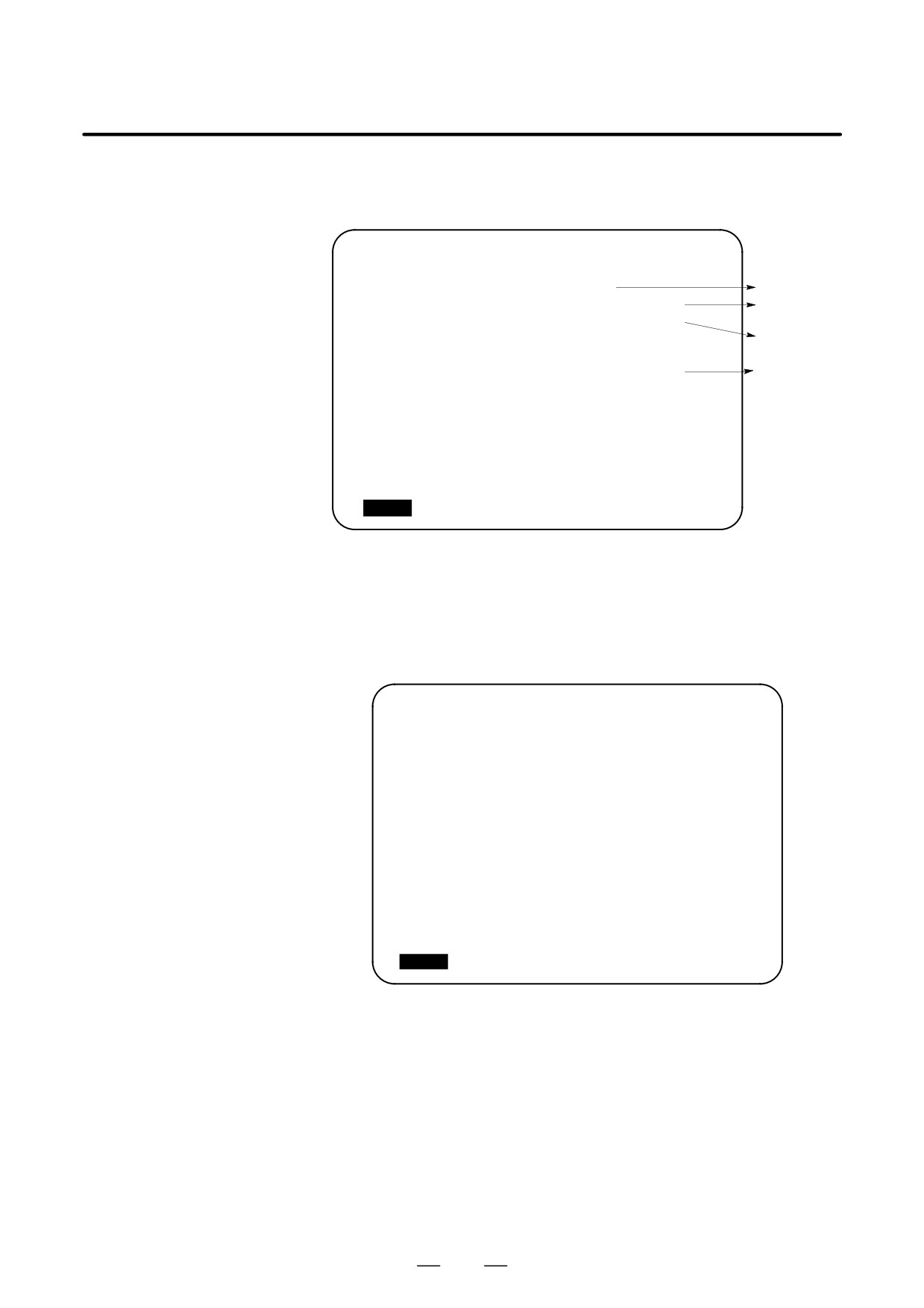
HELP (INITIAL MENU)
O1234 N00001
***** HELP *****
1. ALARM DETAIL
2. OPERATION METHOD
3. PARAMETER TABLE
S
0 T0000
MEM **** *** ***
10:12:25
[ ALAM ]
[ OPR
]
[ PARA ]
[
]
[
]
Fig. 13 (a) HELP (INITIAL MENU) screen
The user cannot switch the screen display from the PMC screen or
CUSTOM screen to the help screen. The user can return to the normal
CNC screen by pressing the
HELP
key or another function key.
733
13. HELP FUNCTION
OPERATION
B-64124EN/01
ALARM DETAIL screen
2
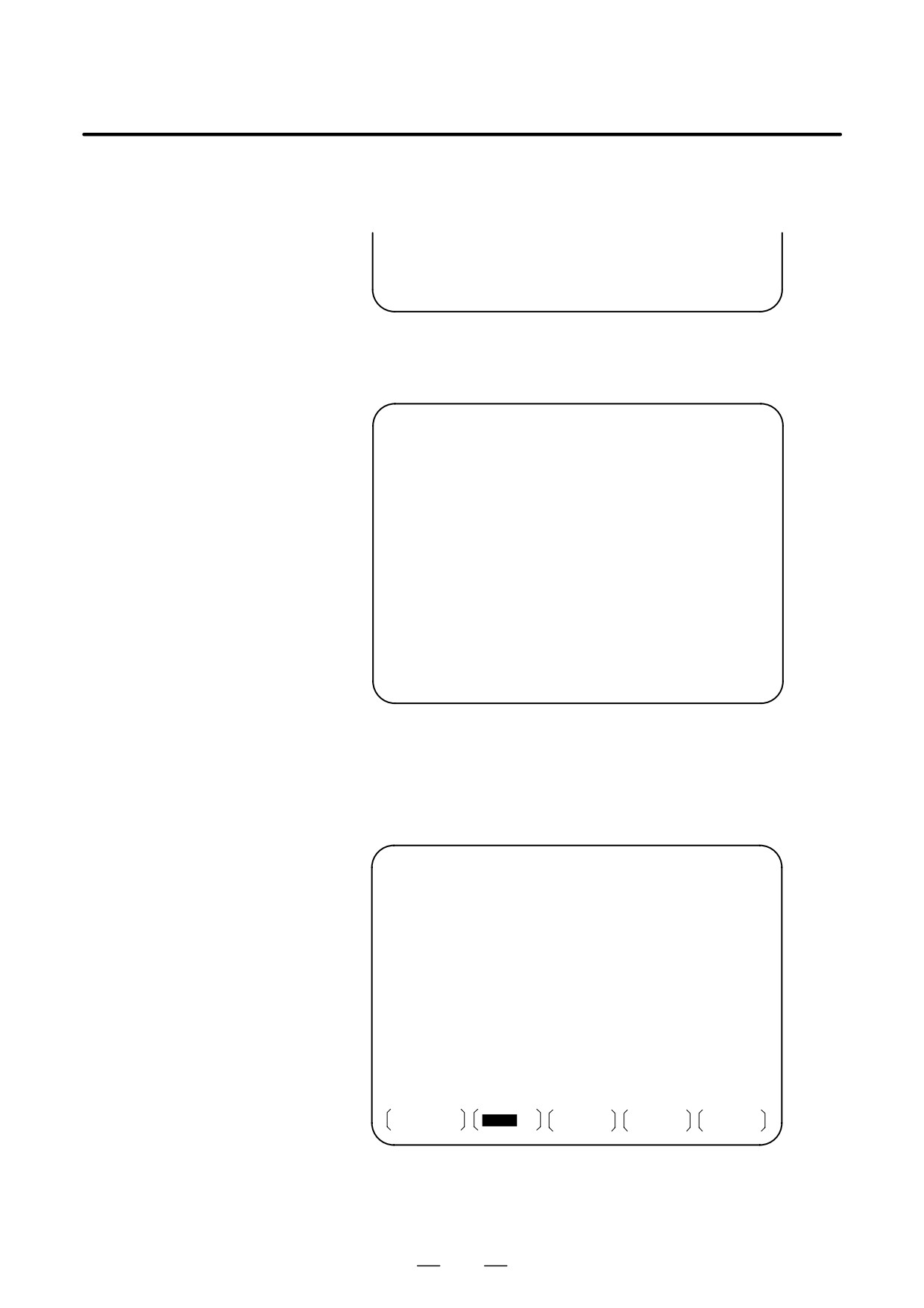
Press soft key [ALAM] on the HELP (INITIAL MENU) screen to
display detailed information about an alarm currently being
raised.
HELP (ALARM DETAIL)
O0010 N00001
NUMBER : 027
Alarm No.
M‘SAGE : NO AXES COMMANDED IN G43/G44
Normal explana-
FUNCTION : TOOL LENGTH COMPENSATION C
tion on alarm
ALARM :
Function
IN TOOL LENGTH COMPENSATION TYPE C,
classification
NO AXIS IS DESIGNATED IN G43 & G44
Alarm details
BLOCKS. IN TOOL LENGTH COMPENSATION
TYPE C, IT TRIES TO LATCH ON TO
ANOTHER AXIS WITHOUT OFFSET CANCE-
LING.
>100
S
0 T0000
MEM **** *** ***
10:12:25
[ ALAM
]
[
OPR
]
[ PARA
]
[
]
[
]
Fig. 13 (b) ALARM DETAIL screen when alarm P/S 027 is issued
Note that only details of the alarm identified at the top of the screen
are displayed on the screen.
If the alarms are all reset while the help screen is displayed, the alarm
displayed on the ALARM DETAIL screen is deleted, indicating that no
alarm is issued.
HELP (ALARM DETAIL)
O1234 N00001
NUMBER
:
M‘SAGE
:
FUNCTION
:
ALARM
:
<<ALARM IS NOT GENERATED>>
ENTER THE DETAIL-REQUIRED ALARM NUMBER,
AND PRESS [SELECT] KEY
>100
S
0 T0000
MEM **** *** ***
10:12:25
[ ALAM
]
[ OPR
]
[ PARA ]
[
]
[
]
Fig. 13 (c) ALARM DETAIL screen when no alarm is issued
734
B-64124EN/01
OPERATION
13. HELP FUNCTION
3
To get details on another alarm number, first enter the alarm number,
then press soft key
[SELECT]. This operation is useful for
investigating alarms not currently being raised.
>100
S
0 T0000
MEM **** *** ***
10:12:25
[
]
[
]
[
]
[
]
[ SELECT ]
Fig. 13 (d) How to select each ALARM DETAILS
The following is the screen when P/S alarm 100 is selected as
example.
HELP (ALARM DETAIL)
O1234 N00001
NUMBER
:
100
M‘SAGE
: PARAMETER WRITE ENABLE
FUNCTION
:
ALARM
:
<<ALARM IS NOT GENERATED>>
>100
S
0 T0000
MEM **** *** ***
10:12:25
[
]
[
]
[
]
[
]
[ SELECT ]
Fig. 13 (e) ALARM DETAIL screen when P/S 100 is selected
OPERATION METHOD
4
To determine an operating procedure for the CNC, press the soft key
screen
[OPR] key on the HELP (INITIAL MENU) screen. The OPERATION
METHOD menu screen is then displayed.
HELP (OPERATION METHOD) O1234 N00001
1. PROGRAM EDIT
2. SEARCH
3. RESET
4. DATA INPUT WITH MDI
5. DATA INPUT WITH TAPE
6. OUTPUT
7. INPUT WITH FANUC CASSETTE
8. OUTPUT WITH FANUC CASSETTE
9. MEMORY CLEAR
S
0
T0000
MEM
* * * *
* * *
* * *
00 : 00 : 00
ALAM
OPR
PARA
(OPRT)
Fig. 13 (f) OPERATION METHOD menu screen
To select an operating procedure, enter an item No. from the keyboard
then press the [SELECT] key.
735
13. HELP FUNCTION
OPERATION
B-64124EN/01
>1
S
0 T0000
MEM **** *** ***
10:12:25
[
]
[
]
[
]
[
]
[ SELECT ]
Fig. 13 (g) How to select each OPERATION METHOD screen
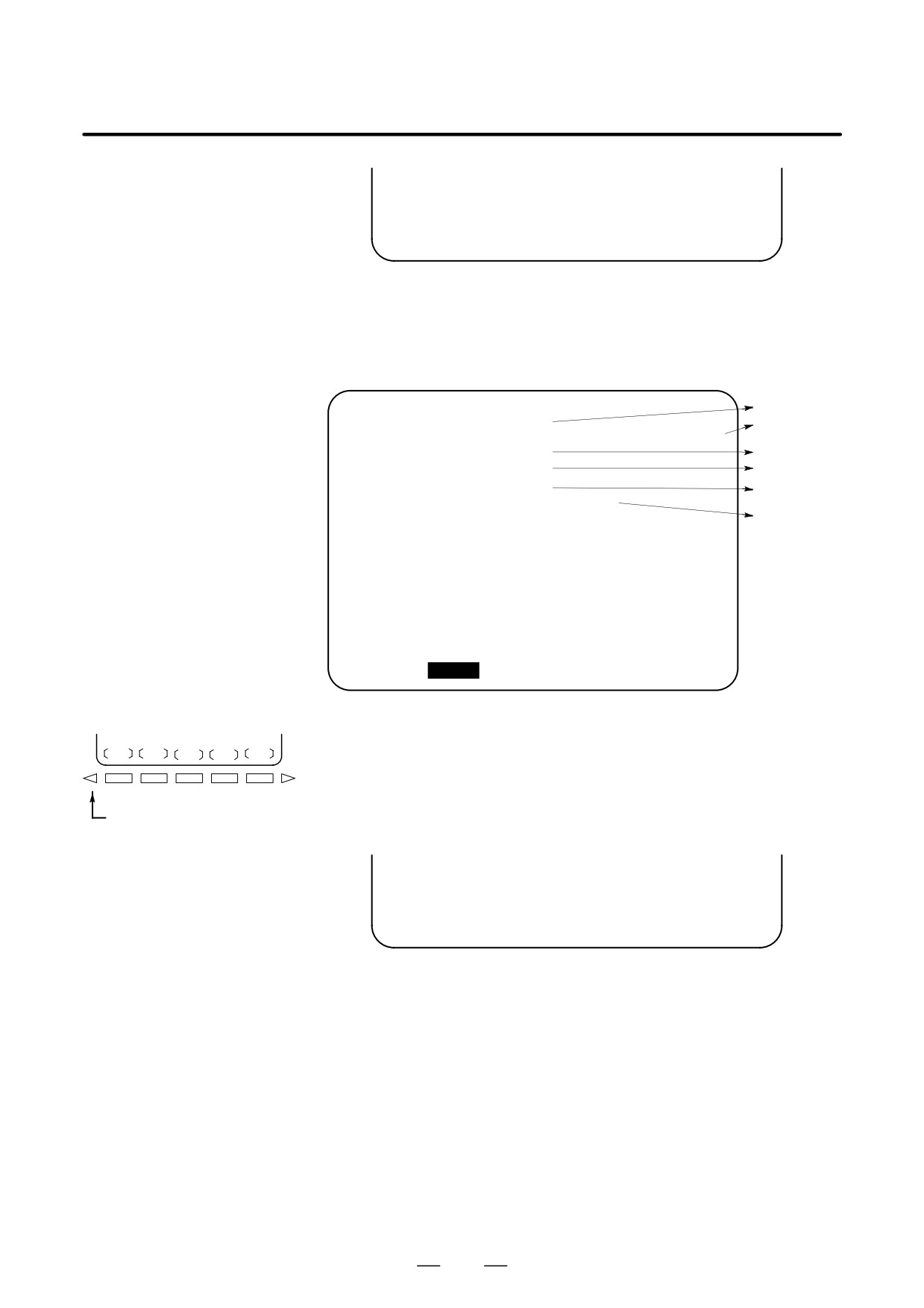
When “1. PROGRAM EDIT” is selected, for example, the screen in
Figure 13 (h) is displayed.
On each OPERATION METHOD screen, it is possible to change the
displayed page by pressing the PAGE key. The current page No. is
shown at the upper right corner on the screen.
Each item
HELP (OPERATION METHOD)
01234 N00001
Page/maximum
<< 1. PROGRAM EDIT >>
1/4
page
*DELETE ALL PROGRAMS
Operation
Set mode
MODE
: EDIT
Operation
SCREEN
: PROGRAM
location
OPR
:
(O-9999) - <DELETE>
Operating
procedure
*DELETE ONE PROGRAM
MODE
: EDIT
SCREEN
: PROGRAM
OPR
:
(O+PROGRAM NUMBER) - <DELETE>
>_
S
0 T0000
MEM
****
***
***
10:12:25
[ ALAM ] [ OPR
]
[ PARA
]
[
]
[
]
Fig. 13 (h) Selected OPERATION METHOD screen
5
To return to the OPERATION METHOD menu screen, press the
RETURN MENU key to display “[OPR]” again, and then press the
[OPR] key again.
To directly select another OPERATION METHOD screen on the
RETURN MENU key
screen shown in Figure 13 (h), enter an item No. from the keyboard
and press the [SELECT] key.
>3
S
0 T0000
MEM
**** *** ***
10:12:25
[
]
[
]
[
]
[
]
[ SELECT ]
Fig. 13 (i) How to select another OPERATION METHOD screen
PARAMETER TABLE
6
If you are not sure of the No. of a system parameter to be set, or to refer
screen
to a system parameter, press the [PARA] key on the HELP (INITIAL
MENU) screen. A list of parameter Nos. for each function is
displayed.
(See Figure 13 (j).)
It is possible to change the displayed page on the parameter screen.
736
B-64124EN/01
OPERATION
13. HELP FUNCTION
The current page No. is shown at the upper right corner on the screen.
HELP (PARAMETER TABLE)
01234 N00001
1/4
* SETTEING
(No. 0000∼)
* READER/PUNCHER INTERFACE
(No. 0100∼)
* AXIS CONTROL
/SETTING UNIT
(No. 1000∼)
* COORDINATE SYSTEM
(No. 1200∼)
* STROKE LIMIT
(No. 1300∼)
* FEED RATE
(No. 1400∼)
* ACCEL/DECELERATION CTRL
(No. 1600∼)
* SERVORELATED
(No. 1800∼)
* DI/DO
(No. 3000∼)
>_
S
0 T0000
MEM **** ***
***
10:12:25
[ ALAM ]
[ OPR
]
[ PARA
]
[
]
[
]
Fig. 13 (j) PARAMETER TABLE screen
7
To exit from the help screen, press the
HELP
key or another function
key.
Explanation
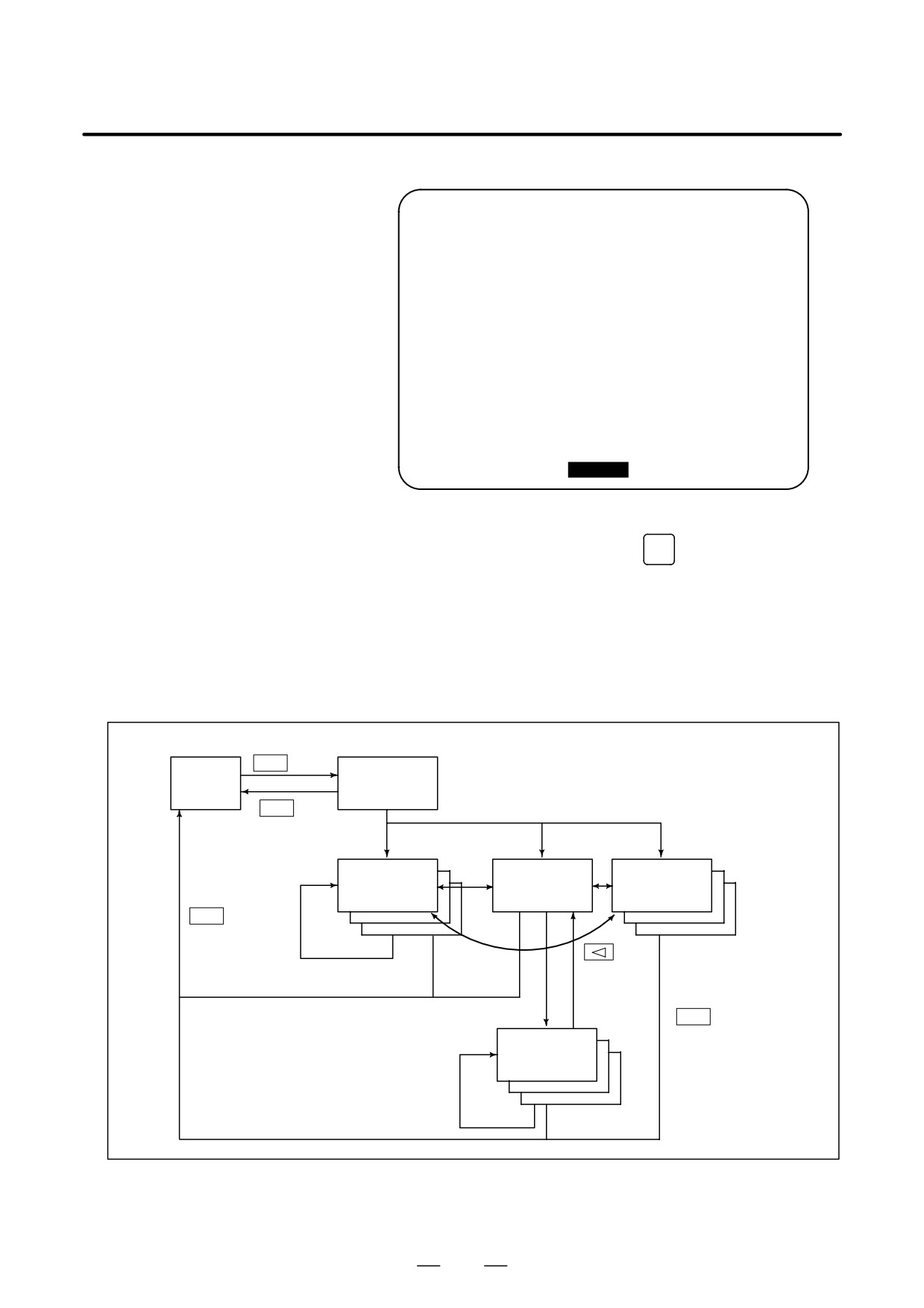
D Configuration of the Help
Screen
HELP
key
HELP
CNC
INITIAL MENU
screen
screen
HELP
key
or
[ALAM]
[OPR]
[PARA]
function key
ALARM
OPERATION
PARAME-
DETAIL
METHOD
TER TABLE
screen
screen
screen
PAGE key
HELP
key
or
function key
(NO.)+[SELECT]
[OPR]
(NO.)+[SELECT]
HELP
key
Each opera-
or
tion instruc-
function key
tion screen
(NO.)+[SELECT]
737

14. SCREEN HARDCOPY
OPERATION
B-64124EN/01
SCREEN HARDCOPY
14
The screen hardcopy function outputs the information displayed on the
CNC screen as 640*480-dot bitmap data. This function makes it possible
to produce a hard copy of a still image displayed on the CNC.
The created bitmap data can be displayed on a PC.
Screen Hardcopy Procedure
1
Check the parameter settings. To use the screen hardcopy function,
set bit 7 (HDC) of parameter 3301 to 1 and parameter 20 (I/O channel
selection) to 4 (memory card I/F). Set other relative parameters (bits
0, 2, and 3 of parameter 3301) as needed.
2
Insert a memory card.
3
To start the function, set hardcopy start signal HDREQ <G067#7> to
1. Alternatively, hold down the [SHIFT] key for five seconds.
4
To end the function, press the [CAN] key. Alternatively, set hard
copy stop signal HDABT <G067#6> to 1.
5
While the screen hardcopy operation is in progress, the hardcopy in
progress signal <F061#3> is tied to 1. For several tens of seconds (or
several seconds, for a monochrome LCD) before the hardcopy
operation ends, the screen image stands still.
6
When the screen hardcopy operation is completed, the hardcopy in
progress signal <F061#3> goes 0.
Supplementary
While the screen hardcopy operation is in progress, the screen image
explanation
keeps still. This means that the clock displayed on the screen indicates
the beginning and end of the operation. When the clock stops counting
seconds, the hard copy operation starts. The clock resumes counting
seconds when the screen hard copy operation ends.
NOTE
1
During the screen hardcopy operation, key input is disabled
for several tens of seconds. Until the screen hardcopy
operation ends, the screen image lies still. During this
period, the hardcopy in progress signal <F061#3> is tied to
1. No other signal is output. Avoid turning off the power
indiscriminately during that period.
2
A normal hard copy may not be produced while the screen
image is moving.
738

B-64124EN/01
OPERATION
14. SCREEN HARDCOPY
Limitations
A hard copy of the following screens cannot be produced.
1
System alarm screen
2
Screen while RS-232-C is being used
3
Screen during automatic or manual operation (A hard copy can be
produced in a rest of the operation.)
File name
The bitmap files created by the screen hardcopy function are named as
follows, in order in which they are created after power-up:
‘HDCPY000.BMP’ (Name of the first hardcopy file created after
power-up)
‘HDCPY001.BMP’ (Name of the second hardcopy file created after
power-up)
:
:
‘HDCPY099.BMP’
NOTE
1
A screen hardcopy file produced after the file HDCPY099.
BMP is output will be named as HDCPY000.BMP.
2
If a BMP file output by the screen hardcopy function has the
same name as a file present on a memory card, the file on
the memory card is overwritten unconditionally.
3
When the hardcopy function is carried out after power is
turned off and on again, the first output file is named as
HDCPY000.BMP again. If the inserted memory card has a
file having the same name, the file is unconditionally
overwritten. Note this when continuously producing hard
copies of various screens.
Colors of data
The number of colors used in created bitmap data depend on the LCD
hardware and the display mode of the CNC screen. Table 14 (a) indicates
the relationships.
Table 14 (a) Colors of BMP data created by the screen hardcopy function
LCD
CNC screen
Colors
Colors used in created
Remarks
hardware
display
displayed
BMP data
mode
on CNC
Monochrom
—
2 colors
2 colors
Shades of gray are not supported.
e LCD
Color LCD
VGA-comp
Character:
When bit 0 of parameter
Note that colors may not be normally displayed
atible mode
16 colors
3301 is set to 0: 256 colors
in the 16-color mode.
3119#7=1
Graphic:
When bit 0 of parameter
16 colors
3301 is set to 1: 16 colors
VGA mode
256 colors
256 colors
3119#7=0
739

14. SCREEN HARDCOPY
OPERATION
B-64124EN/01
Data size
Table 14 (b) indicates the sizes of bitmap data created by the screen
hardcopy function.
Table 14 (b) Sizes of bitmap data created by the screen hardcopy
function
Bitmap colors
File size (bytes)
Monochrome (2 colors)
38,462
Color (16 colors)
153,718
Color (256 colors)
308,278
Alarm message
If bit 2 (HCA) of parameter 3301 is set to 1, an alarm message can be
output when the hardcopy operation ends in failure.
(P/S alarm Nos. 5212 to 5214)
For descriptions of these alarms, see APPENDIX G, “ALARM LIST.”
740
IV. MANUAL GUIDE 0i
!
" #
$
%
#
#
&#
' #&
%
&
(
# '
&#
&
#
&
&#
%
$)
* *
#
(
&#
)
#
#
#
%*
'
#
+
#
(
##
($ #
(
#
%
,
#
(
#&
& &
($
* *%
-
& .
* *
%
#
'
#
* * #
%
/
&
&
0
&
1
#
&#
%
&
'
%
"$
)
&
#
+
#
$
$
$
%
2
( &
$
# %
4&
#
(
&
&
* *
%
#
(
##
$
($
-*
!/2
. &
(&
%5
#
)
&
#
#
$
1
# %
&
#
6
'
7)
$#
( #+ &
8
#
-
/.
% "& )
&
&
&
$
- #
* *%
#
)
#
&
#
#
(
%
&
0
-
#
#
#$# .
) &#
)
)
#+
#
%
/
-
#
#
#$#
#
(
#
'
%
/
&
1
# %
&
0
-#
&
).
#
&
#
#
&
&
#
#
#
%
/
-#
&
#
#
&
#
#&
&#
9
(
#+
&'
$
#
#&
99
%
+
#
&
:
%
2 #
&
)
)
$ &
$
#
$&
* *
%
&
& #
%
/
* *
$
&
#
#
%
/
#
&
(
)
#
1
# %
$#
)
&
(
$
&
#
$
#
(
%
3

/
#
#
(
( & &
$
($
-*
!/2
. &
(&
%
5
#
)
&
#
&
(
$
#
%
&
#
6
'
7)
$
* *
-
/%.
<
) ( #+ &
$
(
%
/ &
&
&
$
- # .
* *% /
#
)
#
#+
-2. &
(
* * #
$ &
%
/
#
#
&
(
)
#
-,=2 . &
(&
+ $
)
-2''''. 6
''''
$ &
(
$
#
$ &
7)
#&
6
7
+ $
+ $
%
/
-2.
&
(
#
#
&
(
$ &
%
(
#&
$
#
* *)
* *
#
$
#
%!
#
-
+ $
$ &
&
1
#
)
&
(
$ &
#
%
;

/
#
#
(
( & &
$
($
-*
!/2
. &
(&
%
5
#
&
#
&
(
$
#
%

/
#
)
&
(
$ &
#
#
%
$
$
)
#
?&
&
(
$
&
%
/
#
&
(
# &
* *1
%
/
#
#
)
-,=2 . + $
+ $
%
<
$
#
(
#
)
$ &
%
= &
#
($
-*
!/2
.+ $
+ $
%
!
"!
"!
"!
"!
"
#
)
&
#
#
#
$
&
&
+ $
%/
+ $
#
(
'
# &
#
%
/
#
$ &
)
#
#&
&
(
%
-
#&
#&
%
$ &
4&
#
)
#&
&
(
#
$
" #+ 6 2"7 #
#
-8.
#
%
$
(
2"
(
%/ +
&
(
%
!&
&
'
-/9
;8.
$
#
%
/ &
&
#
#+
#&
-8.
&
(
-/9
;@
2"A. 6
@
2"A
-
2"). (&
2" + $
+ $
7%
/
(
$
-B/9
;8.
1
(&
%
/
)
-
! =/. + $
+ $
%
/
#
#&
%
>
#
$
!
"!
"!
"!
"!
"
/
#
)
#&
)
)
D
/ =D + $%
!
$)
)
#&
)
D
/ D + $%
/ &
#
#
&
&
+ $
#
%
<
&
)
#
#
$
$% / '
#
)
&
+ $
$ &
6
-
+ $% /
&
&
#
6
-
1
#
7%
')
&#
#
%
C
!!
!! !
<
$
)
#
6
$ '
7)
# &
#
$%
)
)
&
* *1
%
! )
+ $ % /
+ $
#
&
%/
#
+ $
+
&#
%
PROCESS CONTROL INFORMATION
-- FEED ---
F=
-- SPINDLE -- DIR=
S=
-- COOLANT -- CLT=
-- TOOLING -- NUM=
H=
D=
-- TL COMPG --LEN=
DIA=
INPUT DESIRED FEED RATE
0 ~ 30000
NUM=
[
][
][
][CLEAR][ACCEPT]
/
+ $
#
-,
#
# . + $% 2
#
)
&
#
( &
#
?&
% "$ &
#&
+ $
+ $
)
&
#
#&
$
$%
!
?&
&
#
)
#
(
($ &
#&
+ $
+ $
%
1
+
'
%
< 1
E
5
E
E5
5
)
1
#&
-5
$ 6
#&
&
#
$
$
$ &
#
7%
')
1
+ $
-
,
/. + $% /
$
&
#
-
%
.% /
#
)
#&
-*22
/.
$
6&
+ $
+ $7
#&
+ $ 6
+ $
+ $
7
&
$
#
-5 22
%.
&
#
# )
$
(
%
/
)
-
** ,/.
+ $
3
$ &
%
/
#&
$ &
$
#
%
%
&
$
!
"!
"!
"!
"!
"
1
#&
- .
%
/ &
#
&
$
#
&
#
+ $
%
39
"
#
!! !
#
)
#
& &
$
#
#
%
#
&
#
(
#
%
<
(
#
$
* * &
'
%
+
#
* *#
$
)
# &
$&
#
$
% "&
#
& '
)
&
#
#
%
/
##
-
# .
-
*2
+ $
$&
%/
$
&% /
#
&
#
&
($ $ &
#
$
%
/
&
%
/
&
(
#&
&%
&
'
%
(
)
&
)
+
&
&
!
"!
"!
"!
"!
"
/ &
# &
#&
+ $
+ $
#
$
#
%/
&
#
$
%
/
)
#
&
%*
$)
( #+ &
( $
(
&
%
!
#
+
#
#
#
&
&
$
&
#%
#
)
CF &
+#
$
% "$ $
-CF.
-
,
/. + $
+ $
)
CF
$
%
/ &
#
+ $
$
(
%
/
+ $
#
$
( &
#%
3F
*'
, -./0 1, 23
*' 0455627
6 849:. /0/
04497 26;/ -,-;/5 <-/=/0;/7 >,
( ;4
*?
- -@ 1;/7 ;4 -/; 6 2/8 849:. /0/
04497 26;/ -,-;/5 49 3 2
@/2
;@/
849:. /0/ A/94 .4 2; 411-/; B6=C/-
@ - 5/62- ;@6; 6== ;@/ 849:. /0/
04497 26;/ -,-;/5- 69/ -@ 1;/7 >, ;@/
-65/ 654C2;
!
"!
"!
"!
"!
"
<
&
#) '
(
$
%
<
&
-
= ,G%.
+ $)
$
#
#
$
%
$)
&
#
#
#
#
$
%
*'
*'
411-/;- ;@/
( 04497-
>, B/0;49
2
627
6D/-
'
'
!
"!
"!
"!
"!
"
!
"
#
$ %&'
/ &
#
&
($
+ $
$&
)
#
$
?&
#
%
/
#
)
&
$
$
#
-
! =/. + $
+ $
%
5
& '
)
1
H
I '
9%
%
!
#
#
CF
#
)
#)
#
)
&
$
- CFH9%I9%@
2"A. 6
-
2".
" #+ + $
3
+ $
7)
-
! =/. + $
+ $
%
#
J
$
#
&
#
%/
&
)
1
#&
CFH9%I9% (
#+%
%
&
*'
$
!
"!
"!
"!
"!
"
*
&#
)
#)
#
#
(
&
(
%
=
(
&
-
! =/. + $
+ $
$
(&
%5
&
&
(&
(
%
3
"
#
!! !
#
&
($
* *
?&
' #&
#
&'
$
#
%
'
#
% K&
+
#
)
#
#
(
#
$
($ &
#
8
&
# &
-
# %. /
#
#
-
*2
+ $
$&
%
/
$
&%
%
'
%
(
#
&
)
%
%
!
"!
"!
"!
"!
"
/
&
$
&
$%
/
&
(
#&
$
#
%
/
*
&
$
&
$
$%
/ &
#
$
#
($ &
,
,
#&
+ $
+ $
%
/
&
$
-#
#& .
#
&
&
(
)
%
& '
)
#
&
%
! )
&
&
#
&
$
+
%2
$#
-
9
2,/ 2
!/2,.% "$ $
-9.
-
,
/.
+ $
+ $
)
'
#
%/
&
#
)
&
-
= ,G%. + $
$
)
$
#
(
%
33
8 == 06C-/ ;@/ .69; .943965 ;4 -;4.
/D/0C; 42 42=,
1 ;@/
1C20; 42
- 60; B/
@ -
- C-C6==, 6
.C-@ >C;;42 42 ;@/ 4./96;49 .62/=
1 ;@/ 4.; 426= -;4. >/045/- 60; B/
;@/
4./96;49 8 == >/ 9/EC 9/7 ;4 .9/-- ;@/
0,0=/ -;69; >C;;42 ;4 042; 2C/
!
"!
"!
"!
"!
"
K&
#
&)
#
&
$
#
%
5
& '
)
1
-
9@
2"A.
-
! =/. + $
+ $
&#
%
< 1
#&
-
98. (
#+
&
$%
%
&
*'
$
!
"!
"!
"!
"!
"
3;
$
%
&
0
-#
#$#
#
).
#
&
#
#$#
(
#+ % /
#
#$#
&
##
#
&
%
% &
'
(
)
+
$
/
0
,
-
/
1
-
0/
)
&
%
)
&
2
3
45
) )
&
2
3
5
) +
&
2
"
/
0
) ,
&
67"
) .
&
(
) 1
&
3
45
) 8
&
3
5
(
'
)
2
$ "
/
0
)
2
))
9
: "
67"
"
/
0
))
9
: "
(
)
'
,
%
0
$ "
,
%
0
-
:
,)
%
0
6
:
/
0
,+
%
0
(
:
,,
%
0
(
,.
%
0
2
))
9
: "
67"
"
/
0
))
9
: "
(
)))
9
: "
*
0
*
'
;
2
$ "
;
2
-
:
.)
;
6
:
/
0
.+
;
(
:
.,
(
"
/
0
))+
9
: "
2
3
/ &
-#
#$#
#
-*I*
+ $
$&
%/
#$#
#
&
%
/
#$#
#
&
#
#$#
&
($
%/
&
(
+ &
%/
&
(
#&
&%
/ &
# &
+ $
+ $
#
$
#$#
#
&
%
/
&
#
$
%/
)
#
( $
&
%*
$)
( #+ ( $
&
&
%
"$ $
&
(
#
$
&
-
,
/. + $
+ $
)
#
#
#$#
(
#+
%
/
#
#$#
#
#
#
%
2
#
)
&
#
&
#
#
#$#
%
<
$
)
?&
#
#$#
%
5
& '
)
1
9
#
#$#
%
#&
-5L.
$)
#
&
#$#
%
1
&
($
-3 .
-
,
/. + $
+ $
%
/
(
-3 %
%.
< 1
$E
<L9
E
*G
/I,
6
2
<
7
* L 3%
E
=
L9
E
= 5 =
,2! / 2
= / =
6
,2
/
= / = 7
5L3 %
E
5
= /
,L3
E
<
/
6
#&
7
$ &
)
$ &
#
#
$
&
#
(
+
%
/
&
#
#+
$
$
#
%
/
#
#$#
)
-
** ,/.
+ $
$ &
% I &
&
(
#+
#
-
9
<9% *9 %
9%
53 % ,3 % 8.% I
&
?&
#
'
(
#+
$ &
&
+
#
#$#
%
2
#
6
#
#
(
! #
9%
%
7)
+ $
# &
-
/.
+ $
%
,
+ $
# &
$
#
#
#
#$#
% I & #
#
&
$
#
($
$
&
3>
-
,
/%. /
)
($
-
** ,/.
+ $)
#
#$#
(
#+
#
%
/
#
#$#
($
#
&
#
$
(
#+
&
(
#+%
! )
#
$
(
#+) &#
9
)
#
)
-*I*
#
#
)
9F9
9F9 %
5
'
)
#
#$#
&
(
%
9
<9% *9 % 9% 53 % ,3 % 8
9F99 " %
9 %G %M %
3% * %
9 %
999% 8
"
/
:
/
0
: "
/
0
<
: "
/
0
/
:
/
0
)
& ! ;
:"
/
:!
+
3C
+
'
#
, &
'
,
-&
)
+% &
'
#
&&
/
=
(&
*>%
?
!
"
!
)?
!
!
(
(
$
(
:
":
:!
0
:
"
"
$
$
(
%<6
*<
?
$ * $
)?
$ *
("
:
%
=
!
/
:
"
:
&&
/
/
=
(&
*>%
?
!
"
!
)?
!
!
+?%
0
,?&
0
(
(
$
(
:
":
:!
0
:
"
"
$
$
(
%<6
*<
?
$ * $
)?
4
( **
%*&
("
:
"
$ *
("
:
%
=
!
/
:
"
:
/
0
=
(&
*>%
?
)?$
;
+?$
,?$
;
(
(
$
(
:
":
:!
0
:
"
"
$
$
(
%<6
*<
?
$ * $
)?
$ *
("
:
%
=
*
!
/
:
"
:
*&$
:
6
6%
6%
6
3
5
;
/
1
=
(&
*>%
?
/
)?
/
+?
/
:
!
/
(
(
$
(
:
":
:!
0
:
"
"
$
$
(
%<6
*<
?
$ * $
)?
$ *
("
:
%
=
!
/
:
"
:
2
/
3
=
(&
*>%
?
/
)?
/
+?
/
:
!
/
(
(
$
(
:
":
:!
0
:
"
"
$
$
(
%<6
*<
?
$ *
$
)?
$ *
("
:
%
=
!
/
:
"
:
(
-
/
4
(
(
$
(
:
":
:!
0
:
"
"
$
$
(
%<6
*<
?
$ *
$
)?
$ *
("
:
4
6&
<
6 :
:
/
%
=
!
/
:
"
:
2
)-
/
5
(
(
$
(
:
/
":
:!
0
:
"
"
3
;
; "
5
$ *
("
:
4
6&
*
<
*
6 :
:
/
%
=
*
!
/
:
"
:
;9
(
6
-&
)
+% &
'
!"% &
/0/
-
$
$
(
%<6 * <
@
:
!
0
":
%*&
&
3" "
;
; " 5
&
%<
3A A 65
A
:
B
%<
3> A 65
>
:
%<
* ) 3A A 65
A
:)
(
%<
* ) 3> A 65
>
:)
%<
* + 3A A 65
A
:+
%<
* + 3> A 65
>
:+
:
/"
:A
>
:
7
86 &
* &9 " % &
/0//
-
$
$
(
%<6 * <
@
:
!
0
":
%*&
&
3" "
;
; " 5
&
6* $* %<
* 3A A 65
6
A
:
3
5
B
6* $* %<
* 3> A 65
6
>
:
3
5
:
(
- $ < &<
"
/
:
% *(& =
*&
/
!
)
3
;
; "
5
*&
/
!
3
;
; "
5
<
**
%<
& " /
:
<
**
%<
*)
& " /
:)
C
<
**
%<
*+
& " /
:+
D
<
**
%<
*,
& " /
:,
:
% (*& =
*&
&*&
:
<
**
&<
;F