FANUC Series 30i/300i/300is-MODEL A. Machining Center System. User's manual - page 196
 

  Index      Manuals     FANUC Series 30i/300i/300is-MODEL A. Machining Center System. User's manual (B-63944EN/03)


Search            copyright infringement  


Content      ..     194      195      196      197     ..


FANUC Series 30i/300i/300is-MODEL A. Machining Center System. User's manual - page 196


12.SETTING AND DISPLAYING DATA

 OPERATION 

B-63944EN/03


- 1524 - 

12.2.12 

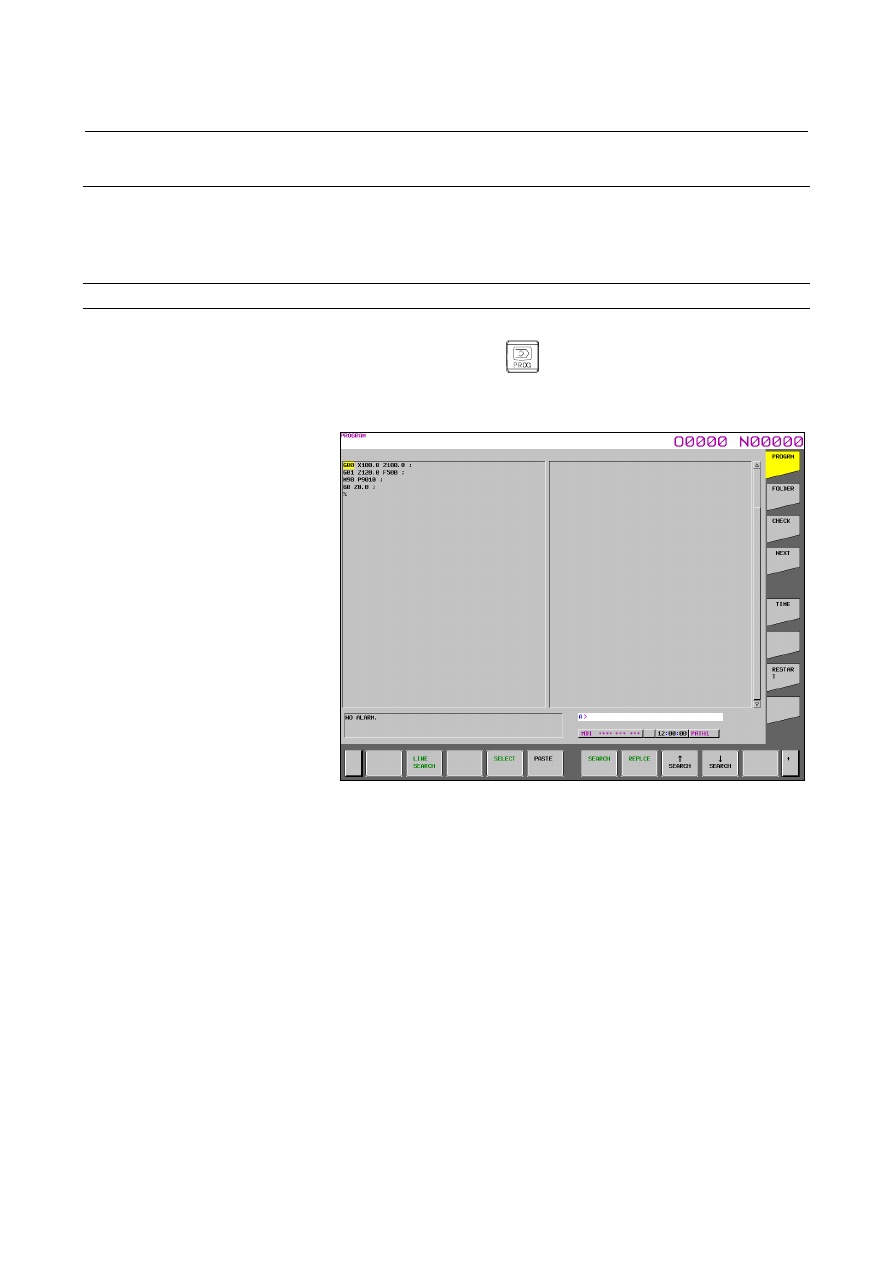
Program Screen for MDI Operation (15-inch Display Unit) 

 
During MDI operation or editing of an MDI operation program in the 
MDI mode, the program currently being executed mode is displayed. 
For MDI operation, see Section III-4.2, “MDI Operation”. 
 

Procedure for displaying the program screen for MDI operation 

Procedure 

Press function key 

Press vertical soft key [PROGRAM].   
The program input from the MDI is displayed. 


Fig. 12.2.12 (a) MDI operation program screen (15-inch) 


B-63944EN/03

 OPERATION 

12.SETTING AND DISPLAYING DATA


- 1525 - 

12.2.13 

Program Folder Screen (15-inch Display Unit) 

 
A list of programs registered in the program memory is displayed. 
For the program folder screen, see Chapter III-11, “PROGRAM 
MANAGEMENT”. 
 

Displaying the program folder screen 

Procedure 

Press function key 

Press vertical soft key [FOLDER].   


Fig. 12.2.13 (a) Program folder screen (15-inch) 

12.SETTING AND DISPLAYING DATA

 OPERATION 

B-63944EN/03


- 1526 - 

12.2.13.1 


Split display on the program folder screen 


Overview 

On the program folder screen, the folder information display can be 
split into two folder information views, upper and lower, as shown in 
the figure below.   


Fig. 12.2.13.1 (a) Program folder screen (split-display screen)(15-inch) 

 
On the split folder display, file information about different sets of 
devices or folders can be shown in different views at the same time, so 
you can copy or move files easily. 
 

B-63944EN/03

 OPERATION 

12.SETTING AND DISPLAYING DATA


- 1527 - 

Example of copying a file from the CNC MEM to the Data Server 


Procedure 

<1>  Change to a destination folder on the Data Server. 
<2> Change to a folder on the CNC_MEM that contains a file you 

want to copy. 

<3>  Select the file. 
<4>  Copy the file. 
 

<3>

<4>

<2>

<1>

12.SETTING AND DISPLAYING DATA

 OPERATION 

B-63944EN/03


- 1528 - 

Procedure for switching to split display 

Procedure 

Press function key 

  to display the program folder screen. 

Press horizontal soft key [(OPRT)].   

Press continuous menu key 

 twice. 

Horizontal soft key [MULTI LIST] appears. 


Fig. 12.2.13.1 (b) Program folder screen normal screen)(15-inch) 


B-63944EN/03

 OPERATION 

12.SETTING AND DISPLAYING DATA


- 1529 - 

Press horizontal soft key [MULTI LIST].   
The folder information display is split into two folder views, 
upper and lower, which show the same folder information. 
Immediately after the splitting, the upper folder view becomes 
active for operations. At the same time, horizontal soft key 
[SINGLE LIST] appears. 


Fig. 12.2.13.1 (c) Program folder screen (split-display screen)(15-inch) 


Pressing horizontal soft key [SINGLE LIST] takes you back to 
the original program folder display.   
Then, the folders are shown which have been selected in the 
active view for operations on the split display. 


12.SETTING AND DISPLAYING DATA

 OPERATION 

B-63944EN/03


- 1530 - 

Procedure for switching between active folder views for file operations on the split 
display 

On the split folder display, you can switch between active folder 
views for file operations as described below. 
In the active folder view for file operations, the cursor is displayed on 
the file list. 
 

Procedure 

When the upper folder view is active for file operations and you 
press MDI key 

 and cursor key 

, the lower folder 

view becomes active for file operations. 

When the lower folder view is active for file operations and you 
press MDI key 

 and cursor key 

, the upper folder 

view becomes active for file operations. 


NOTE 

1  In step 1, even if you press MDI key 

 and 

cursor key 

  when the upper folder view is 

active for file operations, the lower folder view 
becomes active for file operations. 

2  In step 2, even if you press MDI key 

 and 

cursor key 

  when the lower folder view is 

active for file operations, the upper folder view 
becomes active for file operations. 


Explanation 
  - File operations on the split display 

The following operations are allowed on the split display. 
<1>  You can select and display devices or folders individually in each 

folder view. 

<2>  You can copy or move files between folders selected in different 

folder views. 
(For details, see the section on operations of copying/moving 
between devices.) 

In the selected folder view, you can perform the same operations as on 
the normal screen. 
 

 - Path switching 

When path switching is performed while the split display is provided 
for a multi-path system, the folder view in which the CNC MEM is 
selected as a device is changed to a view of the last selected folder for 
each path on the CNC MEM. 
 

B-63944EN/03

 OPERATION 

12.SETTING AND DISPLAYING DATA


- 1531 - 

  - Device information display 

The device information as shown in the normal program folder screen 
(portion in a dotted box in the figure below) is not shown on the split 
display (Fig. 12.2.13.1 (c)). 


Fig. 12.2.13.1 (d) Program folder screen (normal screen)(15-inch) 

 
You should see the device information on the normal screen. 
 

Limitation 
  - Device that can be selected in both views at the same time on the split display 

The same device of any of the following types can be selected in both 
views at the same time on the split display. 

 CNC 

MEM 


MEM CARD(binary format) 

 Data 

Server 

For other types, the same device cannot be selected for display in the 
folder views at the same time. 
 
If any other type of device is selected when split display starts, the 
upper and lower folder views cannot show the same sets of folders due 
to the above limitation. Therefore, the lower folder view shows the 
folder selected as a foreground folder. 
 

  - Display units that support the split display 

The split display is supported on 10.4-inch and 15-inch display units. 


Content      ..     194      195      196      197     ..