FANUC Series 30i/300i/300is-MODEL A. Machining Center System. User's manual - page 178
 

  Index      Manuals     FANUC Series 30i/300i/300is-MODEL A. Machining Center System. User's manual (B-63944EN/03)


Search            copyright infringement  


Content      ..     176      177      178      179     ..


FANUC Series 30i/300i/300is-MODEL A. Machining Center System. User's manual - page 178


10.EDITING PROGRAMS

 OPERATION 

B-63944EN/03


- 1380 - 

10.11 

PROGRAM COPY FUNCTION 

 
A program is copied or moved between folders. 
 

Procedure for copying a program compact 

Procedure 

Press function key 

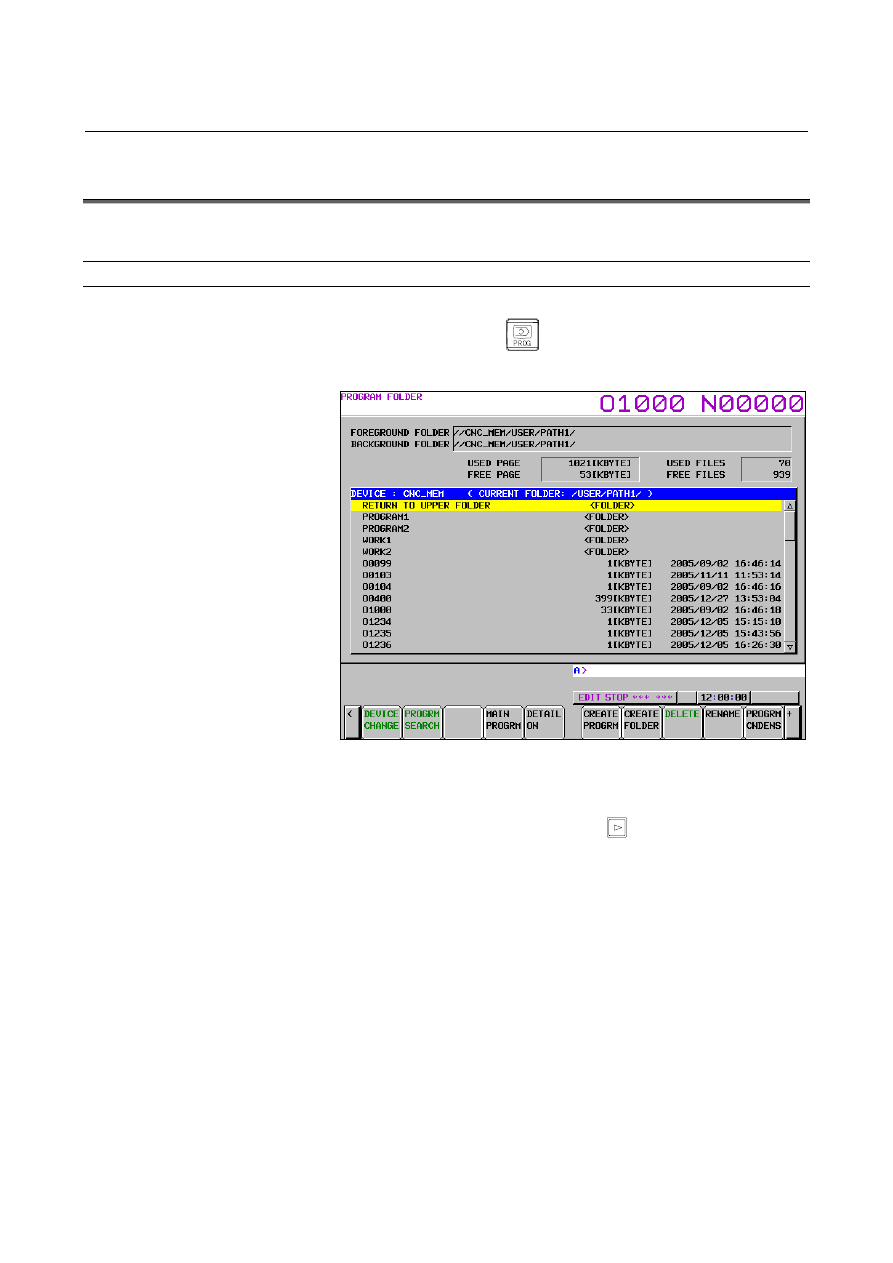
Press chapter selection soft key [FOLDER]. 
The following program folder screen appears: 


Press the soft key [(OPRT)]. 

Move the cursor to a folder that contains the program that you 
want to copy or move, and press soft key [CHANGE FOLDER]. 

5  Press the continuous menu key 

 until soft key [SELECT 

START] appears. 


Press the soft key [SELECT START]. 

Move the cursor to the program that you want to select, and press 
soft key [SELECT].  The background color of the selected 
program becomes light blue, indicating the selected state. 

Press the soft key [SELECT END].  The selected program is 
determined. 

Press soft key [CHANGE FOLDER], and move the cursor to the 
folder to which you want to copy or move the program. 

Press the soft key [COPY].    The selected program is copied.    If 
just one program is selected, pressing soft key [COPY] after 
typing a program name performs a copy operation with the 
entered name. 

10  To move the program, press soft key [MOVE].  The selected 

file is then moved.    If just one program is selected, pressing soft 
key [MOVE] after typing a program name performs a move 
operation with the entered name. 

B-63944EN/03

 OPERATION 

10.EDITING PROGRAMS


- 1381 - 


Explanation 

Operations are accepted only when the data protection key is set to 
ON. 
 
If the program storage capacity on the copy destination side is 
insufficient, the copy operation is not accepted. 
 
The currently selected program is highlighted.  Multiple programs 
can be selected in the same folder.    Each time [SELECT] is pressed, 
the program currently indicated by the cursor is selected. 
 
A selected program can be deselected by pressing [SELECT] again or 
by pressing [CANCEL]. 
 
If the same program name is already present in the copy or move 
destination folder, "REWRITE: FILE NAME" is displayed, allowing 
you to determine whether to overwrite the existing program by 
pressing soft key [NO] or [REWRITE].  Pressing [REWRITE] 
performs overwriting, and pressing [NO] does not perform the copy or 
move operation of that program. 
 
Pressing soft key [DELETE] deletes all the files currently selected. 
 
A program can be neither copied nor moved to the same folder as the 
selected folder. 
When only one program is selected, and a program name is already 
entered, however, the program can be copied or moved within the 
same folder. 
 

NOTE 

Once a copy or move operation starts, it cannot be 
canceled.    So, start the operation very carefully. 


10.EDITING PROGRAMS

 OPERATION 

B-63944EN/03


- 1382 - 

10.11.1 

Copying and Moving Files between Devices 


Overview 

Files can be copied and moved between different devices. 
 
There are two procedures available on the program folder screen. 
 
<1>  File copying and moving (device change)


Select a source file first, and then select a destination folder by 
first changing the device and then selecting a folder, decide on 
the destination folder, and execute copy or move. 
 

<2>  File copying and moving with split display 

On 10.4/15-inch LCDs, the program folder screen can be split. 
By using this screen split function, it is possible to perform copy 
or move operations while checking the file to be copied or 
moved on the screen on which the folder containing the source 
file and the destination folder are displayed at the same time. 


File copying and moving (device change) 

Procedure 

Select EDIT mode. 

Press function key 

  to display the program folder screen. 

Press soft key [(OPRT)]. 

4  Press the continuous menu key 

 until [SELECT START] 

appears. Press soft key [SELECT START]. 

Use the cursor keys as appropriate to position the cursor on the 
desired file. 

Press soft key [SELECT] to select the file. 

After the desired file has been selected, press soft key [SELECT 
END]. 

8  To select a destination device, press soft key [DEVICE 

CNAHGE]. 

Select the desired device, using the soft key. 

10  In the selected device, move to a destination folder. 
11  To copy the selected file to the destination folder, press soft key 

[COPY], and to move the file to the folder, press soft key 
[MOVE]. 


B-63944EN/03

 OPERATION 

10.EDITING PROGRAMS


- 1383 - 

File copying and moving with split display 

Procedure


  - Procedure for selecting a file first and then a destination folder 

Select EDIT mode. 

Press function key 

  to display the program folder screen. 

Press soft key [(OPRT)]. 

4  Press the continuous menu key 

 until [MULTI LIST] 

appears. Press soft key [MULTI LIST]. 

In either of the folder displays, select the folder containing the 
source file. 

Press soft key [SELECT START]. 

Use the cursor keys as appropriate to position the cursor on the 
desired file. 

Press soft key [SELECT] to select the file. 

9 Use 

the 

  + cursor key combination, select the other folder 

display. 

10  To select a destination device, press soft key [DEVICE 

CNAHGE]. 

11  Select the desired device, using the soft key. 
12  In the selected device, move to a destination folder. 
13  To copy the selected file to the destination folder, press soft key 

[COPY], and to move the file to the folder, press soft key 
[MOVE]. 


Procedure 2 

  - Procedure for selecting a destination folder first and then a file 

Select EDIT mode. 

Press function key 

  to display the program folder screen. 

Press soft key [(OPRT)]. 

4  Press the continuous menu key 

 until [MULTI LIST] 

appears. Press soft key 

[

MULTI LIST

]

In either of the folder displays, select the folder containing the 
source file, use the 

  + cursor key combination to switch to 

the other folder display, and on this folder display, select a 
destination folder. 

6 Use 

the 

  + cursor key combination to switch to the folder 

display in which the source folder has been selected. 

7  Press the continuous menu key 

 until [SELECT START] 

appears.  


Press soft key [SELECT START]. 

Use the cursor keys as appropriate to position the cursor on the 
desired file. 

Press soft key [SELECT] to select the file. 

10  After the file has been selected, press soft key [COPY] to copy 

the selected file to the folder selected in the other folder display 
and press soft key [MOVE] to move the file. 

10.EDITING PROGRAMS

 OPERATION 

B-63944EN/03


- 1384 - 


Explanation 
  - Multiple selectable files 

Only multiple files that are in the same folder can be selected at the 
same time with soft key [SELECT]. Files in other devices and folders 
cannot be selected at the same time. 
Up to ten files can be selected at the same time. 
 

  - Changing the file name during copying and movement 

If only one file is selected for copying or moving, the file can be 
copied or moved by changing its file name. 
After selecting a file, enter a file name and press soft key [COPY] or 
[MOVE]. This causes the file to be copied or moved with the entered 
file name. 
 

  - Copying and moving a file to the same folder 

It is not possible to copy and move a selected file to the folder that 
contains the file. 
If an attempt is made to do so, warning "SAMEFILE NOTCOPY" is 
issued. 
If, however, only one file is selected, and is to be copied or moved by 
changing its file name, it can be copied or moved to the same folder. 
 

 - Overwriting files 

When copying or moving is attempted, if a file with the same name 
exists in the destination folder, message "REWRITE: File name" 
flashes below the key-in buffer. If the file with the same name is to be 
overwritten, press soft key [REWRITE] and otherwise, press soft key 
[NO]. 
 

  - File search when selecting a file 

After soft key [SELECT START] is pressed, it is possible to search 
for a file through a folder using soft key [SEARCH] when selecting 
the file to copy or move. 
Enter the file name to search for first and then press soft key 
[SEARCH]. If a file with the entered file name exists, the cursor is 
positioned on the file. If no file with the entered file name exists, 
warning "SPECIFIED PROGRAM NOT FOUND" appears. 
Soft key [SEARCH] simply moves the cursor to the program found on 
the directory screen. It is not possible to switch operations, using bit 5 
(PES) of parameter No. 11302. 
 

  - Display of a selected file name 

When a file is selected with soft key [SELECT], the color of the 
background of the file name display is changed. The color of the 
background of the file name display remains unchanged until the file 
is deselected. 
 

B-63944EN/03

 OPERATION 

10.EDITING PROGRAMS


- 1385 - 

  - Deselecting a file 

When a file is selected with soft key [SELECT], the selected file can 
be deselected by positioning the cursor on the file and pressing soft 
key [SELECT] again.    All selected files are deselected when any of 
the following operations is performed. 

  Pressing of soft key [CANCEL] after performing a select 

operation. 


Completion of a move operation. 


Change of the source folder during selection. 


Termination of a select operation with soft key [SELECT END] 
and pressing of soft key [SELECT START] to enter the start of 
selection state. 


NOTE 


When bit 6 (RTC) of parameter No. 11318 is 1, all 
selected files are also deselected upon completion 
of a copy operation. 


Limitation 
  - Mode for performing copy and move operations 

To copy and move files between different devices or data servers, 
enter EDIT mode. In a multipath system, place all paths in EDIT 
mode.  If an attempt to perform an operation in a mode other than 
EDIT mode, warning "CHANGE TO EDIT MODE" is issued. 
 

  - Restrictions on file operations in various devices 

Those devices between which file copy and move operations can be 
performed are as follows: 

 CNC 

MEM 


MEM CARD (binary format) 
(Note that a folder on a MEM CARD can be selected as a source 
folder from which a file is to be read.) 

 Data 

server 

Between devices other than those above, copy or move operations 
cannot be performed. 
It is not possible to copy and move to devices other than those above 
or to a MEM CARD or to move from a MEM CARD. 
If an attempt is made to copy or move, warning "CAN NOT 
COPY/MOVE" is issued. 
 

  - Folder copy and move operations 

Folder copy or move operations cannot be performed. 
If an attempt is made to select a folder as an object to copy or move, 
warning "DISABLE TO SELECT" is issued. 
 

Note 

NOTE 


Once a copy or move operation starts, it cannot be 
canceled. Thus, check the files and folder subject to 
the operation carefully before starting it. 

10.EDITING PROGRAMS

 OPERATION 

B-63944EN/03


- 1386 - 

10.12 

KEYS AND PROGRAM ENCRYPTION 


Overview 

Program contents can be protected by setting parameters for 
encryption and for the program security range. 
 

Explanation 

Security with a password and a security range 
When the password and security range parameters are specified, 
the display, editing, and input/output operations are disabled for 
the programs within the security range. 
This prevents the custom macro programs created by the machine 
tool builder from being accidentally changed or deleted by the 
end user. This also provides security because the contents of the 
programs are not displayed. 


Input/output of encrypted programs 
The programs in the security range can be encrypted before being 
output. Once encrypted, the programs cannot be decrypted. In 
addition, encrypted programs can be input directly. 
 

 - Locking/unlocking 

When the programs in the security range are secured, the program 
memory is said to be locked. 
If they are not secured, the program memory is said to be unlocked. 
 

 - Parameter 


Parameter PASSWORD (No.3220) 
Set the password required to lock the program memory. A 
password other than 0 can be set. The password is not displayed. 
A password can be set when no password is set (PASSWORD = 
0) or the program memory is unlocked. 


Parameter KEY (No.3221) 
When KEY is set equal to PASSWORD, the program memory is 
unlocked. The value set for the parameter is never displayed. 
Each time the CNC is started, 0 is set for the parameter. This 
means that whenever the CNC is started, a lock is provided if a 
password is set (PASSWORD 

 0). 


Minimum value (in parameter No. 3222) and maximum value (in 
parameter No. 3223) of the program security range 
Set the desired security range. The value set for MINIMUM must 
not be greater than that set for MAXIMUM. The programs in the 
range of MINIMUM to MAXIMUM are secured. If MINIMUM 
is set to 0, it is regarded as being 9000. If MAXIMUM is set to 0, 
it is regarded as being 9999. 


A range can be set when no password is set or the program 
memory is unlocked. 


B-63944EN/03

 OPERATION 

10.EDITING PROGRAMS


- 1387 - 

NOTE 

1  For security, the values set for PASSWORD and 

KEY are not displayed. For the same reason, 
PASSWORD, MINIMUM, and MAXIMUM can be 
specified only when no password is set or the 
program memory is unlocked. Set a password, 
taking great care to avoid a situation where the 
program memory cannot be unlocked because a 
password is set incorrectly. 

2  The [+INPUT] key used to specify PASSWORD and 

KEY behave in the same way as the [INPUT] soft 
key. 

Example:  When 99 is set for KEY, pressing 

1


and [+INPUT] changes the value to. 

3  These four parameters cannot be output externally.   

Also, even when these parameters are input by the 
parameter read operation, they are ignored. 


  - Inputting/outputting and collating programs 

When a program is encrypted, a password is output. The password is 
used to load the program. 
The following output operations are enabled for programs outside the 
security range if the locked state is present or for programs within the 
security range if the unlocked state is present: 
 

   Outputting all programs 

Locked/unlocked

Results 

Locked 

All the programs outside the security range are 
output in the normal way. 

Unlocked 

All the programs within the security range are 
encrypted and output. 

Password not set 

All the programs in the program memory are output 
in the normal way. 


   Outputting a single program 

Locked/unlocked

Results 

Locked 

If a program is outside the security range, it is output 
in the normal way. 
If it is within the security range, a warning 
"PROTECTED" is issued. 

Unlocked 

If a program is outside the security range, it is output 
in the normal way. 
If it is within the security range, it is encrypted and 
output. 

Password not set 

The program is output in a normal way. 


Content      ..     176      177      178      179     ..